---
title: "Search builder"
slug: "administration-system-search-builder"
status: "update"
updated: 2026-06-25T06:53:56Z
published: 2026-06-25T07:13:25Z
canonical: "docs.lobstersoftware.com/administration-system-search-builder"
---
> ## Documentation Index
> Fetch the complete documentation index at: https://docs.lobstersoftware.com/llms.txt
> Use this file to discover all available pages before exploring further.
# Search builder
The **Search builder** can be used to define various **Types** of queries or "searches" in the **Lobster Data Platform/Orchestration** database and execute them with the permissions of the current session.
Besides the possibility to perform *ad hoc* queries on the **Lobster Data Platform/Orchestration** database, the more important purpose of the search builder is to design and test query definitions to implement in other contexts (e.g. [SearchTask (Integration function)](/v1/docs/en/de-lobster-scm-dw-filters-scm-search-filter), [SearchCronTask](/v1/docs/en/de-lobster-scm-edi-search-cron-task), [Dashboard](/v1/docs/en/dashboard-1)), to selectively access data or data objects. As a "workbench" for this design process, the search builder does not feature its own functionality for persisting "Searches" as objects. Ideally, the XML definition of a designed query can be copied and pasted to the destination context via the clipboard. Conversely, [Restrictions](/v1/docs/en/core-i-search-restriction) defined for [Custom overviews](/v1/docs/en/administration-designer-client-preferences-overview) can be transferred into the search builder.
The logical structure of such "Searches" bears similarities with SQL-SELECT-Statements:
- Each search is directed at a specific **Entity**, a certain type of data object from the **Lobster Data Platform/Orchestration** database, (resembling the FROM-clause of a SELECT-statement).
- **Joins** to other entities can be used to extend the scope of the search (as in the FROM-clause of a SELECT-statement).
- **Projections** define how output is presented in search results (as in the SELECT-clause of an SQL-query), unless the search type returns data objects entirely.
- **Where-conditions** can be defined to specify qualitative criteria (WHERE-clause in a SELECT-statement), whereas quantitative limitations can be specified by parameter **Max results** (TOP/LIMIT/... in SELECT-statements).
- **Grouping** can be combined with **Aggregations** projections to create aggregated results (GROUP-BY in SELECT-statements).
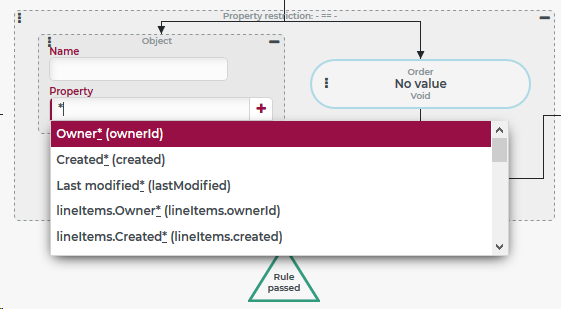
**NOTE:** In consideration of run times for the execution of searches, the use of **non-indexed properties** in conditions, sort criteria, grouping and joins should be avoided whenever possible. To facilitate the design of efficient searches, the names of **indexed properties** appear with a suffixed asterisk in the context of search definitions. As shown in the following example, the asterisk can also be used as a search criterion to limit dropdown choices to indexed properties:
## Search types
There are three **Types** of search definitions:
| Search type | Search result | Format | Basic example |
| --- | --- | --- | --- |
| **Search** | All instances of an entity that match given criteria, if any. | XML | ```xml Super user limited 1 ~ ``` |
| **Tuple search** | A two-dimensional XML list format, returning multiple rows (`result.row[]`) with typed data (`row.item[]`) and columns defined by projections (`columns.name[]`). | XML | 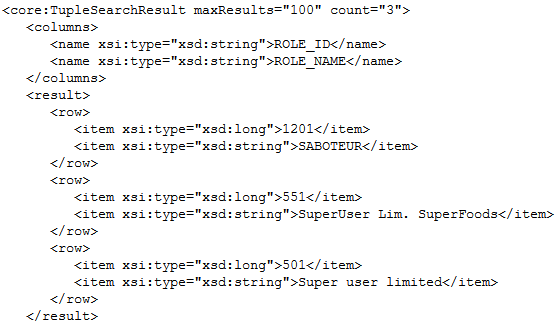 |
| **CSV search** | A two-dimensional CSV list format, resembling the same contents as a tuple search. The example to the right shows the same results as the tuple search example in CSV representation | CSV | 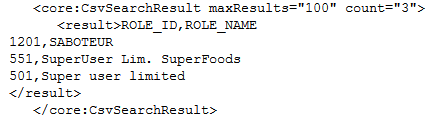 |
In the following the general functionality of the search builder is described by examples.
Queries to the **Lobster Data Platform/Orchestration** database are handled as search objects, exchanged between client and server in XML format. In imports (see [Import](/v1/docs/en/orchestration-integration-import)), Lobster assumes the client role and provides search objects in XML format.
The following example shows the XML representation of a search (with irrelevant content skipped as "..." for better transparency):
XML of a search
```xml
like
Smith
```
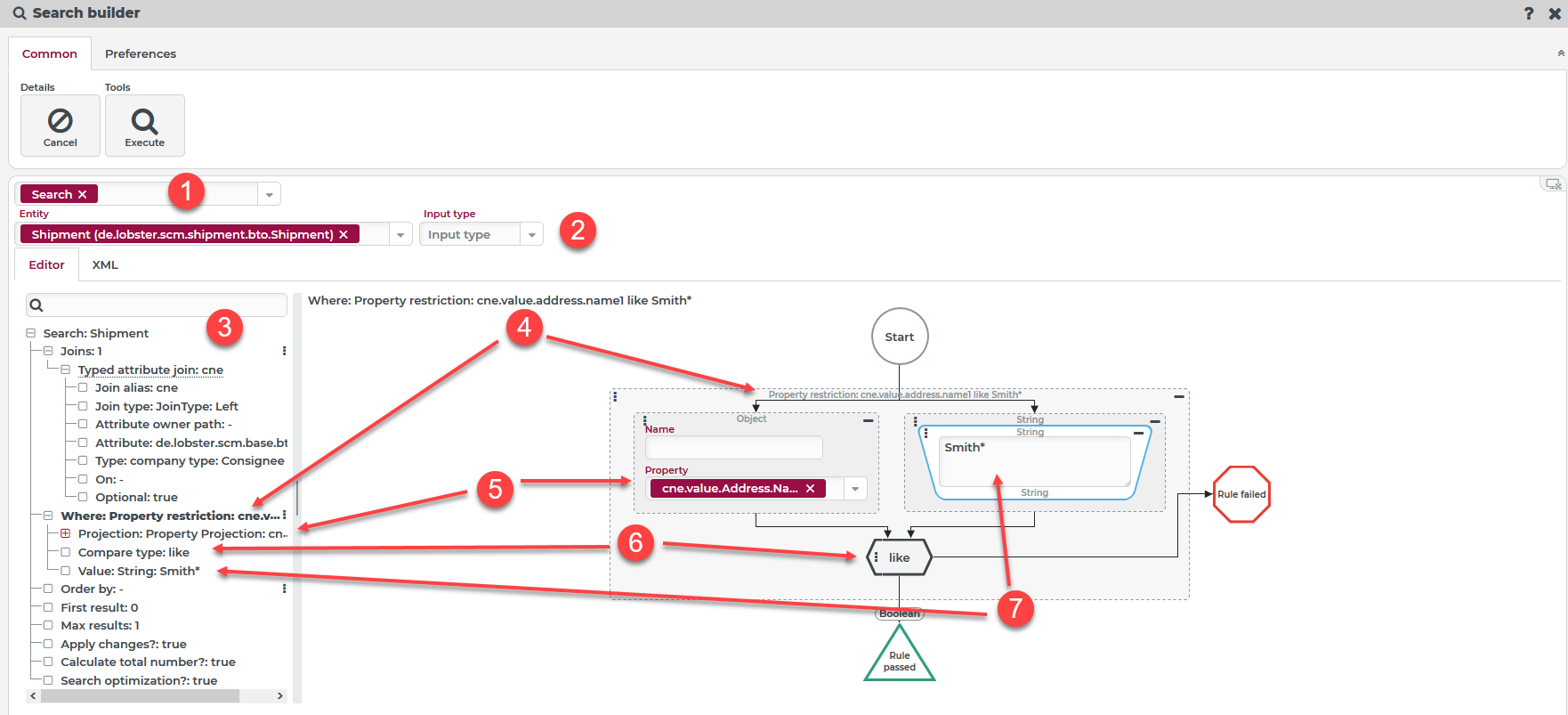
**(1)** The type of search (see [Search types](/v1/docs/en/core-abstract-search)) must be selected. The main difference between search types is the data format of results (data objects, tuple objects, CSV).
A search task always requires the specification of an **Entity (2)**, to define the type of data object to return, similar to the FROM-clause of a SELECT-statement. This choice defines the value of the entity attribute in the root node of the XML.
The elements of the search definition are also represented in a tree view **(3)** at the left side of the view. The main window of then view shows details **(4)** depending on the selection in the tree view. In the screenshot above, a Where-condition (with property restriction) is selected.
A **Where (4)** condition resembles the WHERE-clause in SQL. It combines a **Projection (5)** (see [Projections](/v1/docs/en/core-i-search-projection)) with a restriction **(6)** (see [Restrictions](/v1/docs/en/core-i-search-restriction)).
In the example above, the **Where (4)** condition specifies a **Property** **(5)** restriction for the name1-property of the consignee-address`(cne.value.address.name1)` which is matches by **like (6)** against a plain text criterion **(7)** ("Smith*").
## Editing search definitions
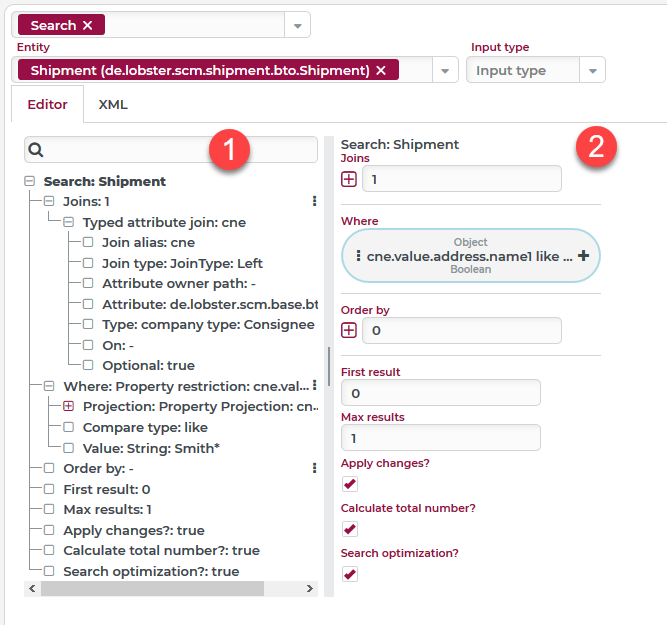
Generally, editing a search definition is possible from the tree view **(1)** on the left as well as the details view **(2)** on the right.
The content displayed in the details view **(2)** depends on selection in the tree view.
## General settings
To edit general setting for a search, the top node in the tree view should be selected. This will show general settings in the details view to the right, below the **Joins**, **Where** and **Order by** areas explained in the following sections.
**First result** defines an offset (e.g. for paging) and the **Max results** specifies the limit for results to return.
The option **Apply changes?** is checked by default, to enable a flush of data changes when a search is executed in a transaction. Unchecking this option suppresses the flush.
The option **Search optimization?** is checked by default, to ensure performance optimization by automatically skipping optional Joins not used in a search.
The option **Calculate total number?** is checked by default, so the total number of results is determined by a COUNT-statement and returned in the count attribute of the search result.
Examples:
Scenario: 23 of the shipments accessible in the context of a session match the criteria of a search.
| Settings | Results |
| --- | --- |
| 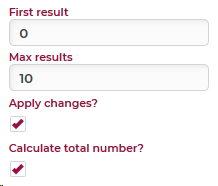 |  The total number of 23 shipments is determined in attribute "count". 10 rows (rows 0 to 9) are returned. The count does not match the number of rows returned. |
| 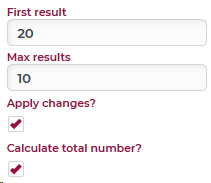 |  The total number of 23 shipments is determined in attribute "count". 3 rows (rows 20 to 22) are returned. The count does not match the number of rows returned. |
| 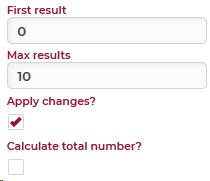 |  The total number of rows is not determined. 10 rows (row 0 to 9) are returned. The "count" attribute indicates the number of returned rows (10). |
| 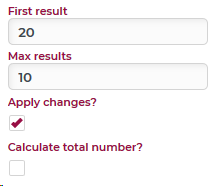 |  The total number of rows is not determined. 3 rows (rows 20 to 22) are returned. The "count" attribute indicates the number of returned rows (3). |
## Join
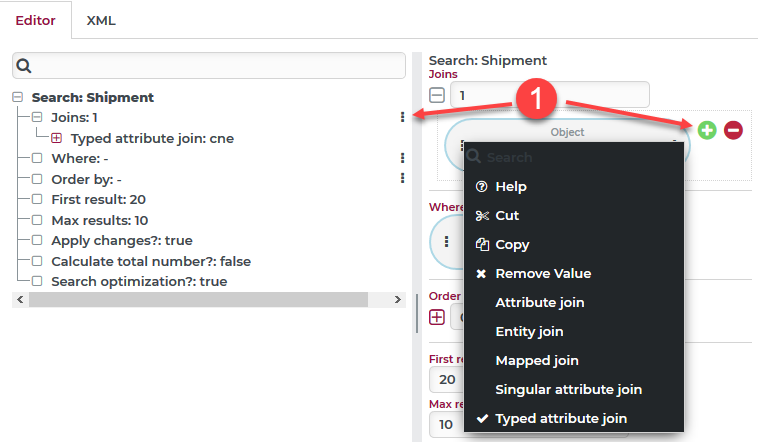
**Joins** can be added to a search definition by clicking either of the icons indicated by **(1)** in the screenshot. The context menu features various types of joins (see [Joins](/v1/docs/en/core-abstract-join)).
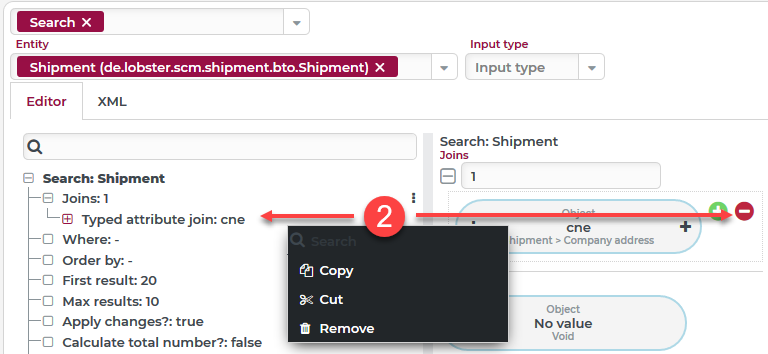
To **Copy**, **Cut** or **Remove** a join, click as indicated by **(2)**. Clicking the tree element opens the context menu.
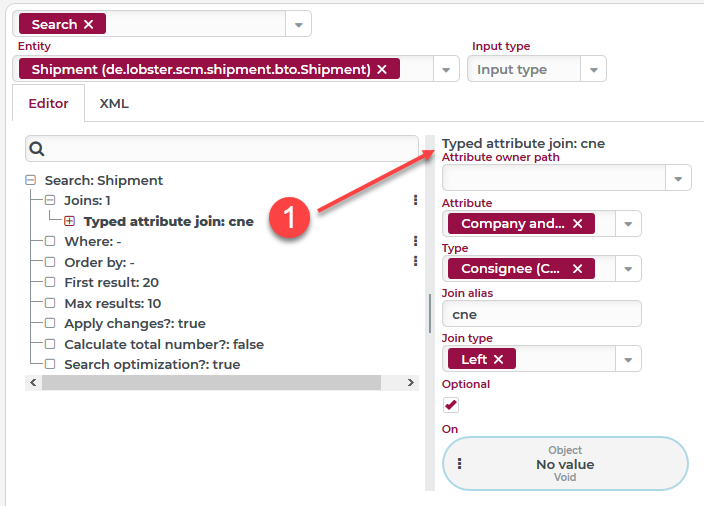
Clicking a join-node in the tree view **(1)** produces the details for editing on the right.
## Sorting (Order by)
Defining a "search order" for a search is optional.
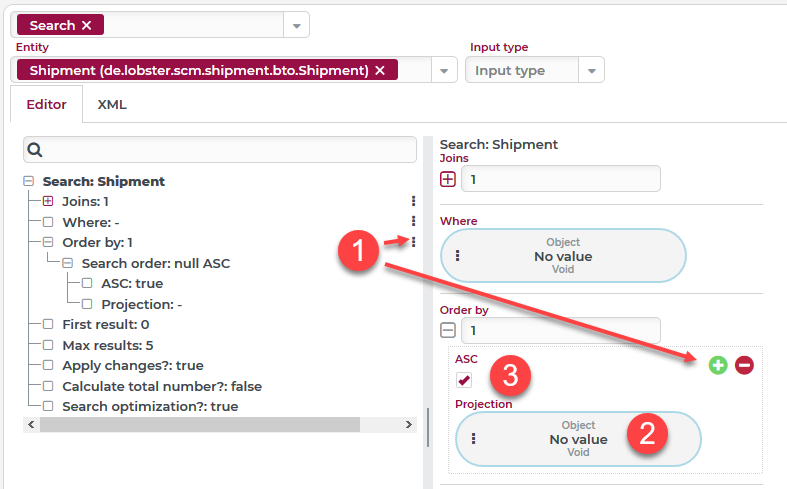
By clicking **(1)** one or more sort criteria (SearchOrder-objects) can be added.
Each sort criterion combines a **Projection (2)** with a direction **(3)**. The **ASC** option defines ascending order when checked (default), and descending order when unchecked.
## Show and apply XML definition
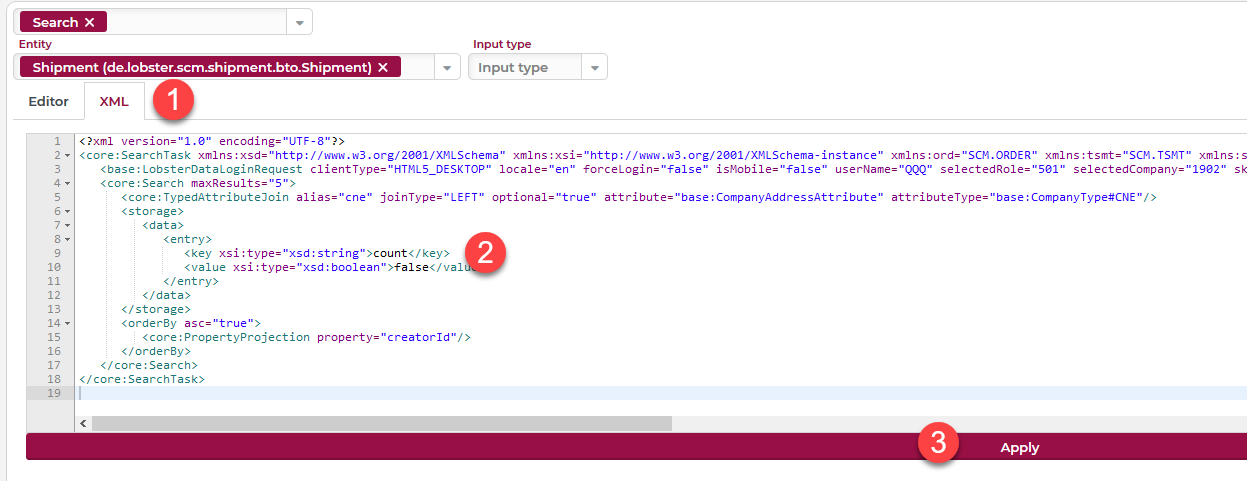
Switch to the **XML (1)** tab to show the XML definition **(2)** of the current search in a highlight-editor, which also supports editing (incl. copy & paste). Edits to the XML must be committed by clicking **Apply (3)** to become effective and available in the **Editor** tab.
## Execute search
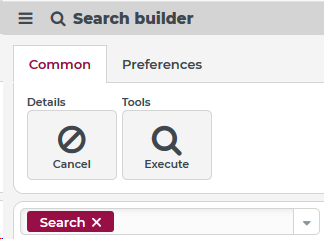
Click on **Execute** in the ribbon of the search builder to execute the current search.
Search results will appear in XML format in a new browser tab.
A search might produce output like the following:
Example:
```xml
...
...
...
```
The search results includes the number of rows or objects returned (or total count determined with option "Calculate total number?") and the maximum number of results (see "Basic settings") defined for the search.
## Copying searches from overviews
To copy the definition of a Tuple search object (in JSON format) to the clipboard, click the **Search** button in any kind of overview using the Ctrl key (Windows) or CMD (macOS). This will provide you some snapshot of the overview’s features.
- All column **Projections** (regardless of visibility in overview) in sequence of overview.
- Applicable filters in the overview transformed to **Where** conditions.
- Applicable sort criteria in the overview as **Order by** parameters.
- All **Joins** required by projections etc.
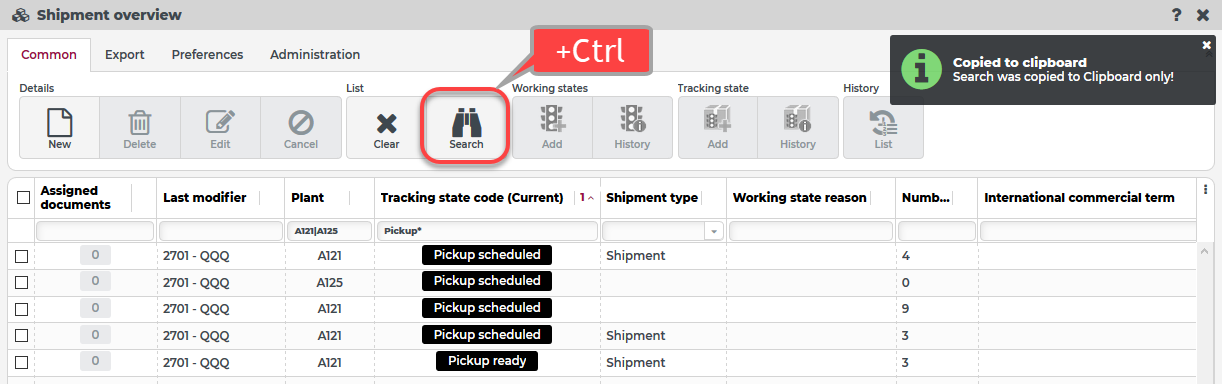
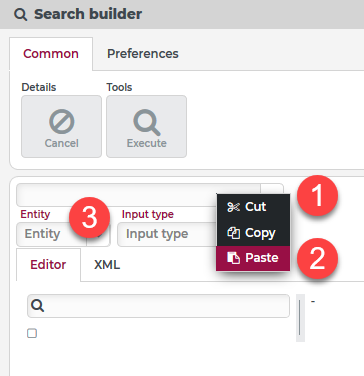
The search object can be pasted from clipboard into the **Search builder** via the context menu item **Paste (2)** of the search type combobox **(1)**. The definition of the search object appears in the tree view and the details section.
**IMPORTANT:** An interactive choice for **Entity (3)** is necessary before or after pasting the search object to be able to execute the query. /glos