This guide describes how to configure time-based two-factor authentication (TOTP) for users of the Lobster Data Platform. By the end, you will have enabled a TOTP handler in the server configuration, registered an authenticator device for a user, and verified the login process with 2FA. The method described here does not require event handling and is therefore quick to set up.
Upon completion, you will have:
Enabled a TOTP handler in
auth.xml.Registered an authenticator device for a user.
Successfully verified a 2FA login.
Would you like to implement 2FA using event handlers? See also: Two-factor authentication (Concept).
NOTE:
This simpler activation method is available starting with version 25.0.5 of the Lobster Data Platform.
Requirements (2FA)
Access to the Lobster server's file system (via SSH or directly).
Administrator access to the Lobster Data Platform with the super user role.
A TOTP authenticator app on a mobile device (e.g., Google Authenticator).
Lobster Data Platform version 25.0.5 or later.
Register a TOTP handler
The 2FA configuration is currently set up in the XML file $HUB_HOME/etc/auth.xml.
Open the file in a text editor:
nano $HUB_HOME/etc/auth.xmlCAUTION:
In older versions, the template provided in the
auth.xmlfile should first be discarded.It contains invalid
//comments. In XML, the use of such syntax is not permitted and results in runtime errors.The label
passwordLengthis misleading. This actually refers to the length of the token, not the password.
Therefore, do not use the default template as a template; instead, copy and use the call shown below.
Insert the following block:
  <Call name="addTFAHandler">
    <Arg>com.ebd.hub.services.auth.tfa.otpauth.TOTPHandler</Arg>
    <Call name="addDeviceTemplate">
      <Arg>YourHandlerName</Arg> <!-- TOTP handler name -->
      <Arg>10</Arg> <!-- max login attempts -->
      <Arg>30</Arg> <!-- token interval in seconds (default is 30) -->
      <Arg>6</Arg> <!-- token length (should be 6) -->
      <Arg>HmacSHA512</Arg> <!-- token hash algorithm -->
    </Call>
  </Call>
Save the file.
Meaning of the parameters (in this order):
YourHandlerName: A name of your choice for the TOTP handler. It appears in the interface as the label for the registration button. Choose a meaningful name for your installation.10: Maximum number of login attempts.30: Token interval in seconds. The default value is 30.6: Token length. Must be 6. TOTP tokens are six digits long in all common apps.HmacSHA512: Hash algorithm for token generation. Recommended for current installations.
Restart the Lobster service
For the changes to take effect, the Lobster service must be restarted.
Restart the Lobster service, for example:
systemctl restart lobster
NOTE: Starting with Release 26.2, exclusively via the Lobster Application Wrapper.Wait until the service has fully started.
Register an authenticator device for an individual user
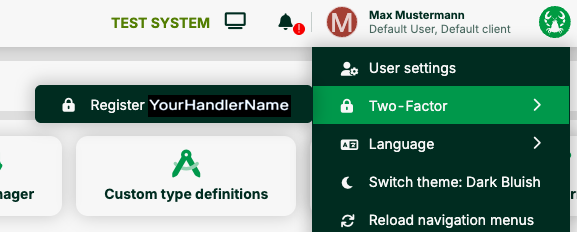
After restarting, a new button will appear in the user menu.
Click your username in the upper-right corner. Select Two-Factor > Register [YourHandlerName].
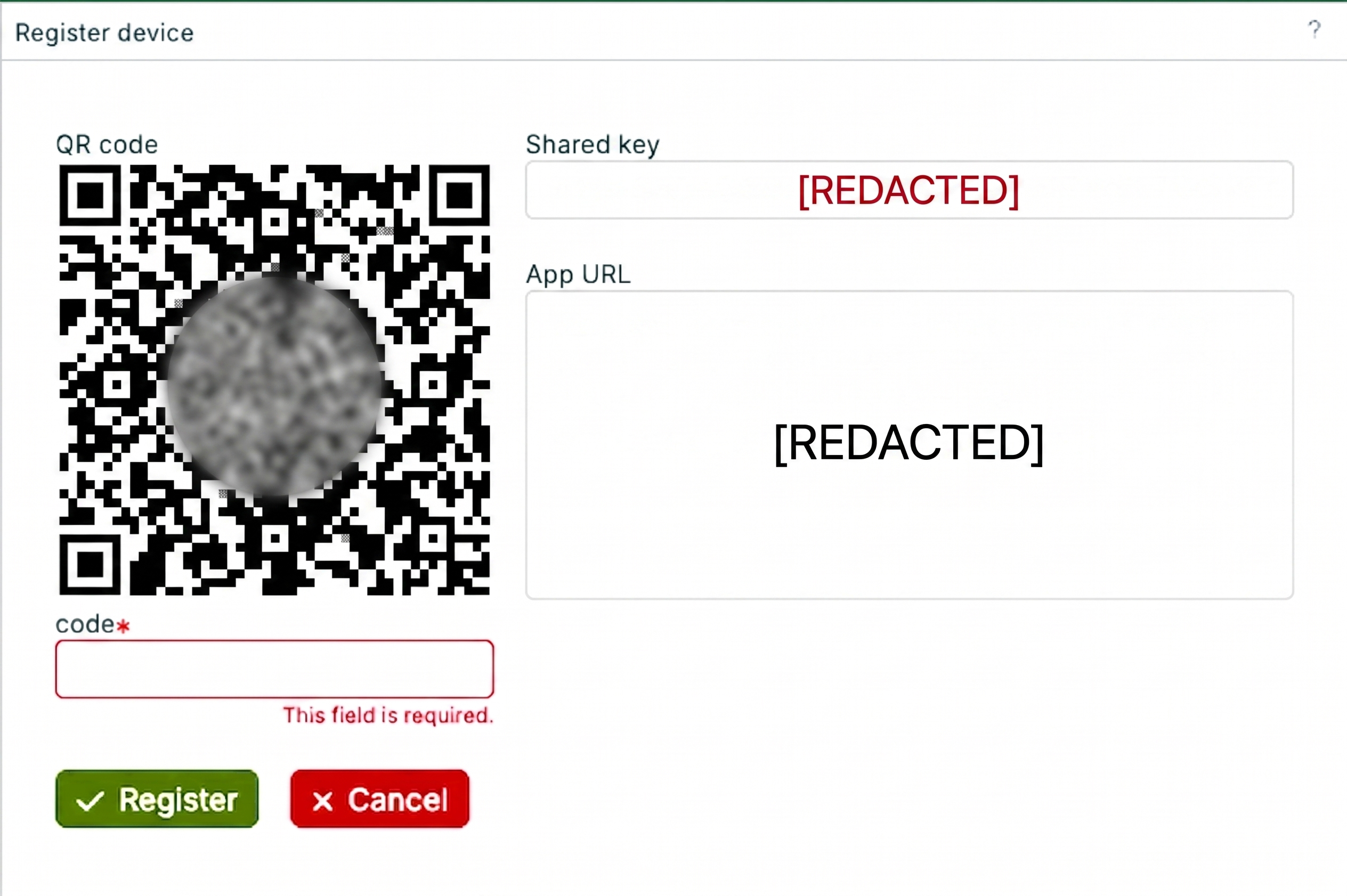
The Register device dialog box will open. It contains:
A QR code
The corresponding shared key
The app URL
Open the authenticator app on your mobile device.
Select Add account > Scan a QR code.
Scan the QR code.
Alternatively, you can enter the shared key manually in the app.
The app now displays a six-digit code.
Enter it in the required field code*.
Click Register.
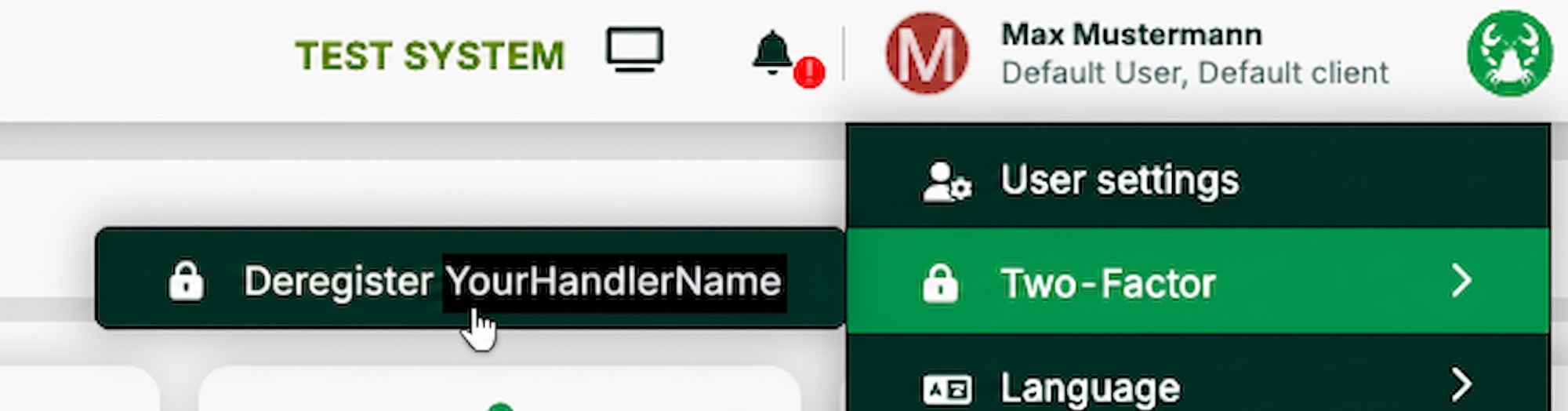
Once registration is complete, the button will change to Deregister [YourHandlerName]. This means the device is now properly linked.
Login: 2FA verification
Click Logout to sign out.
Please log in again using your regular username and password.
After entering your password, the 2FA Verification screen appears with the message "Please enter your code".
Open the authenticator app.
Enter the current six-digit code.
Enter the code in the input field.
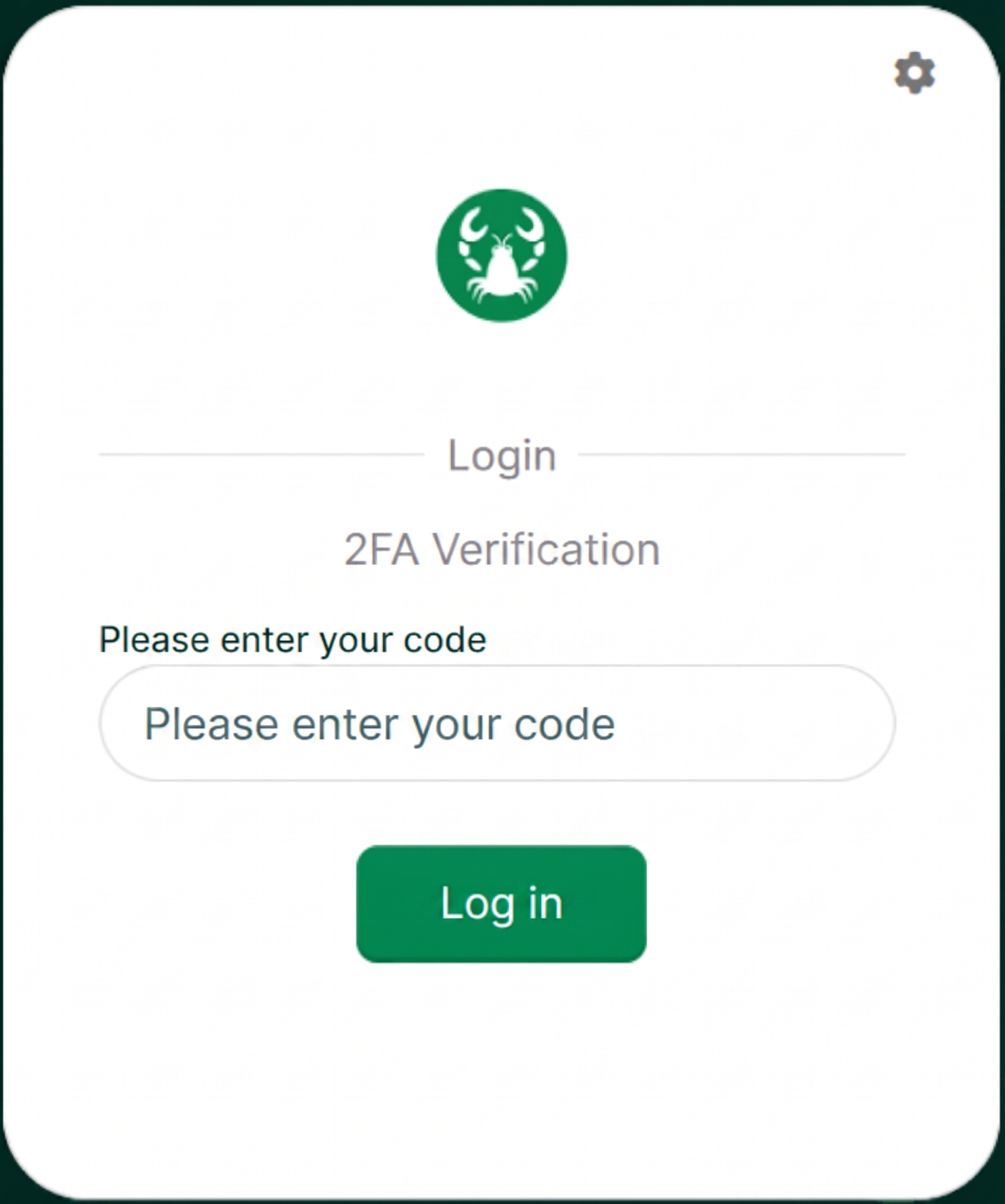
Click Log in to confirm.
Once you've entered the information successfully, you'll be logged in and 2FA will be enabled for your account.
Register 2FA for other users (as an administrator)
Starting with version 25.05 of Lobster Data Platform administrators can register 2FA devices directly from the user overview.
Click Administration > Accounts > Users.
Select the relevant user from the list.
Click Register [YourHandlerName] in the toolbar.

The same QR code dialog opens as in the section Register an authenticator device for an individual user.
Provide the user with the QR code or the shared key.
The user scans the code with their authenticator app and gives you the six-digit code.
Enter the code in the code* field.
Click Register.
Deregister authenticator device
As a user:
Click your username in the top-right corner. Select Two-Factor > Deregister [YourHandlerName].
As an administrator:
Click Administration > Accounts > Users.
Select the relevant user from the list.
Click Deregister [YourHandlerName] in the toolbar.
After deregistration, 2FA verification is disabled for the user. The user can still register again for 2FA.
Known limitations
Microsoft Authenticator
NOTE:
Microsoft's Authenticator app only supports SHA-1. In this case, set
HmacSHA1as the hash algorithm. For all other common authenticator apps, we recommendHmacSHA256orHmacSHA512.
Two options:
Use
HmacSHA1in the configuration.Recommend that affected users use a different authenticator app (e.g., Google Authenticator).
Configuration via XML file only
This type of configuration is currently only possible via auth.xml. A service restart is required. UI-based configuration is planned for the near future.
User self-deregistration
Users can deregister their own 2FA handler in the profile menu.
Currently, the only way to prevent this is by configuring event handlers accordingly.