Enables the scanning of one or more barcodes via a connected camera. Using the read barcode trigger, the Barcode scanned can be passed on to the behavior. To control barcode reading, two actions are offered: Start scanning barcodes and Stop scanning barcodes.
Barcode reader properties
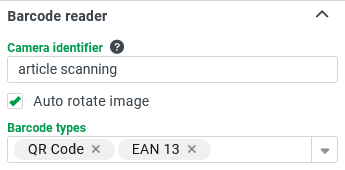
Camera identifier: An arbitrairy ID which is mapped to the user selected camera and gets stored in the local memory of the browser. If a user loads a barcode reader with the same identifier, the same camera will be initially used.
Auto rotate image: Automatically rotates the image to increase the possibility of a detection. This is a bit slower, but prevents the user from rotating the camera or the document in order to get a proper scan.
Barcode types: Limits the barcode types to be scanned. If no barcode types are selected, all will be identified. NOTE: The fewer types that are defined, the better the performance of the identification.
Once the barcode reader detects a code during run time, the Barcode scanned trigger will be dispatched.
Barcode reader behavior
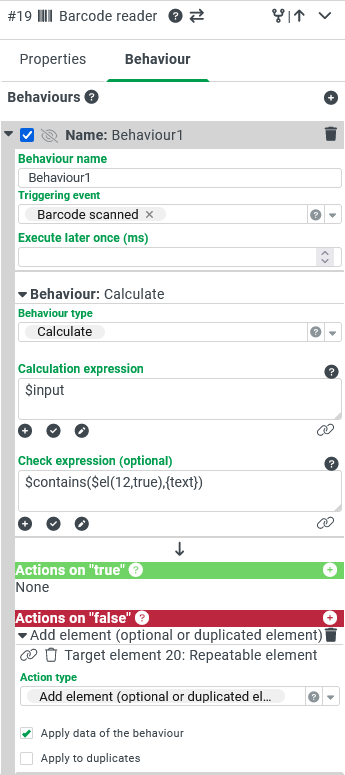
Triggering event: Barcode scanned triggers the behavior. (A barcode was detected).
Behavior type: With the "Calculate" behavior, for example, the read barcode and the barcode type can be further handled. Here only the input is determined.
Check expression (optional): Further behavior can be determined with a check expression. For example: with $contains($el(12,$true), {text}) it can be checked whether the read barcode has already been read (prevent duplicates). The element with the ID 12 is a repeated text field, which loads the read barcode texts as value.
If, in this example, the check expression returns false, the barcodes are added as a new repeated entry.
Barcode reader element at runtime
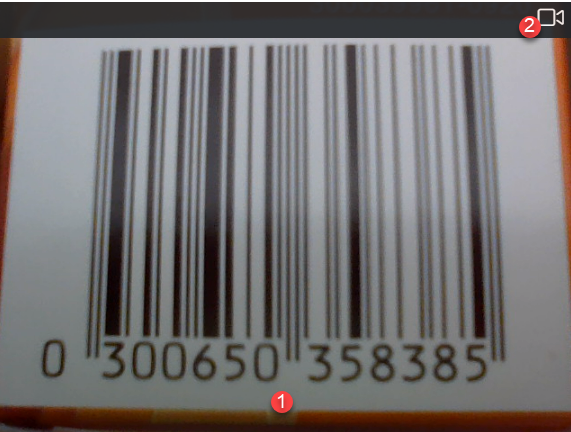
(1) Video – camera image: The scanning happens automatically and with the behavior and the actions it is possible to react to it.
NOTE: The barcode reader does not stop automatically when a code is detected. However, this can be triggered by the Stop scanning barcodes action.
(2) Camera icon: Selection of the camera to use.