---
title: "MongoDB setup"
slug: "intro-external-systems-databases-mongodb"
updated: 2026-07-29T08:53:26Z
published: 2026-07-29T08:53:26Z
canonical: "docs.lobstersoftware.com/intro-external-systems-databases-mongodb"
---
> ## Documentation Index
> Fetch the complete documentation index at: https://docs.lobstersoftware.com/llms.txt
> Use this file to discover all available pages before exploring further.
# MongoDB setup
> [!WARNING]
> **IMPORTANT:**
>
> Databases and JDBC drivers used to access databases are third-party products and are neither supported nor provided by Lobster. Any support or advice on databases or JDBC drivers that may nevertheless be provided by the Lobster support is voluntary and in no way implies a transfer of responsibility to them. The installation, operation and maintenance of databases/JDBC drivers, or measures carried out on them, are always and without exception the responsibility of the customer. The Lobster support will of course be happy to assist you with the configurations necessary in your system to connect functioning third-party systems.
This guide describes how to connect a MongoDB database. This does not cover the setup of MongoDB itself. Please use the MongoDB manuals for this.
## Basic requirements
You should already have the MongoDB driver "mongo-java-driver.jar" in your "./lib" directory. If not, please contact our support staff.
## Configuration file ./etc/mongodb.xml
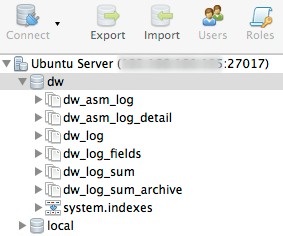
The database alias for logging must be named *_data.* If this is not done, the logging will not be switched to the MongoDB!
Pooling and caching is done by the driver itself. Option *catalogName* references to the database holding the so-called collections. Since MongoDB supports clustered servers, you can define multiple servers under one alias. See the following example.
**IMPORTANT:** The following configuration variant is only valid from Lobster Integration version 4.6.5 (before that, the old variant applies).
```xml
False
_data
mongodb://[username:password@]host1[:port1][,...hostN[:portN]][/[defaultAuthDB][?options]]
hugo
```
So, for example:
```xml
...
_data
mongodb://mongouser:mongopassword@localhost/admin
dw
...
```
The password can also be specified in [Obfuscation](/v1/docs/en/intro-concepts-obfuscation) form with the placeholder ** (in escaped form, exactly as shown below, whereby *mongouser* and *myObfuscatedPassword* still have to be replaced, of course.) and an additional line.
| ... mongodb://mongouser:<password>@localhost/admin OBF:myObfuscatedPassword ... |
| --- |
### Reacting to change events
It is possible to respond to change events in MongoDB. If a defined change event occurs, [Macros](/v1/docs/en/phase-3-target-structure-macro) can be triggered. The macro must have the access type “Everyone” and can be specified by ID or name. Specifying the name is helpful if the macro does not yet exist at startup and is only created later (and you do not yet know the ID).
> [!NOTE]
> **NOTE:**
>
> - Listeners are only active on the Node Controller in a Load balancing system. If listeners are defined on a Working Node and the working node becomes the node controller, these listeners are activated.
> - If the connection is briefly interrupted (error), the process will resume after the last event received (MongoDB refers to this as “resumeAfter”). This does not apply to server restarts or restarts of the MongoDB service. In this case, the process will start with the first event after the restart.
```xml
...
some_alias
mongodb://mongouser:mongopassword@localhost/admin
myDB
myDB
events
Macro MongoDBEvent
-1
false
true
...
```
| Parameter | Description |
| --- | --- |
| database | The database. |
| collection | The collection. |
| aggregate pipeline | This defines which events are responded to. In this case, “update” and “replace.” |
| macro name or id | Specify the macro by name or ID. |
| client id | The client (ID) for which the listener applies. Here, -1 for the default client. |
| report full document or only id | If *false*, only the _id of the document is passed to the macro. If *true*, the entire document is passed. |
| show result of macro in log | If *true*, the result of the macro is logged. |
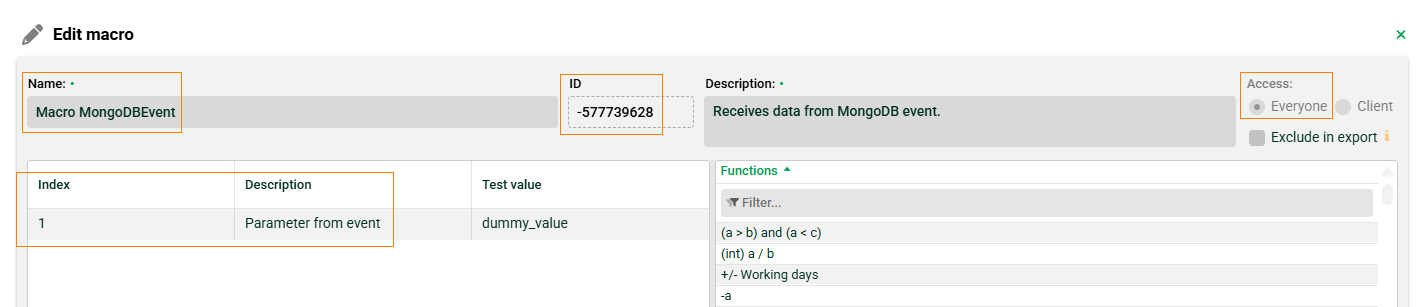
Another example where events of type “update/insert” and “replace” are handled with different macros:
```xml
...
myDB
events
Macro MongoDBEvent for UPDATE and INSERT
-1
false
true
myDB
events
Macro MongoDBEvent for REPLACE
-1
false
true
...
```
## Configuration file "./etc/factory.xml"
Enable or add the following section in your file *./etc/factory.xml* (right after adding the MongoDBConnectionService).
```xml
com.ebd.hub.services.nosql.mongo.MongoDBConnectionService
etc/mongodb.xml
```
## Next job number
The next available job number can be created by two methods. Using the internal storage service or a database. When using MongoDB, you have to use the database.
> [!WARNING]
> **IMPORTANT:**
>
> - If the database does not return a job number (e.g. because the database *hub* cannot be reached), Lobster Integration is terminated.
> - You can find examples in file *./conf/samples/db_sequence.sql*
### Example for MySQL
```sql
CREATE TABLE `seq_jobnr_dw` (
`val` bigint(16) unsigned NOT NULL
)
SET GLOBAL log_bin_trust_function_creators = 1;
delimiter //
create function getNextJobNr() returns bigint
begin
update hub.seq_jobnr_dw set val=last_insert_id(val+1);
RETURN last_insert_id();
end
//
```
Then add the following option to the configuration file *./etc/startup.xml*.
```xml
select getNextJobNr()
```
### Example for MSSQL
```sql
create sequence getNextJobNr as BIGINT start with 1 increment by 1;
```
Then add the following option to the configuration file *./etc/startup.xml*.
```xml
SELECT NEXT VALUE FOR getNextJobNr
```
### Example for Oracle
```sql
CREATE SEQUENCE GetNextJobNr
START WITH 1
INCREMENT BY 1;
```
Then add the following option to the configuration file *./etc/startup.xml*.
```xml
SELECT GetNextJobNr.NEXTVAL FROM dual
```
## Archive option in "./etc/startup.xml"
By using MongoDB, you can move outdated log entries of jobs into a different collection. To do so, add the following.
```xml
30
900
```
In this example, all log entries older than 30 days will be moved to the archive collection and will be deleted from there after 900 days. When requesting log entries older than 30 days, they will be searched for in the archive collection rather than in the normal one.
The archive is accessed when a time period within the archive is requested under **Control Center > Logs > Overview**.
## Log migration
When your system has been started successfully, you can merge your old log messages of the SQL database into MongoDB. The migration will be done in the background, so do not stop the server until the job has finished!
Open the Admin console and navigate to "Class execution". Enter *com.ebd.hub.datawizard.log.mongodb.TransferLogEntries* as the class name and the used database alias of the SQL logging (normally this is *hub*). Optionally, you can enter the DataCockpit alias if configured. Execute the class and check file *./logs/wrapper.log* on Windows or *./logs/console.txt* on Unix/Linux systems. A message like *Finished, overall time is XXXs* will be output at the end. Only table *dw_log_sum* will be migrated to the MongoDB. If you need old detail logs, you have to select them from the old *dw_log* table.
## MongoDB and DataCockpit
If you are using a MongoDB and DataCockpit, please insert an entry like the following in file *./etc/startup.xml*
```xml
hub
8020
first.last@lobster.de
999
2
Main Server
```
and additionally in file .*/etc/mongodb.xml*
```xml
_data
mongodb://localhost:27017
hugo
hub
mongodb://localhost:27017
hugo
```
Controlling server in Lobster's optional Load Balancing module. The Node Controller distributes incoming tasks across several additional servers (Working Nodes) and coordinates them. The module is operated only through it; some tasks run only on it, and a DMZ server must point to the Node Controller.
The Lobster Data Platform's operating mode ensures high availability and scalability. A node controller accepts input data and distributes processing tasks to any number of working nodes using a round-robin or load-balancing algorithm. If the node controller fails, a working node takes over its role.
Additional server that takes on part of the processing within the optional Lobster Load Balancing module: it carries out the tasks assigned to it by the Node Controller. Multiple Working Nodes increase throughput. A Working Node can only be used once it has been activated in the Node Controller.
Central operational overview of the Lobster Data Platform. The Control Center displays running jobs, successful jobs, and error logs. Administrators use it to monitor operations, intervene in running jobs, and restart failed jobs.
The Integration Server's user interface for configuration, operation, and diagnostics. The Admin console manages services, users, passwords, databases, and system settings. It is independent of the Control Center and is intended for system administrators.