With the CSV editor you can import CSV files, manipulate them in a grid and then export them again.
Import
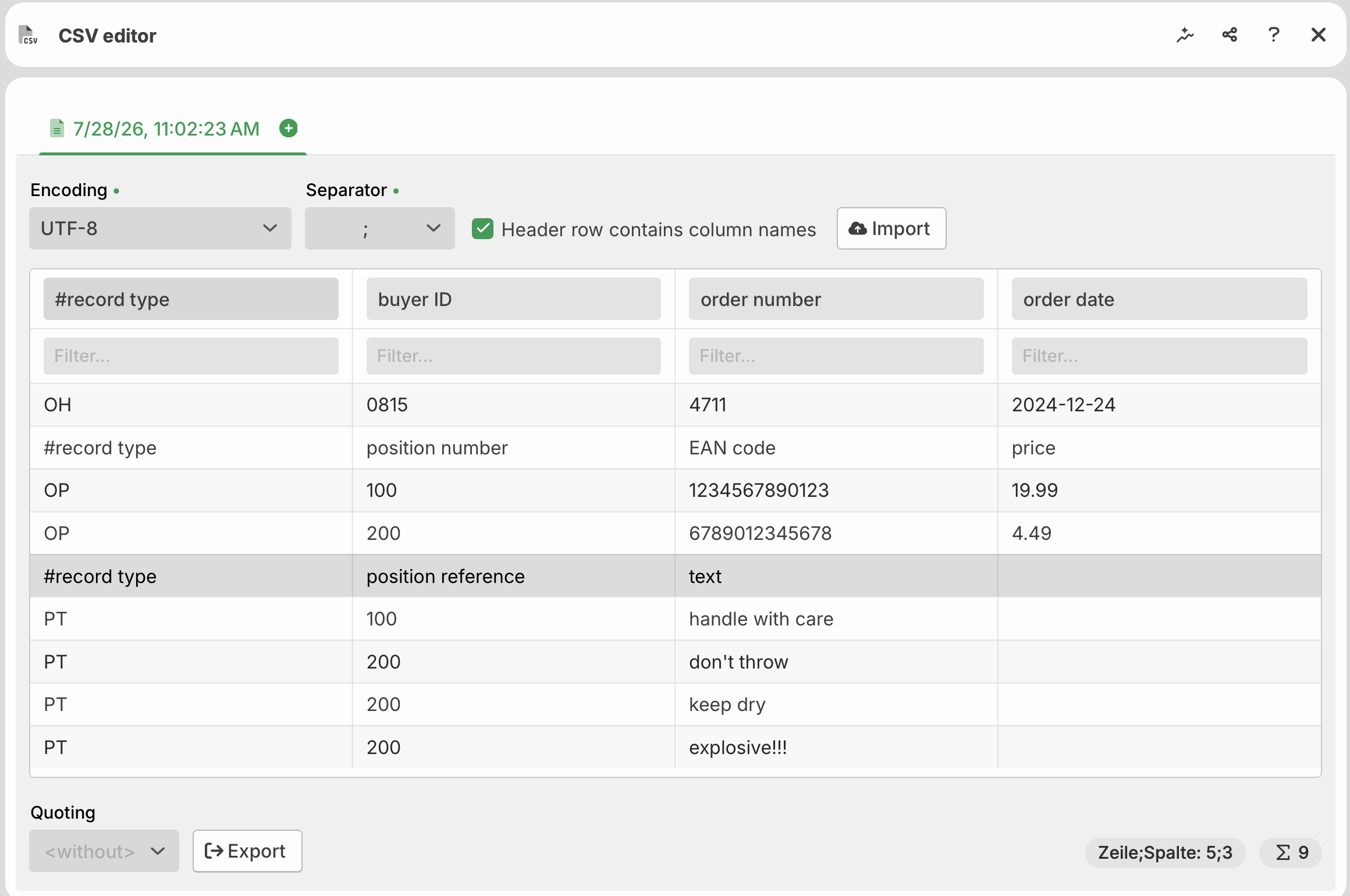
CSV editor displaying order details, including buyer ID, position references, and notes.
Import: Before importing the CSV file, set its encoding and separator. Also specify whether the header row contains the column names.
Top row: The header row.
Row below: Filter for the individual columns. Here you can enter search terms. Afterwards, only rows are displayed that contain the entered term as a substring in this column. NOTE: A search term can also be negated with a preceding exclamation mark "!".
Data manipulation via context menu
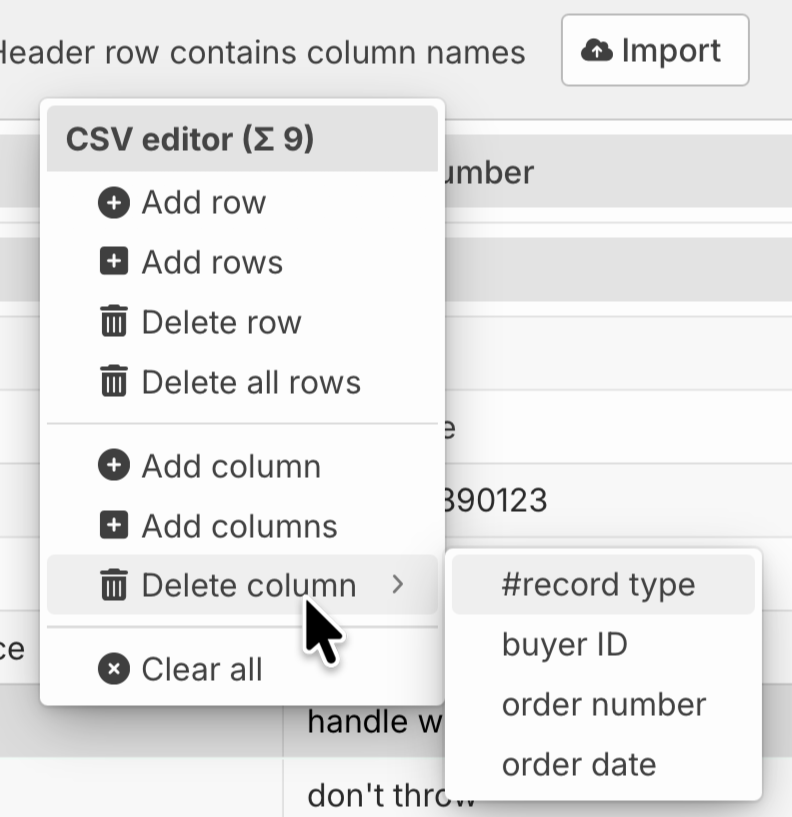
All columns and header columns can be edited by selecting them. In addition, further options are available via the context menu.
Add row: Inserts a row below the selected row.
Add rows: Inserts several rows, either below or above the selected row or at the end (selectable in a further dialog).
Delete row: Deletes the selected row.
Delete all rows: Deletes all rows, but not the header and filter row.
Add column: Adds a column on the far right.
Add columns: Adds several columns on the far right.
Delete column: Deletes a specific column that must be selected in a submenu.
Clear all: Deletes all rows, including the header and filter row.
Export
Quoting: Here you can select the quoting character for the column values when exporting.
Export: This button starts the export. The export uses the data as displayed — as you edited it, and as the filter has restricted it. The settings under Import determine the encoding, the separator, and whether the header row is exported.