With this plugin, you can run XPath queries on XML files. You can either enter the XPath expression required for the query yourself or have it generated by Pathfinder.
Navigation path
Plugins > Check XPath
Settings
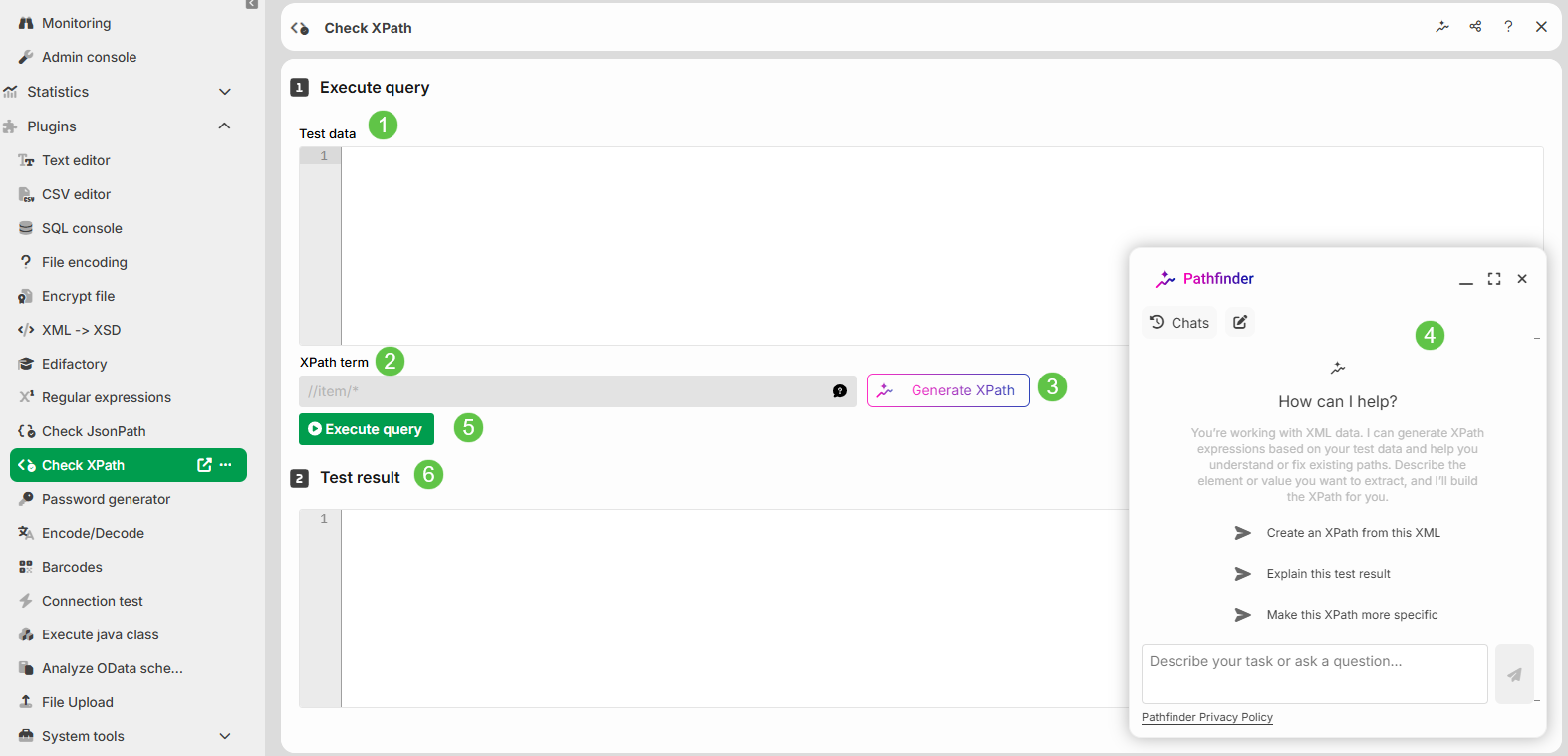
① Test data: The data to which the XPath expression ② is applied. NOTE: The test data must not exceed 1 MB. If the data comes from a file, the file size limit applies.
② XPath term: The XPath expression that is applied to ①. NOTE: This article does not cover XPath syntax in detail. You can find numerous examples online.
③ Generate XPath: Opens the Pathfinder chat window ④.
④ Pathfinder chat window: Here you can describe which element or value you want to read from the test data ①. Pathfinder then generates a matching XPath expression and explains how it works. An icon below the expression inserts it directly into the XPath expression field ②.
⑤ Execute query: Executes the query and writes the result to Test result ⑥.
⑥ Test result: The result of the query.
Example file
<?xml version="1.0" encoding="UTF-8"?>
<root>
   <expensive>10</expensive>
   <store>
      <bicycle>
         <color>red</color>
         <price>19.95</price>
      </bicycle>
      <book>
         <element>
            <author>Nigel Rees</author>
            <category>reference</category>
            <price>8.95</price>
            <title>Sayings of the Century</title>
         </element>
         <element>
            <author>Herman Melville</author>
            <category>fiction</category>
            <isbn>0-553-21311-3</isbn>
            <price>8.99</price>
            <title>Moby Dick</title>
         </element>
         <element>
            <author>J.R.R. Tolkien</author>
            <category>fiction</category>
            <isbn>0-395-19395-8</isbn>
            <price>22.99</price>
            <title>The Lord of the Rings</title>
         </element>
      </book>
   </store>
</root>
Generate XPath expression with Pathfinder
Insert your XML data into the Test data field.
Click Generate XPath. The Pathfinder chat window opens.
In the input field, describe which element or value you want to read. Example:
All books more expensive than the value in expensive.Pathfinder generates an XPath expression and explains how it works.
Click below the expression on
 . The expression will then appear in the XPath term field.
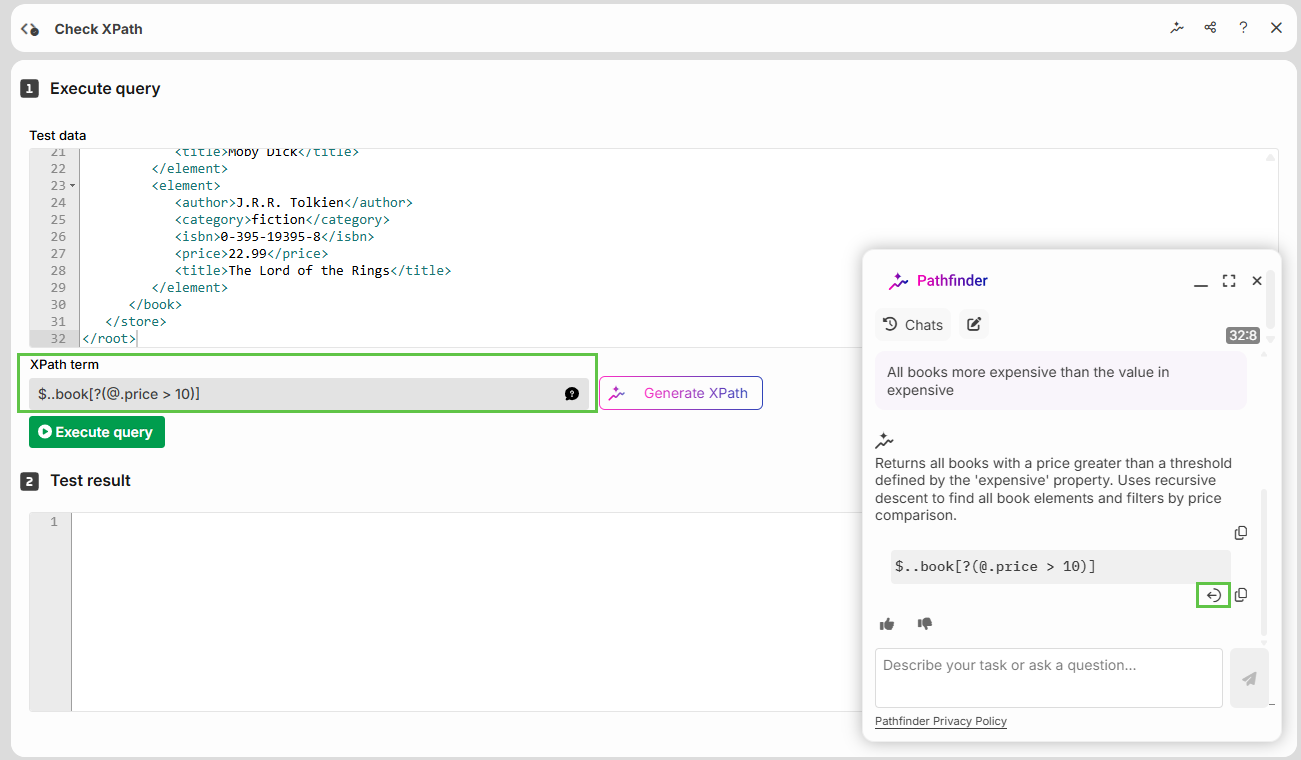
Click Execute query. The result appears under Test result.
TIP
If the test result is empty, describe to Pathfinder in the chat window what result you expected. Pathfinder will then check the expression against your test data.