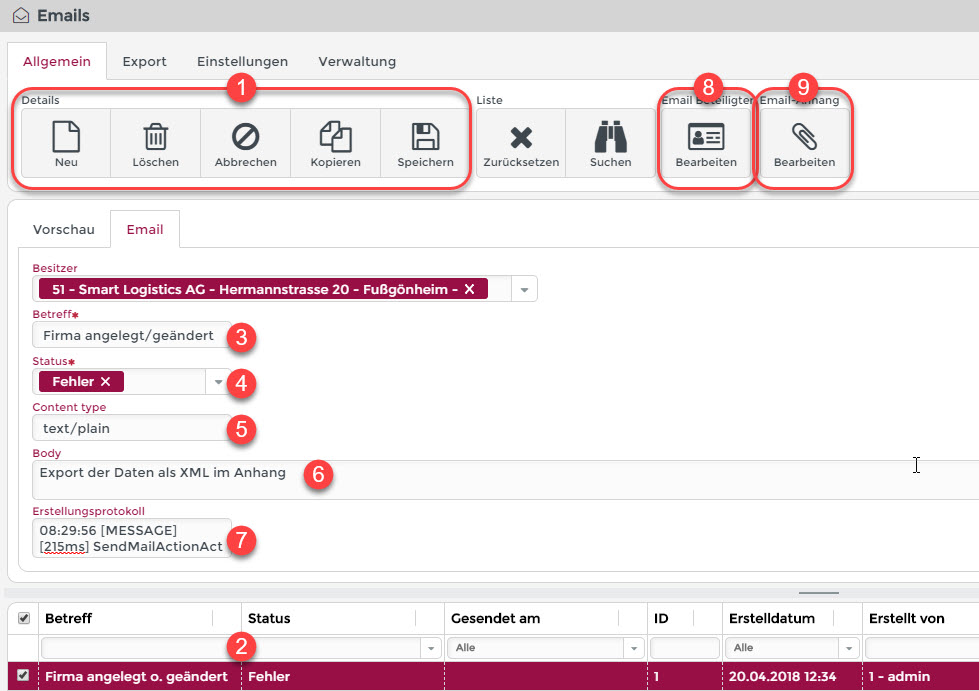
The screenshot shows the dialog for displaying automatically generated emails.
(1) New, Delete, Cancel, Copy, Save: The email entries can be saved in the database.
NOTE: Emails are not sent when saving. Sending is only done via the actuator in event handling (see also E-mail).
(2) List: List of generated emails.
(3) Subject: The subject text of the email.
(4) State: The current status of the email.
(5) Content Type: The content type of the email body. For mails either text/plain or text/html should be used. The body is then interpreted by the mail program accordingly.
(6) Body: The body of the email.
(7) Creation log: The log that was recorded when the mail was generated.
(8) Mail involved
(9) Mail attachment
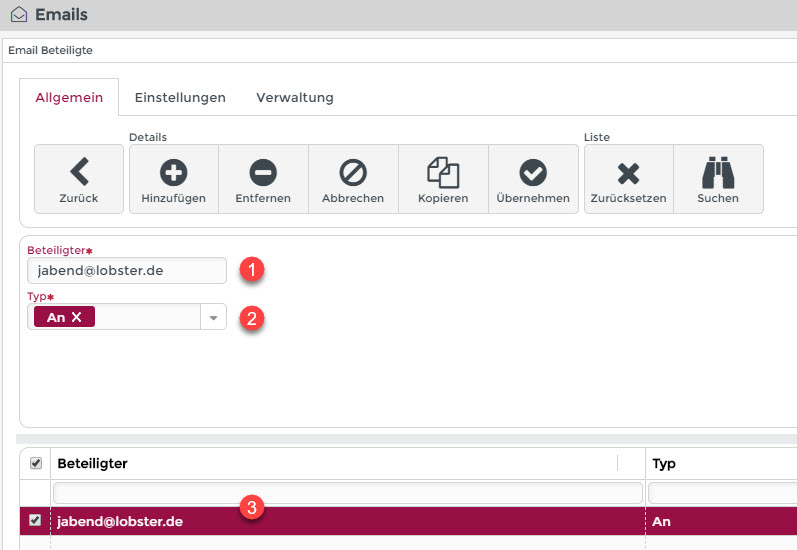
The screenshot shows the dialog for displaying the participants of automatically generated emails.
(1) Involved: The mail address of the involved party.
(2) Type: The type of involved party (From, To, BCC, CC).
(3) List of the parties involved.
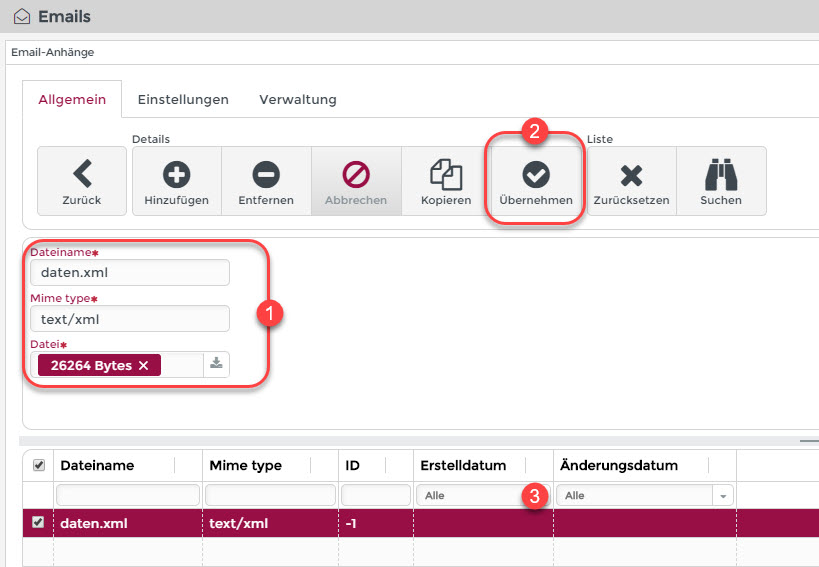
The screenshot shows the dialog for displaying the attachments of automatically generated emails.
(1) File name, Mime type, File: The file name and the mime type of the attachment, select file or drag and drop it in.
(2) Save: The attachment can be saved as a file.
(3) List of attachments.
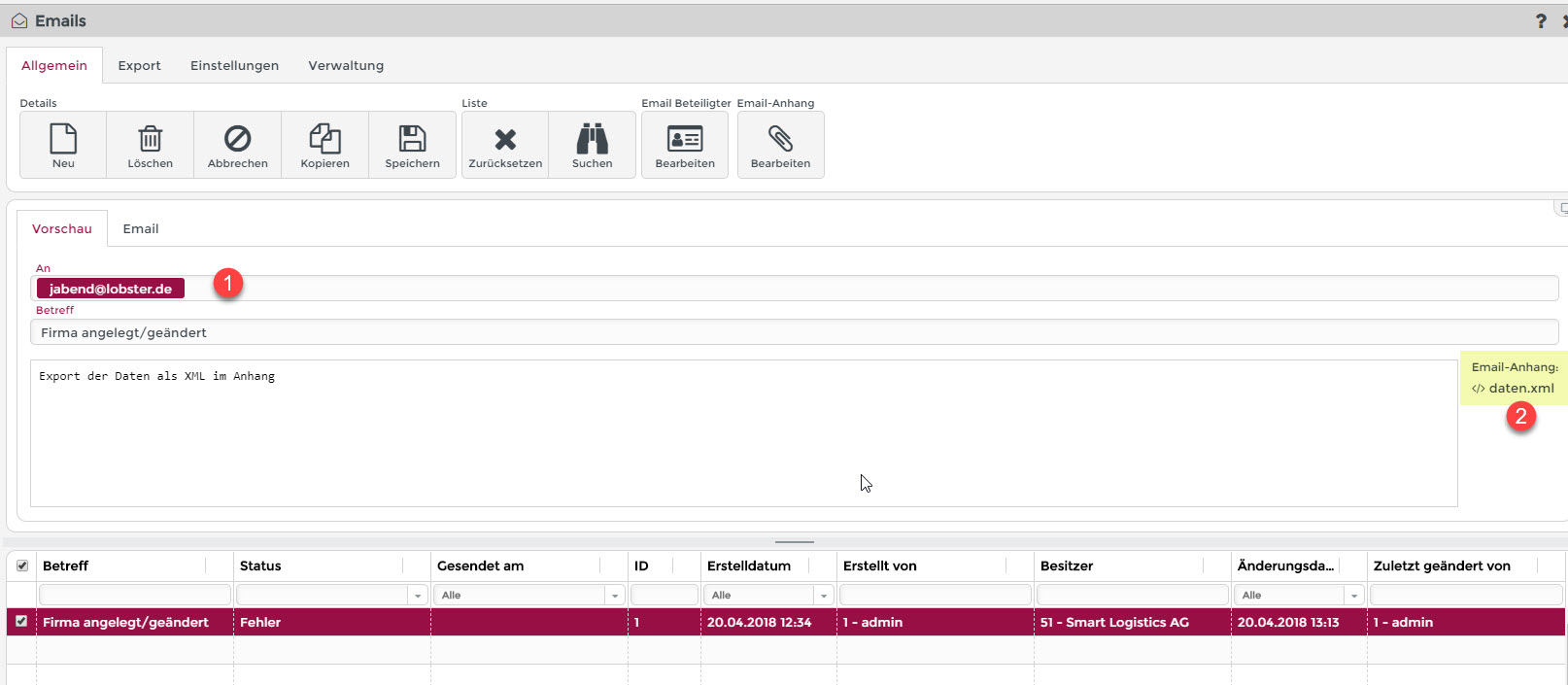
The Preview window shows the data for the email selected in the list below:
(1) Address data (here the recipient), Subject and below that the view for the mail body (as text or HTML, depending on the content type).
(2) Attachments: (if available ), which can also be opened from the preview by clicking on an application.
NOTE: After modifying an email, the preview is not updated until it is saved. This also affects changes to the involved parties or attachments.