Navigate to My Data Apps > DataCockpit > Search logs.
Here you find the job logs of all processes that have run.
Standard job overview
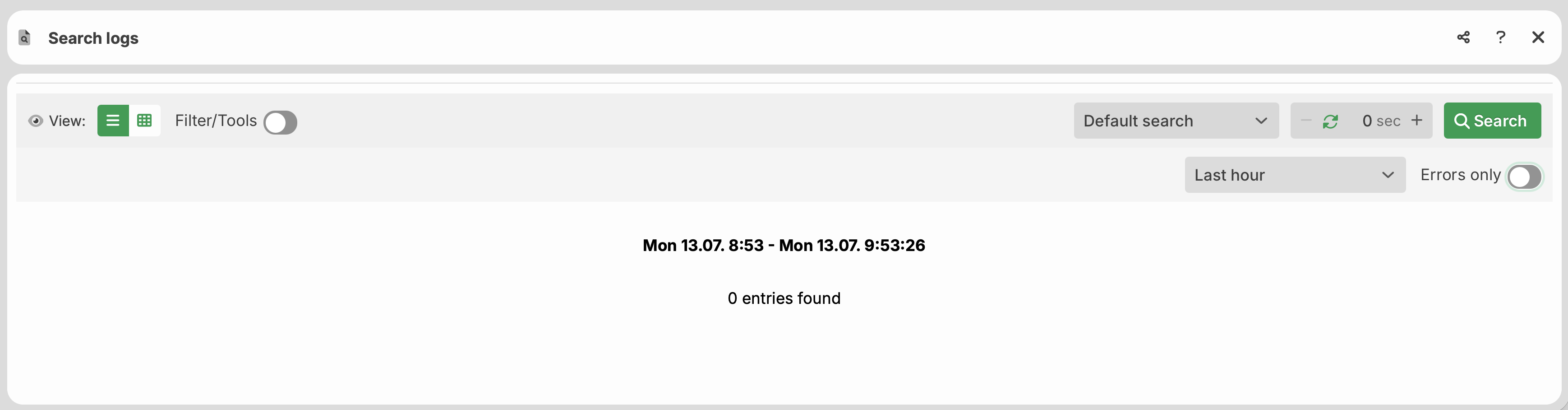
The list in the lower window area shows all jobs. Click a job entry to open the log view of the process job (see section Log view).
View: Use this option to switch to the extended view with the additional search options from the Extended search section.
.png)
This view shows all columns of the log entries, as you know from the Control Center. For details on the custom columns Display 1-3, see function set display column().
Filter/Tools: In this area, you filter and sort the log entries and download the displayed logs as a CSV file.
.png)
Filter: Filter the log entries by specific columns, as you know from the Control Center. For details on the custom columns Display 1-3, see function set display column().
Download icon in the top right: Downloads all displayed log entries as a CSV file.
Default search: Use this option to switch to the extended search dialogs (see section Extended search).
Extended search
.png)
Additional information: This column shows the log text that function log info() created in the process.
Display 1, Display 2, Display 3: These columns show custom values. For details, see function set display column().
Job number
.png)
Search log entries by job number here.
Chained jobs

The search finds jobs that were created as a result of the selected job (specified job number). This is the case, for example, when the profile of the job started another profile through a message and thereby created a chained job.
Automatic refresh: Enter a value greater than 0 here so the log search refreshes automatically.
Only errors: When you enable this switch, the list shows only jobs with errors.
Search: Triggers the log search manually. This button is active only when the Automatic refresh field is set to 0.
Log view
.png)
Log messages: This area shows the log messages of the process job.
Additional info: This area appears when the form profile uses function log info(). Additional areas also appear when you use the custom columns Display 1-3, see function set display column().
Input file: Use the button with the input file's name to open and edit the file or to download it.
Output file: Use this button to open and edit the output file or to download it.
Find chained jobs: This button searches for jobs that were created as a result of the selected job. This is the case, for example, when the profile of the job started another profile through a message and thereby created a chained job.
Restart: This button restarts the process with the existing input file (see Input file above). The restart creates a new job. The log of this new job notes which original job was restarted.
Direct link to a log
As of version 26.3.0, you open a log directly through a link.
The link signs in a guest user using their login token. The log of the specified job then opens:
https://<Host>/DataCockpit/logs/<JobNumber>?loginToken=<LoginToken>
You create the login token in a guest user account. For details, see chapter Guest user.
NOTE:
The earlier link format from Lobster_data 4.6 with credentials in the URL (
?user=&password=) is no longer supported. The login token replaces this format. Credentials no longer appear in the URL.
Security notes
IMPORTANT: When you set up the guest user account, note the following points:
Assign the guest user a role with minimal permissions. Do not use the Super User role.
Restrict access to the affected profile with a whitelist restriction (
WhiteListRestriction).Limit the validity of the account using the Valid until field (
validTo).Do not transmit credentials in the URL.