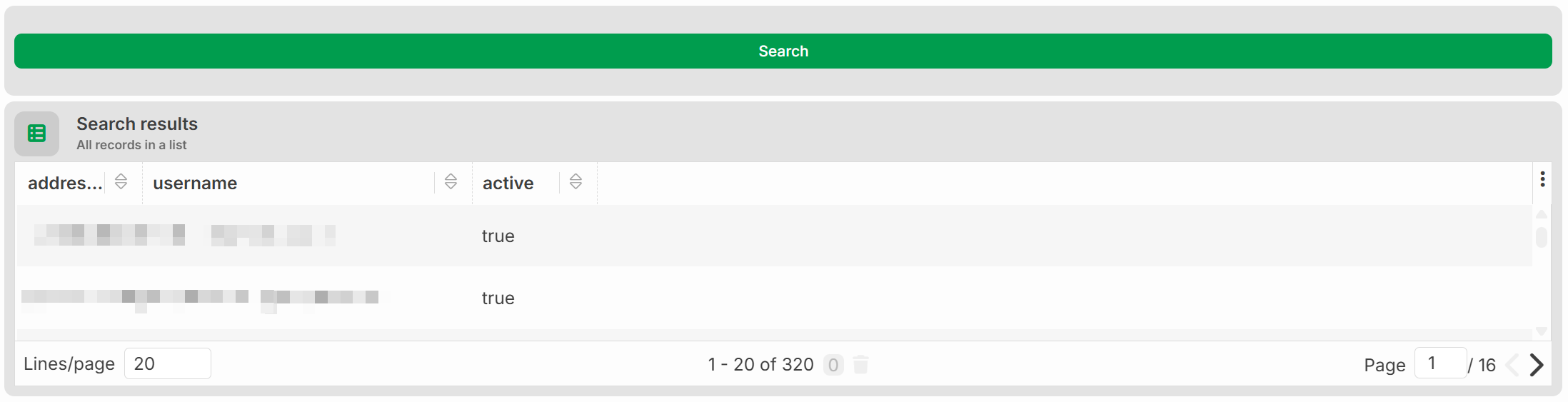
This behavior performs a configurable search in the Lobster Data Platform database and passes the resulting data as a data service to the actions when the condition is "true". The complete objects of the searched-for type, including all fields, are returned.
Unlike the Tuple search (Form designer), no projections are defined.
Settings
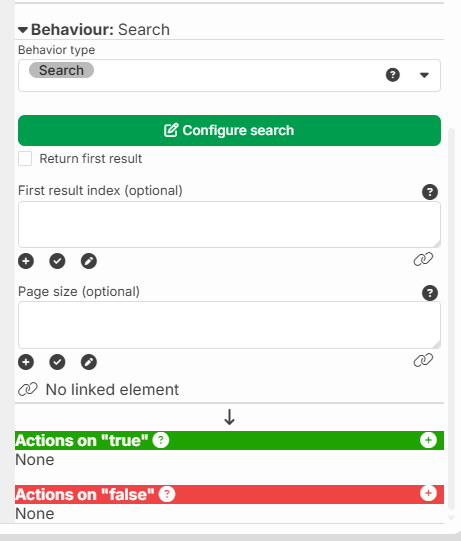
Setting | Description |
|---|---|
Configure search | Opens a dialog box for configuring the search. |
Return first result | If this checkbox is selected, only the first result (if any) is returned, without the option to display a list of all results. |
First result index (optional) | Parameters that are evaluated as calculation expressions and are used to dynamically limit results (e.g., data paging). If specified, they override the static settings "First result" and "Maximum results" in the search configuration. TIP The data provider passed to the actions contains a data field named |
Page size (optional) | |
No linked element/Execute with element | If an element is linked to this behavior, its data is directly available as an "input object". Consequently, an "object field" value resolver can be used to directly access the fields of the input object. If the input object is of a known type, this type can be selected in the drop-down box at the top (input type) to assist with configuration. In addition, all fields of the passed-in object are accessible as variables with the same names. IMPORTANT: If the linked element cannot be validated at runtime (see Validate element and Validators), for example because required fields are not filled in, the search is skipped and the Actions on "false" are executed. For the actions, the "invalid" processing status of the linked element’s data is available. If this does not refer to a specific data field, it can also include data from a higher level, all the way up to the form itself. |
Example: Display all active users in a data grid
In a portal, clicking a button should display all active Users in a Data grid.
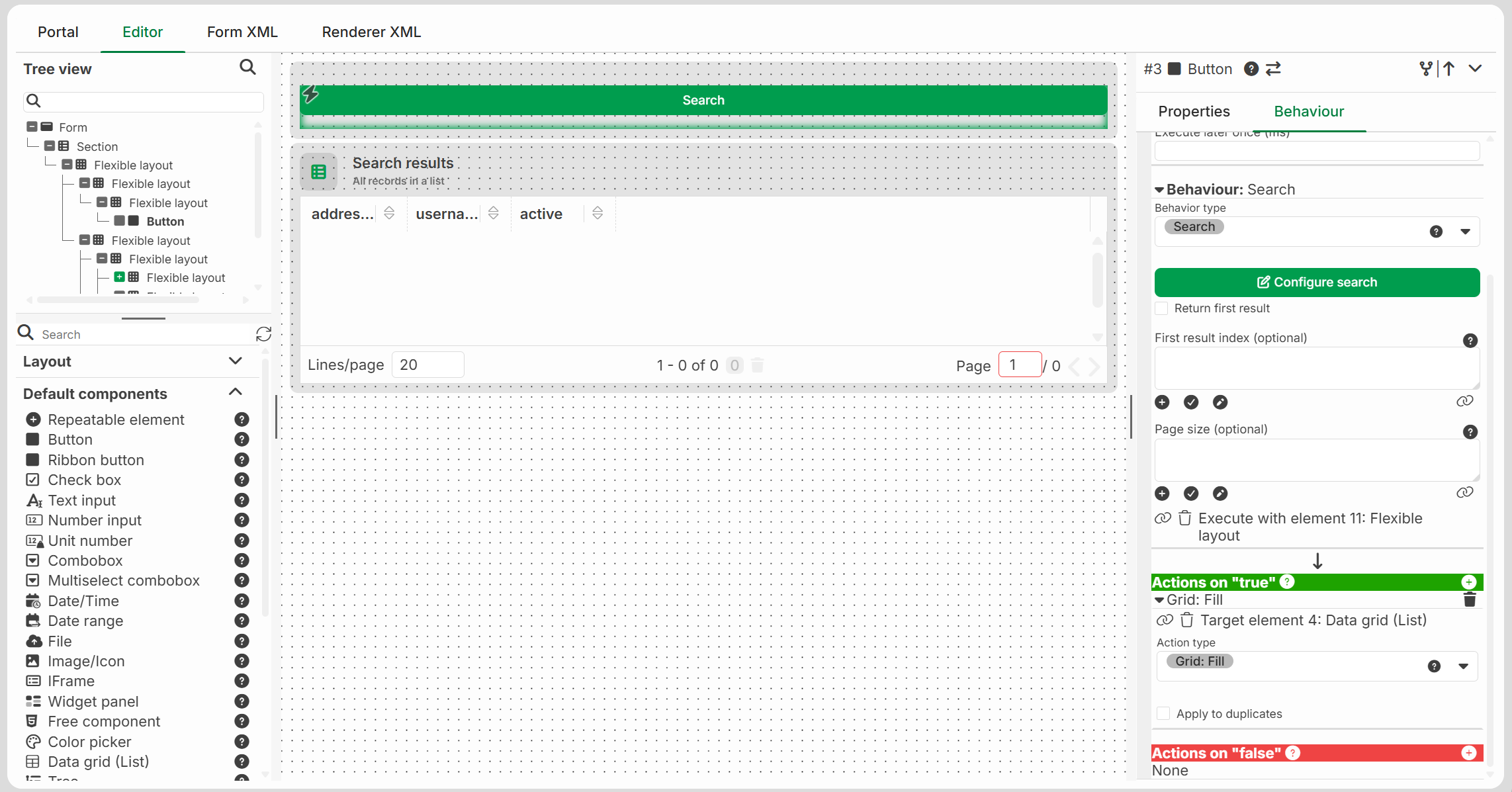
Clicking the Search button triggers the "Search" action.
Under Actions on "true", a Grid: Fill action fills the "Search result" data grid.
In the Configure search dialog box, select the object type User under "Entity".
The Active field is defined as a restriction that expects the value
true("true").
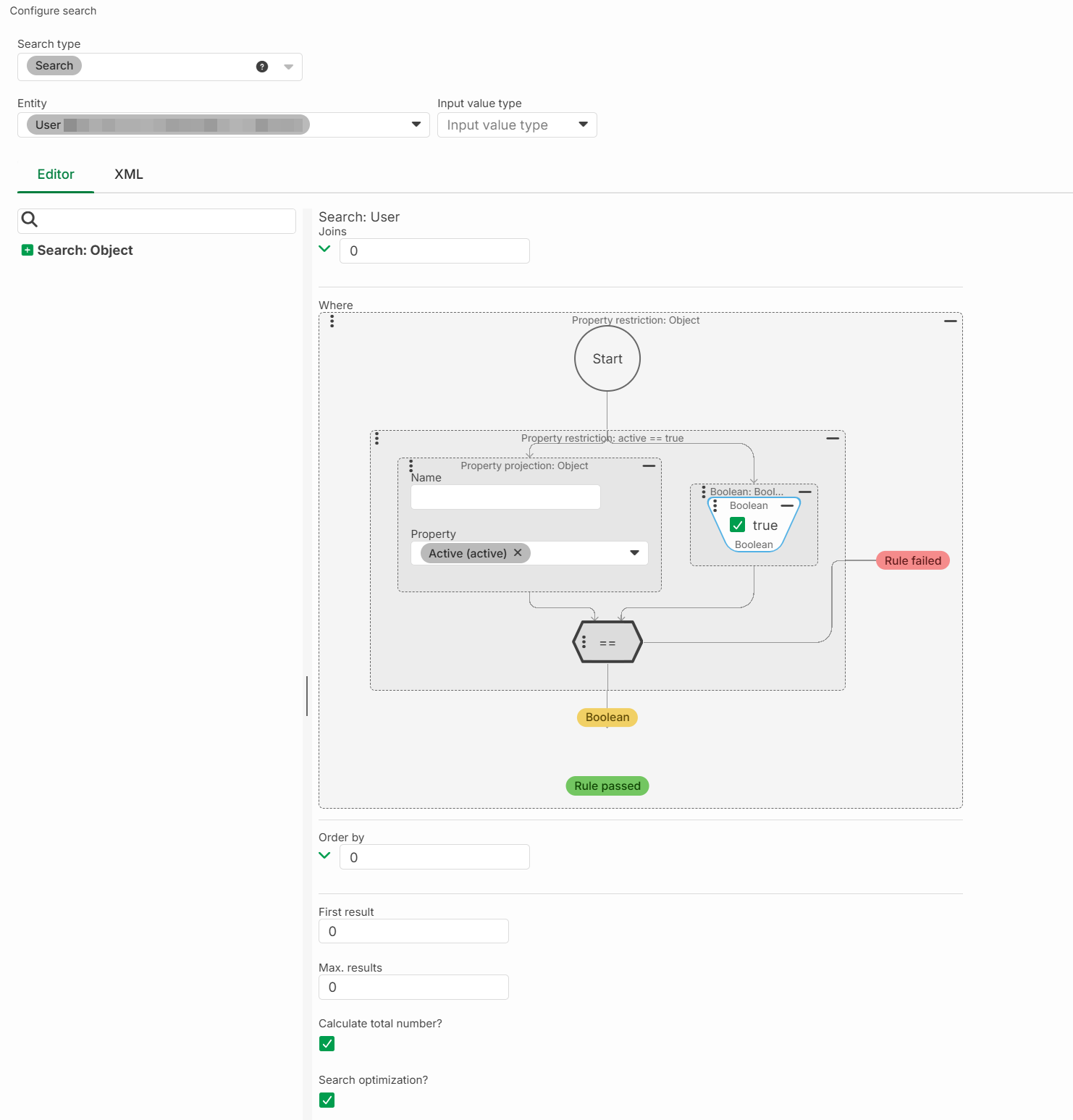
The search returns the complete user objects.