---
title: "General control elements"
slug: "intro-control-elements"
status: "update"
updated: 2026-11-02T13:04:57Z
published: 2026-11-02T13:04:57Z
canonical: "docs.lobstersoftware.com/intro-control-elements"
---
> ## Documentation Index
> Fetch the complete documentation index at: https://docs.lobstersoftware.com/llms.txt
> Use this file to discover all available pages before exploring further.
# General control elements
## Context menus
In general, you will find a context menu (right mouse button for "normal" computers, or corresponding click for pads) with a list of functions in almost all lists and other entries.
In most cases, this is referred to directly in the description of the respective GUI component.
Although this is a control operating concept, it shall be pointed out here in the event that control elements in the GUI are not recognizable at first glance.
## Burger menus

On many pages, a burger menu is available with advanced display features (expand/collapse everything, more columns, multi selection, etc.).
Most of these options are self-explanatory, otherwise they are explicitly listed below.
| Option | Description |
| --- | --- |
| Re-render | In very rare cases it can happen that empty lines are displayed or that the collapsing/expanding does not work cleanly. The reason usually is the very high frequency of browser updates, which can temporarily lead to display problems. However, the underlying data structure is never affected by this. By re-rendering the displayed page, such display problems can usually be solved. |
| Multi selection | Allows you to select multiple entries. **NOTE:** Hold down the left mouse button and drag over the entries to be selected. |
## Filter fields in tables

In all tables, at various places in the GUI (here, for example, in the log overview), filter fields ⑧ are available for columns.
You can enter search terms in these filter fields. As a result, only rows that contain the search term as a substring in this column are displayed.
The search term can be negated with a preceding exclamation mark "**!**", e.g. "!searchterm". As a result, only rows that do not contain the search term as a substring in this column are displayed.
### Exceptions
| Exception | Description |
| --- | --- |
| Column "Duration" (at various places in the GUI, e.g., in the log overview). | There, only given values can be selected. In addition, a specific seconds value can be specified, e.g. "3", or optionally an interval, e.g. "2-4". |
| Column "Name" in the Profile overview. | See [Profiles](/v1/docs/en/profiles). |
## Inserting variables and constants
Next to input fields, you will often find button "**%**". It allows you to insert variables and constants defined in the profile.
## Allowed values in function parameters

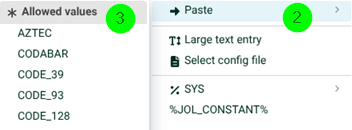
When configuring functions (in the target structure in Phase 3), you will often have the possibility to choose from a list of allowed values for function parameters (e.g., usable encodings or MIME types, available database aliases, certificates, channels, etc.). A useful feature that you should keep in mind. First click on the three dots on the right of the parameter fields ①, then choose **Paste** ②, and then select the desired value under **Allowed values** ③.
## Icons in mappings
The following icons are used in the source and target structure in Phase 3.
|  | Source structure node/Target structure node active, without path. |
| --- | --- |
|  | Source structure node/Target structure node inactive, without path. |
|  | Source structure node/Target structure node active, with path. |
|  | Source structure node/Target structure node inactive, with path. |
|  | A [Functions (GUI)](/v1/docs/en/phase-3-target-structure-functions) on a node and field of the target structure. |
|  | A database node (see [Phase 4](/v1/docs/en/phase-4)**)**. |
|  | An iteration node (see [Phase 4](/v1/docs/en/phase-4)). |
|  | A calculation field (see [Mapping – Filling a record of the target tree](/v1/docs/en/intro-profiles-phase-3-filling-target-tree)). |
|  | Node attribute Minimum>0. |
|  | Node attribute Maximum=1. |
|  | Field mapped. |
|  | Field not mapped. |
|  | [Match codes](/v1/docs/en/intro-profiles-phase-2-parsing-match-codes) on a node of the source structure. |
|  | Represents a source structure field with set attribute "New record if value changes". |
## Saving and caching profiles

① **Create intermediate version:** This creates an intermediate state of the profile ②. The current profile state is stored internally but not "published", i.e., the profile is not yet saved. **NOTE:** An intermediate version of a profile can be recognized in the profile overview in column "Intermediate version". You will also see a corresponding icon in the context menu of the profile entry.
② This can be used to restore the intermediate state. If an intermediate state ② is available and the server or browser crashes or the session is invalid and the profile is edited again, a dialog appears asking whether the intermediate status should be used.
③ **Save:** The profile is actually saved with this button. The intermediate state ② is then automatically deleted.
⑧ **Variables:** You can define [Variables](/v1/docs/en/intro-concepts-variables) and [Constants](/v1/docs/en/intro-concepts-constants) in another dialog.
### Backup of profiles
Using **Save & backup & close** ④, a backup of the profile is first created (unsaved changes are not included), and then the profile is saved (with the changes). If the profile is a template that was modified in Phases 1, 3–6, another dialog box appears where you can select which profiles derived from the template should be synchronized accordingly.
> [!NOTE]
> **NOTE:**
>
> - In the GUI, you can view and apply backed-up profiles by clicking on **Load profile backup**. See [Backup and limits](/v1/docs/en/profiles--tab-1-5).
> - You can find the profile backups in the file system under `./datawizard/settings/-1`.
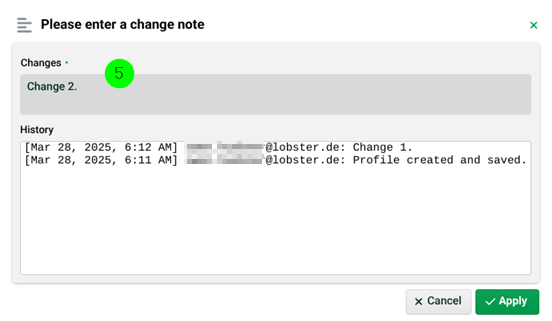
Via ⑤ you can enter a change note for the saved changes. You will find these notes on page "Info (Main settings)", further details there. Please note that the note does not refer to the backup, but to the subsequently saved profile with the changes.
#### Version of a profile
By creating a backup, a new version of the profile is created (the backup has the current version number). The initial version number *1* is created after the creation and first (normal) saving of the profile. If a backup is imported, the profile takes over the version number of the backup. It is also possible to increase the version number by a "normal" saving (i.e. without a backup). To do this, set the following entry in configuration file `./etc/startup.xml` to *true* (default is "false").
```xml
true
```
#### Deleting a profile and backups
A backup is also created when a profile is deleted. Backups are not deleted when the profile from which they originate is deleted. So if you have accidentally deleted a profile and created backups before, you can create a new profile and load a backup of the old profile (if you name the new profile exactly like the old one).
#### Importing profile backups
Profile backups can be imported in the "Main settings" of a profile in tab "Backup/Limits". Another dialog will then appear.
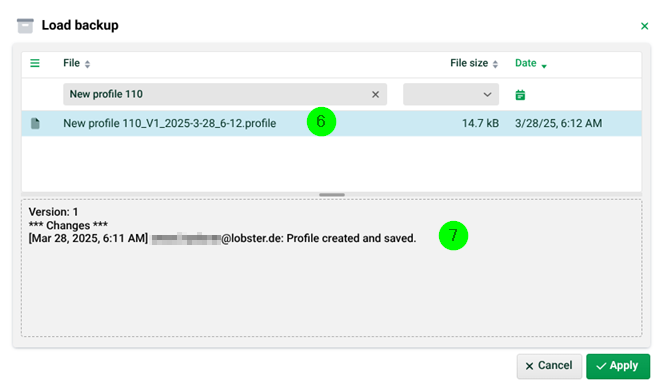
⑥ If you select a profile backup, the change notes of this profile appear in ⑦ (see above). Please note that the last change you see here does not come from the creation of the backup (see above), as the backup is created first and only then is the profile saved with the new change note.
## Exporting and importing profiles
See the "Manual export and import of profiles" section in [Transport of profiles](/v1/docs/en/intro-transport-profiles#manual-export-and-import-of-profiles).
## Default values in GUI
You can define a few default values for different areas of the GUI in configuration file `./etc/admin/datawizard/defaults.properties`.
### System name
| System name | Description |
| --- | --- |
| dataSystem.TEST | Name of test system. |
| dataSystem.PROD | Name of productive system. |
### Profiles
Is specified depending on the Client. The value *-1* represents the default client. The format is "*profile..parameter".*
| Profile | Description |
| --- | --- |
| profile.-1.transportManager | *Marked as ready for* Transport Manager in *Main settings*/*General*. Allowed values: *true* or *false*. |
| profile.-1.errorMailPhase25 | *Mail recipient on error* at *Additional actions for errors in* Phase 2 *to 5* in *Main settings*/*Error handling*. |
| profile.-1.hint | *Note text* in *Main settings*/*Info*. |
| profile.-1.encoding | *Encoding* in *Main settings*/*General*. **Example:** "8859_1". |
| profile.-1.errorMailSubject | *Subject* at *In the event of an error, send e-mail* in *Main settings*/*Error handling*. |
| profile.-1.errorMailReceiver | *Receiver* at *In the event of an error, send e-mail* in *Main settings*/*Error handling*. |
| profile.-1.errorMailBody | *Message* at *In the event of an error, send e-mail* in *Main settings*/*Error handling*. |
| profile.-1.attachData | *Attach input data* at *In the event of an error, send e-mail* in *Main settings*/*Error handling*. Allowed values: *true* or *false*. |
| profile.-1.isTestRun | *"Is test run"* in restart dialog. Allowed values: *true* or *false*. |
| profile.-1.noCheckPoint | *"Do not create checkpoint"* in restart dialog. Allowed values: *true* or *false*. |
| sap.response.waitTime | For Responses *SAP* and *SAP ALE* in *Connection settings*/*Permitted execution time*. |
### Transport Manager
| Transport Manager | Description |
| --- | --- |
| tm.withoutAgent | *Transport Manager*/*Profiles* → *Without input agent*. Allowed values: *true* or *false*. |
| tm.withoutResponses | *Transport Manager*/*Profiles* → *Without response units*. Allowed values: *true* or *false*. |
| tm.preserveVariables | *Transport Manager*/*Profiles* → *Keep initial value of variables*. Allowed values: *true* or *false*. |
| tm.replaceFiles | *Transport Manager*/*Profiles* → *Package files replace existing files*. Allowed values: *true* or *false*. |
| tm.replaceProfile | *Transport Manager*/*Profiles* → *Replace profile on target system*. Allowed values: *true* or *false*. |
| tm.replaceCI | *Transport Manager*/*Content Inspection*→ *Replace inspector in target system*. Allowed values: *true* or *false*. |
| tm.profileMode | *Transport Manager*/*Profiles* → *Profile status after transport is*. Allowed values: *source*, *active*, *inactive.* |
### Server URL/IP for channel datasheet PDF
The value for the server URL/IP in created channel datasheet PDFs. See [Channels](/v1/docs/en/manage-partners-channels).
| Server URL/IP | Description |
| --- | --- |
| serverUrl.as2 | For channel type "AS2". |
| serverUrl.common | Default value if no value is specified for a specific channel type. |
| serverUrl.ssh | For channel type "SSH". |
| serverUrl.ftp | For channel type "FTP". |
| serverUrl.oftp | For channel type "OFTP". |
| serverUrl.http | For channel type "HTTP". |
A profile is the central configuration unit in the Lobster Data Platform. It receives data, processes it, and forwards it. Configuration is done graphically, with no programming required.
Mapping: Rules transfer the data from the source structure to the target structure. This is the core of the profile.
An organizational unit that enables multi-client functionality in the Lobster Data Platform. Each client manages its own profiles, partners, users, and resources in isolation from other clients. This allows for the operation of multiple independent environments on a single instance.
A module for the structured transfer of configuration objects between systems, such as from a development environment to a production environment. The Transport Manager packages profiles, partners, ETL/ELT pipelines, and other entries into transportable packages.
Parsing: The input data is parsed into the source structure. The source structure represents the input format.
**Application Link Enabling**. SAP technology for the asynchronous exchange of IDocs between SAP systems or with third-party systems. Available in the Lobster Data Platform as an inbound agent and response.