This module lets you design automated Profile tests. It quickly detects unwanted changes to a profile's target data, for example, changes caused by optimizations or a Lobster Integration version update. The module then reports these changes.
How it works
There can be exactly one test case for a profile.
A test case can only be created for active profiles with active Mapping.
Each test case must first be created and then recorded. The result of this recording is the basis of comparison for the subsequently executed test case.
During recording, an internal XML file of the target data is generated per test file (and a second one if there is a format check). The functions and macros used (6) are analyzed, and their return values are managed separately internally. They will then be included in the corresponding subsequent comparison test. The function now(), for example, returns a different result every time it is called and would always produce a deviation. All mappings are treated like a mapping test, that is Phase 4 is only simulated. Existing responses are overlayed by the definition of the format check (2).
Create and record test case
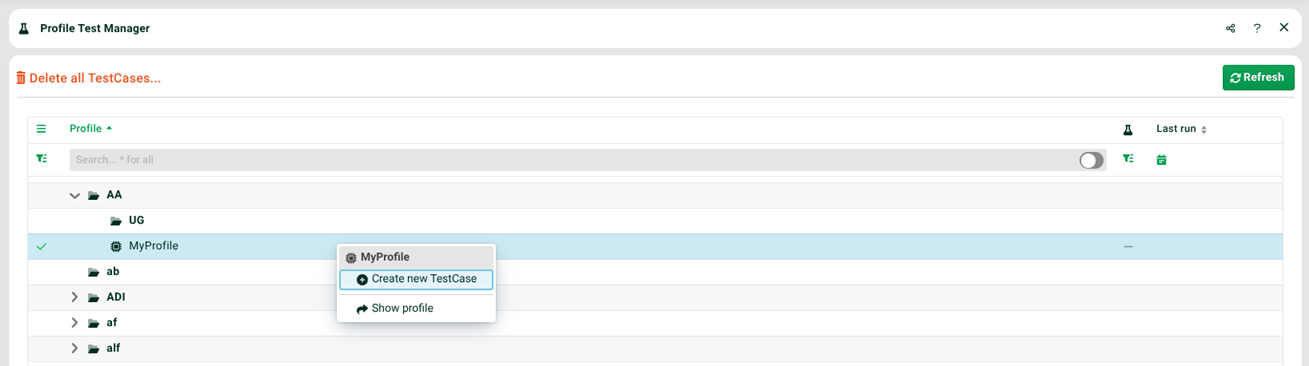
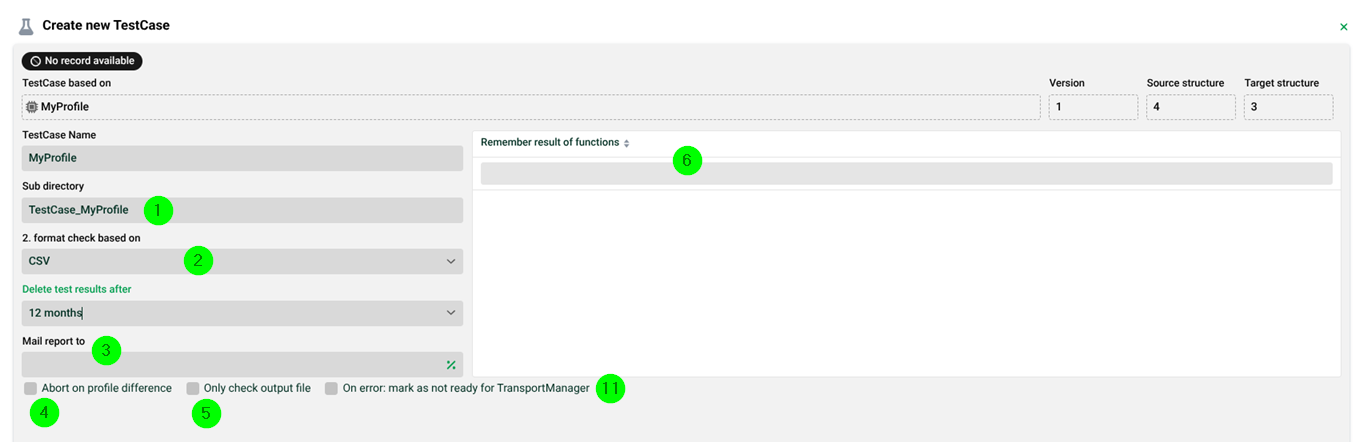

NOTE: On the top right you can see the number of elements (nodes, fields) that are checked in the source and target structure. Be aware that these numbers do not necessarily show the number of visible elements, since certain invisible elements are counted as well.
(1) Subdirectory in which the results are managed. Once defined, it cannot be changed. The files are located under the root directory ./datawizard/TestCases and can be viewed manually if necessary.
(2) Optional second format check based on the contents (Phase 6) "Content of IU", "Excel", "FixRecord" or "CSV".
(3) E-mail address to which the report is to be sent. If an error e-mail address is set in the profile itself, it will show up here as the default value. The e-mail also contains an Excel report and, in case of discrepancies, a diff file with the differences.
(4) If this checkbox is set and the profile has changed since the last recording, the test case terminates with an error. The basis for this is the version number of the profile and the number of elements in the source and Target tree of the profile.
(5) If set, only the output file created via (2) will be checked, but not the internal XML file.
(6) Here, you can select the functions to be recorded per test case via the context menu.
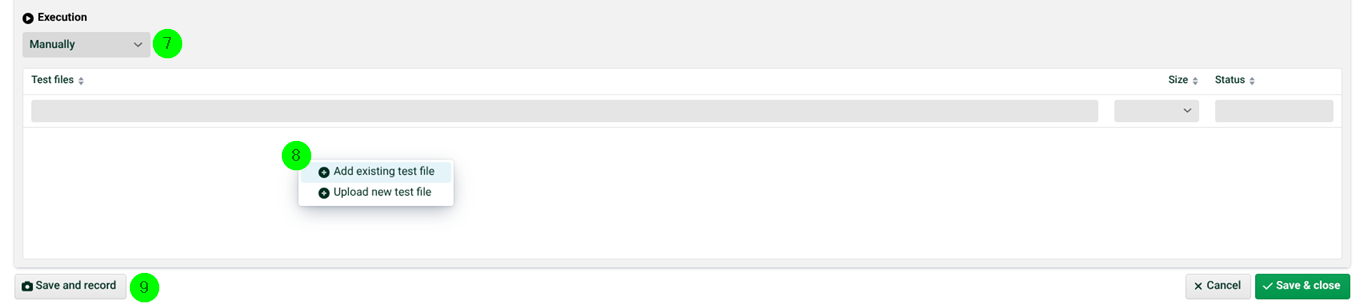
(7) A manual or automatic execution of the test case can be set (interval setting).
(8) You can use the context menu to upload new test files or select existing ones of the profile.
NOTE: Please ensure that the file name prefixes are unique. That is because the file names data.csv and data.txt would both create a recording file with the name data.xml. This would lead to the overwriting of the recording file created first. This behavior can be suppressed with the following system property. In this case, you will get two different recording files data.csv.xml and data.txt.xml.
-Dhub.datawizard.adjustTestCaseManagerFileNames |
(9) This button starts the recording of the test cases. Alternatively, the recording can be started via the context menu of a file. If successful, the status of the test case changes from "No recording available" to "Recording available." The test files also change to status "Recorded".
(10) This icon appears after the test case has been created (does not indicate that it has been recorded).
(11) If this checkbox is set and an error occurs in the executed test case, the option "Mark as ready for Transport Manager" is deactivated in the profile if it was active.
Execute test case
You can perform comparison runs here. The comparison is done between the recording and the current run.
You can either select a test case of a specific profile (1) or start all test cases (4).
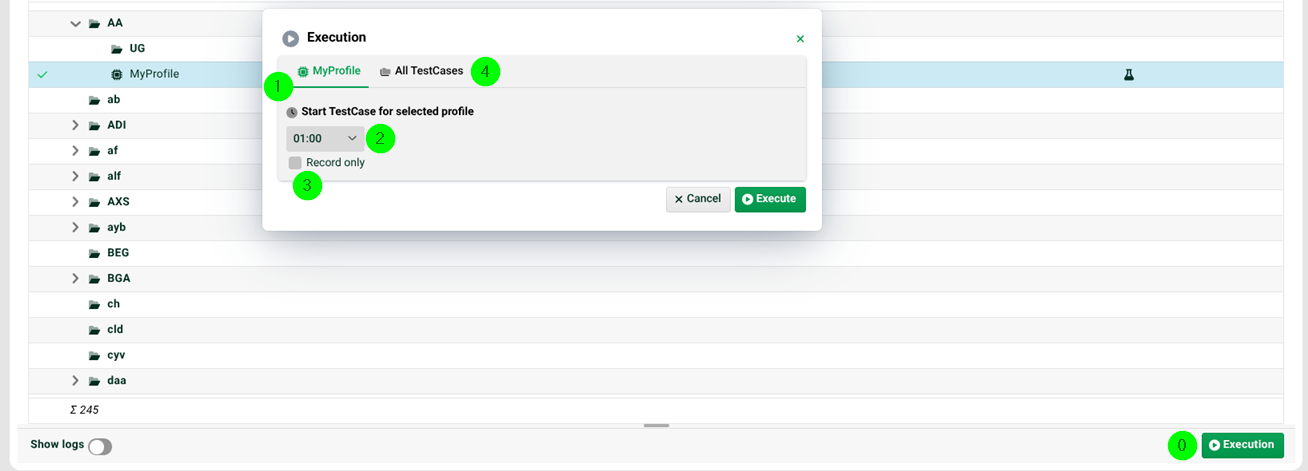
(1) Test case of this profile.
(2) Run selected test case regardless of its interval setting now or at the selected hour. If the hour is already in the past, the next day is valid. If the server is restarted meanwhile, the actions are not executed because the one-time Job is lost.
(3) Creates a new record for the selected test case. The old record is deleted.
(4) All test cases. The following three options are available.
Create test cases & record for all active profiles. | This option creates a test case with default settings for all active profiles that have test files and no test case yet and creates a recording for that new test case. |
Create recording for all test cases. | Creates a new recording for all existing test cases. The old records are deleted. |
Start each test case. | Starts all existing test cases regardless of the set interval. |
Logs for test cases
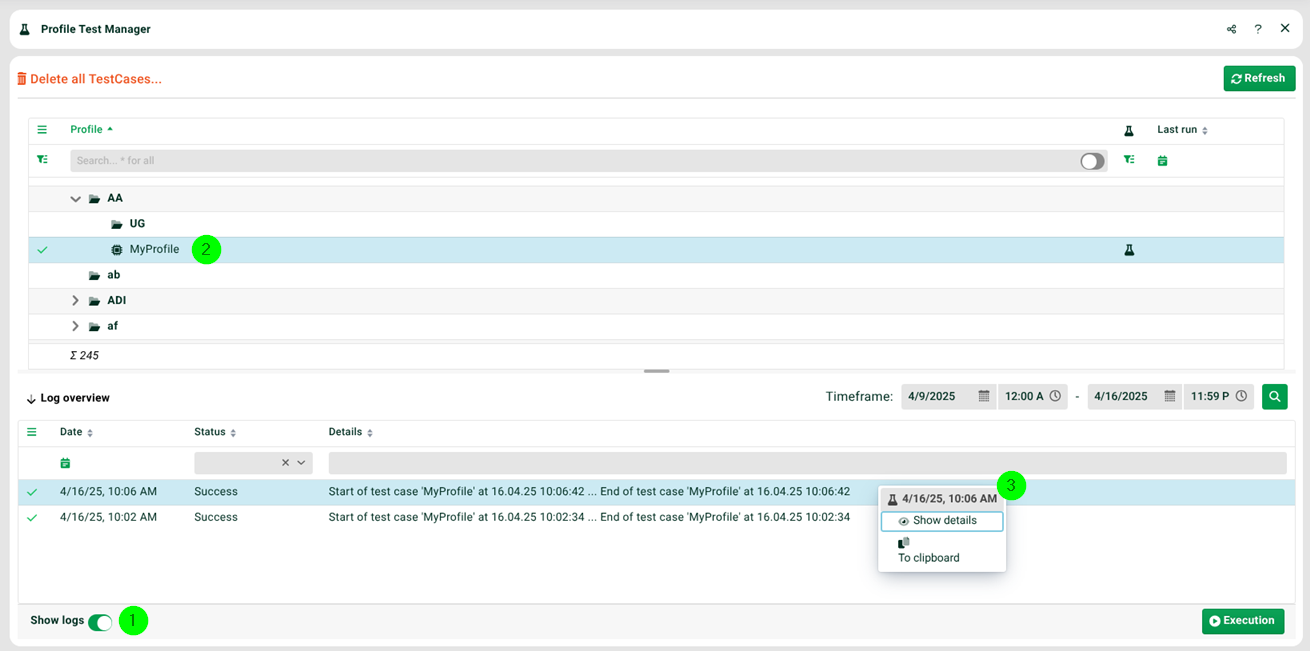
(1) If the log view is activated and a test case is selected (2), the corresponding logs are displayed in (3).
(3) The log files of the test case selected in (1). You can also display detailed messages via the context menu and download the diff file in case of discrepancies.