In normal operation, an active profile automatically starts as soon as its input agent receives data ("Scheduled" or "Event based"). The data is saved as a backup file and a Job is created for the profile.
Additionally, there is the possibility to start a profile manually. This is the purpose of the restart dialog. It can be opened here in Control Center > Logs > Overview and also in the following places. See also system variable VAR_SYS_RESTART.
Via the context menu of a profile in the profile overview.
In a mapping test via the upper menu bar of a profile.
Settings
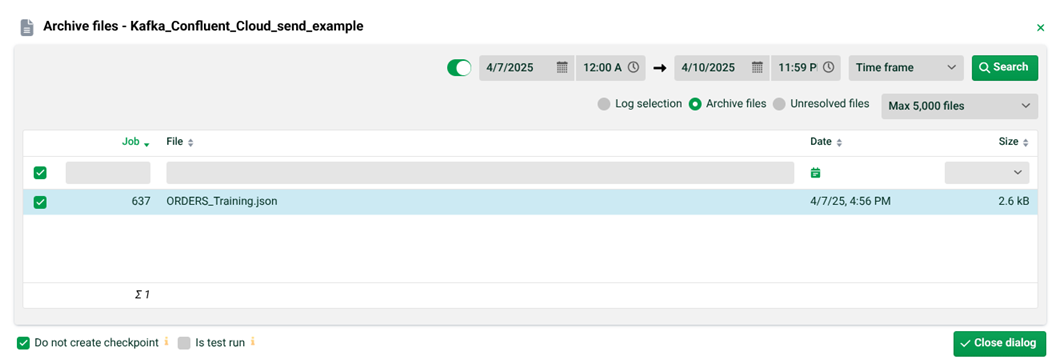
(1) Search period on top.
(2) Archive files shows all archive files of the profile for the selected period. Unresolved files shows the files from area Unresolved. NOTE: This option can be suppressed if the user right "Unresolved files" is not assigned.
(3) List below: List of all archive files found for the profile (whose job was restarted). See context menu below.
(4) Do not create checkpoint: If this checkbox is set, the restarted job will not be considered for any defined Checkpoints of the profile.
(5) Is test run: If this checkbox is set, the started job will be treated as a test run. That means that:
The system variable VAR_IS_TEST is set to "true" (and VAR_IS_NOT_TEST to "false") (see also item 9) and
In Phase 6, only those "Responses" are considered that have the checkbox "Only at test" set
NOTE: Both items only apply for "Upload file" and not for "Start cron" (6). The "Upload file" button is only shown for profiles that have no "Scheduled" input agent.
(6) Start cron: If the profile to be restarted has a "Scheduled" input agent, it can be restarted with this button. Archive files are not considered. If a profile is to be restarted with one or more specific archive files (which creates new jobs), the context menu should be used (see below). If the profile to be restarted has an "Event based" input agent, you can manually upload a file here and start a job. NOTE: If a profile with a "Scheduled" input agent is not active, the input agent will be executed, but the inactive profile will not process the received data. If another profile has the same input agent and is active, this profile might be able to accept the data instead (see input agents that are forced to receive all the data) or the data is stored in the "Unresolved" area. In this case, there will be an entry in the Control Center under "General messages".
(7) OFTP: For profiles with an input agent of type "OFTP", the fetching of files (pickup) can be started with another button (not available here).
Context menu
Start | A job can be restarted with its archive file. This will create a new job. Multiple lines can be selected and started. NOTE: If an error job is restarted and the new job is successful, the old error job disappears neither from the overview nor from the Errors list. |
Start with test flag of backup file | This option does not use the setting from (5) but the corresponding setting from the ENV data (if there is any). See Phase 1. |
Upload files | Upload file and restart the job with it. NOTE: If an error job is restarted and the new job is successful, the old error job disappears neither from the overview nor from the error list. |
Edit file | Edit the selected archive file and restart the job with it. NOTE: If an error job is restarted and the new job is successful, the old error job disappears neither from the overview nor from the error list. |
Edit meta data | Opens an additional Metadata editor in which you can view and edit existing variables from the metadata. |
Save as | Self-explanatory. |
Blacklists and whitelists for file extensions
See also: Blacklist and whitelists for file extensions.