Starting with Release 26.2.0, a redesigned dialog is available in the Profile editor and the profile overview. You can use this dialog to manually start a profile based on an archive, test, or Unresolved file. It replaces the previous Restart dialog in these locations. When accessed from the Control Center under Logs/Overview, the previous dialog is still in use; see Restart dialog.
Opening

In the "Profile editor" in Phase 3, click the Start profile icon (play symbol) — the last icon in the top toolbar.
In the profile Overview, select the Start profile ( icon) option from a profile's context menu.
Layout
The dialog is called Start profile – <profile name>. It is divided into three tabs for file selection, a filter and upload bar, and a sortable and filterable file list. The action area is located at the bottom.
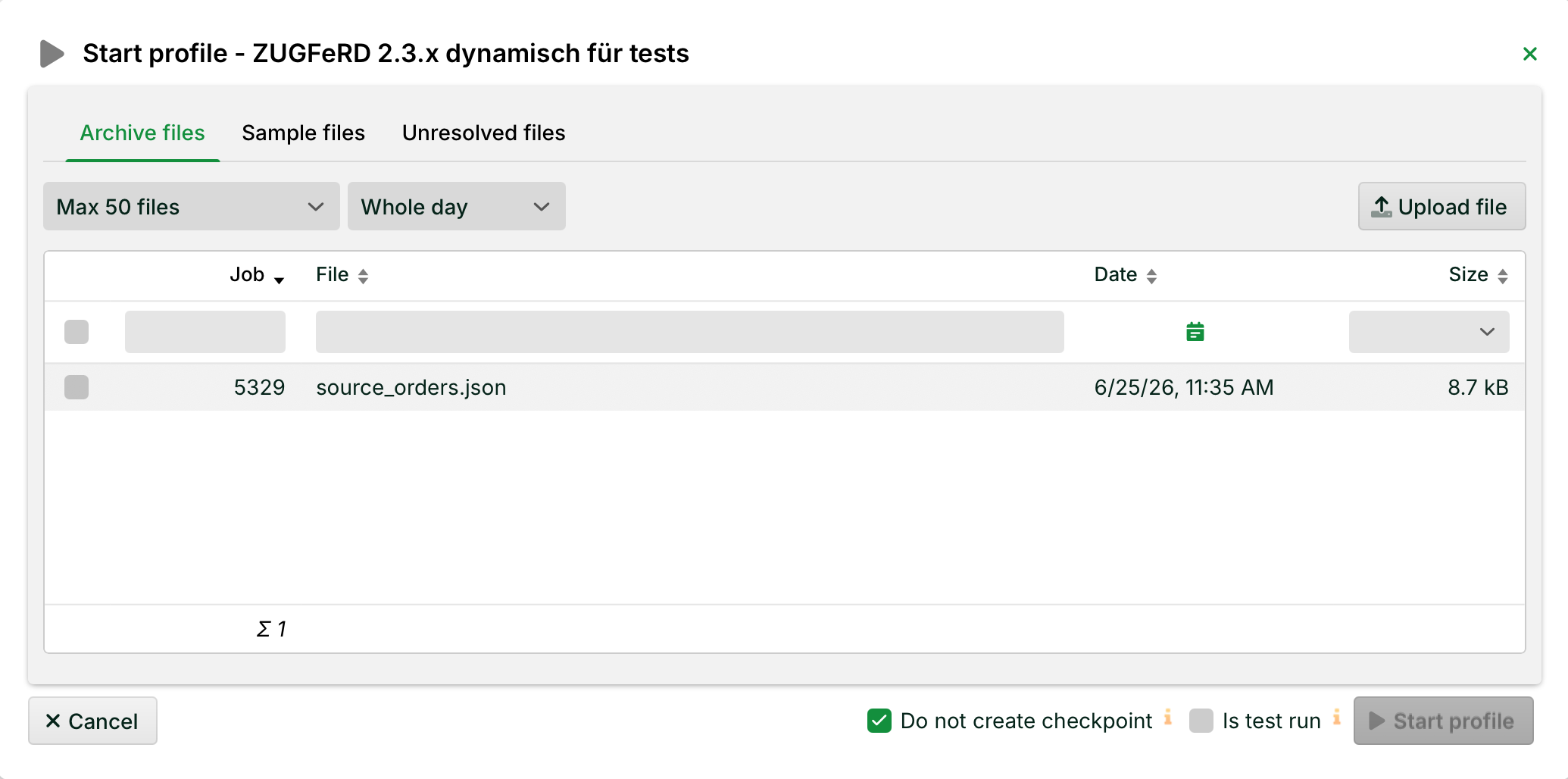
Tabs
Name | Description |
|---|---|
Archive files | Lists the archived backup files for the profile. Clicking on Upload file allows a file to be added as an archive entry. |
Sample files | Lists the test files stored in the profile. You can also add a file using Upload file. |
Unresolved files | Lists all files from the Unresolved section that could be assigned to the profile. |
User controls
Name | Description |
|---|---|
Max n files (dropdown, top left) | Limits the number of files displayed in the list. Available values: 50, 100, 250, 500. Default: 50. |
Time frame filter (dropdown menu, next to Max n files) | Limits the list to files from the selected time frame. Selectable values: Time frame (no time filter), Last hour, Last 2 hours, Last 4 hours, Last 6 hours, Last 8 hours, Whole day, Last 7 days, Last 4 weeks. Default: Whole day. |
Upload file (button, top right) | Opens a separate upload dialog with the Upload files button and the Drop files here drop zone. Multiple files can be uploaded at the same time. Uploaded files then appear in the active tab as highlighted entries; the profile is not automatically started (see Upload behavior below). |
File list with columns for Job, File, Date, Size | Multiple selections can be made using the checkboxes in the first column. All columns can be sorted (arrow icon in the header). The Date column includes a date filter (calendar icon). The Size column includes a range filter with the following values: The sum of the selected files is displayed below the list (Σ n). |
Do not create checkpoint (checkbox with info icon) | Enabled by default. If the checkbox is selected, the restarted job will be ignored for any checkpoints defined in the profile. Tooltip on the info icon: "Setting is invalid if cron is started out of schedule". |
Is test run (Checkbox with info icon) | If the checkbox is selected, the job that is started is treated as a test run:
|
Close (X icon, top right)/Cancel (button, bottom left) | Closes the dialog box without starting a job. |
Start profile (button, bottom right) | Adds a restart job to the thread queue for each selected file. The button is disabled as long as no file is selected in the list. |
Behavior
File selection and button status
The Start profile button is disabled as long as no file is selected in the list. When at least one file is selected, the button becomes active. Multiple selections are allowed; a separate job is created for each selected file when the process starts.
Upload behavior
Clicking Upload file opens a separate upload dialog that allows you to select files using the button (Upload files…) or by dragging and dropping them into the drop zone (Drop files here). After the upload is complete:
The uploaded files appear in the list of the previously active tab and are automatically selected.
The profile does not start automatically.
After a successful upload, a toast notification will appear with the message
File '<filename>' was successfully uploaded!
Start job
For each selected file, a restart job is queued in the thread queue. Manually restarted jobs are assigned a priority of High (+2). See the section "Thread queues" in Phase 1.
A toast notification will appear, confirming the classification.
If a profile cannot be restarted (e.g., because it is disabled), the existing rules apply; see Restart dialog.
Comments
The system variable
VAR_SYS_RESTARTis set for manually started jobs. See System variables.If a failed job is restarted and the new job is successful, the original failed job remains in the overview. It also does not disappear from the error list.
More information: Blacklist and whitelists for file extensions .