The Pathfinder auto-mapping automatically generates AI-supported mappings within an existing profile.
The mapping suggestions are grouped and displayed by confidence level:
Confident matches
Need review
No match
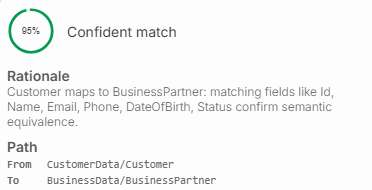
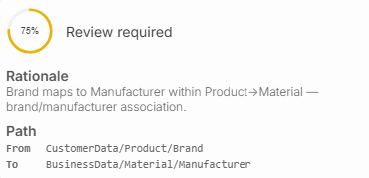
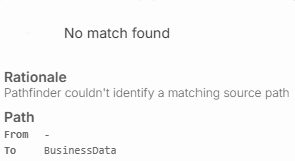
The rationale for the respective confidence level is displayed under Details. Suggested mappings can be reviewed and selected for application using the checkbox.
NOTE:
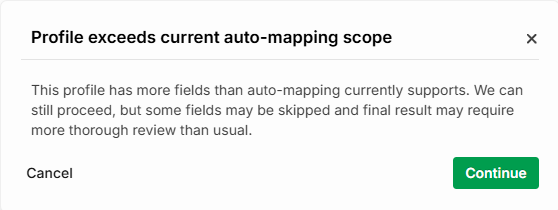
In the current version, Pathfinder Auto-Mapping is limited to 700 mapping fields:
If a structure comprises more than 300 fields, a notice is displayed. You can continue or cancel the process.
If the structure comprises more than 700 fields, a notice is displayed. In this case, Auto-Mapping cannot proceed.
Navigation path
Integration > Profile > Phase 3 > Pathfinder auto-mapping

Settings
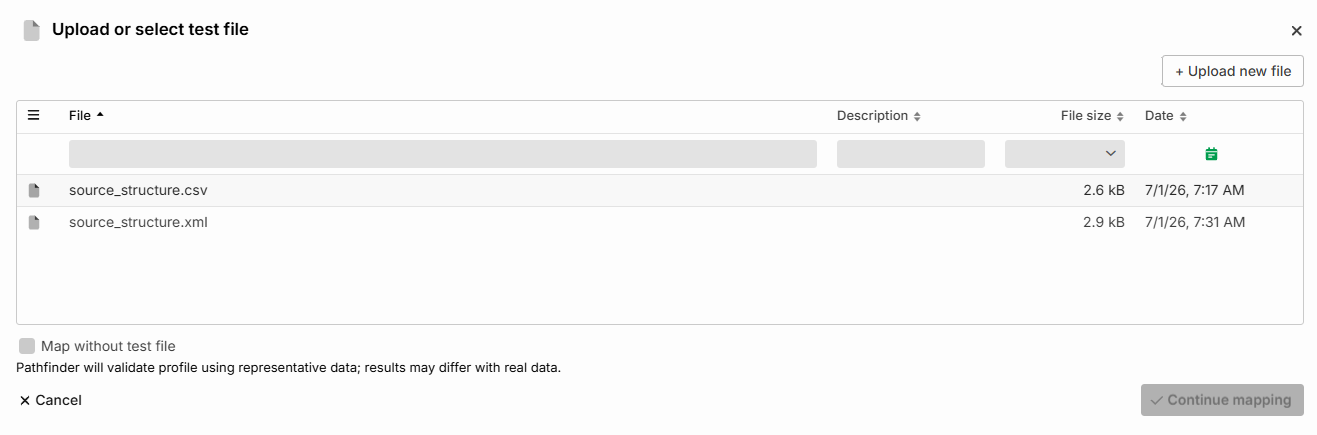
Upload or select test file (dialog)
This dialog runs the auto-mapping with or without a test file. You can either select a test file from the file list or upload a new one.
NOTE:
The format of a test file must match the Document type of the profile.
Name | Description |
|---|---|
+ Upload new file | Opens the system file selection dialog to add a new test file for auto-mapping to the list. |
File list | Selectable rows with the available test files, each with name, description, file size, and date. |
Map without test file | Check box to proceed without a test file. Pathfinder then validates the profile using synthetic data; the results may differ from real data. |
Continue mapping | Confirms the selection and continues to the mapping step. Disabled as long as no file is selected or Map without test file is enabled. |
Cancel | Cancels the mapping process and closes the dialog. |
Pathfinder auto-mapping (dialog)
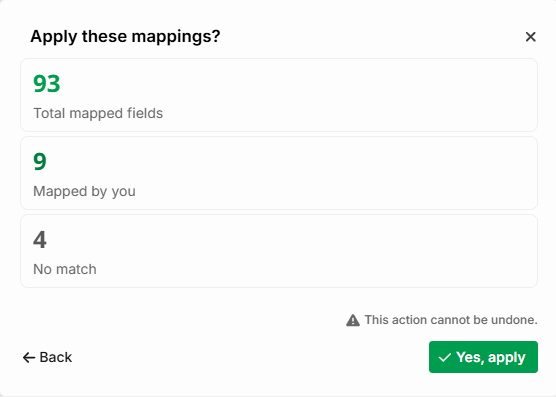
Metrics
This dialog shows which matches the Pathfinder auto-mapping found.
Mapped by you shows which mappings you made manually. Further categories are described in the table in the Matches section.

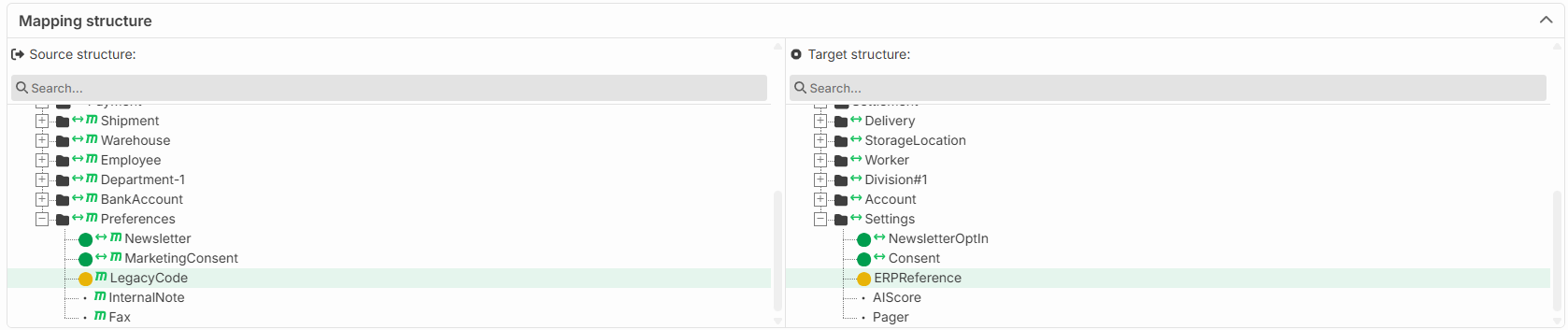
Mapping structure
Displays existing and selected mappings between the source and target structure. The auto-mapping doesn't suggest mappings that are already mapped. These appear only in the mapping structure, not in the table, and aren't editable here.
Matches
Shows the auto-mapping results grouped by confidence level. The mappings can be selected for application using the checkbox.

If Pathfinder is unavailable or an error occurs during the request, a corresponding error message is displayed.
Tabs
Name | Description |
|---|---|
Confident matches | The source elements that Pathfinder mapped with high confidence. These are already selected for inclusion in the mapping by default. |
Need review | The suggested mappings with lower confidence that require a manual decision. These are not included in the source and target structure by default and must be selected manually using the check-box. |
No match | The elements for which Pathfinder found no matching counterpart and that must be mapped manually. |
Table
Name | Description | ||||||||||
|---|---|---|---|---|---|---|---|---|---|---|---|
Checkbox | Checkbox for selecting the mappings. | ||||||||||
Source structure | Column showing the suggested source elements. | ||||||||||
Mapping | Shows whether a mapping exists between the source and target elements. Clicking in this column highlights the corresponding mapping in the source and target structures. Mappings are marked in this column as follows:
| ||||||||||
Target structure | Column showing the suggested target elements. | ||||||||||
Details | Shows the reasoning for the respective mapping. For example:
NOTE: Since Pathfinder only supports English, the rationale is displayed in English. |


Actions
Name | Description |
|---|---|
Approve & apply | A confirmation window with the following options is displayed before the mappings are applied:
|
Cancel | Cancels the mapping process and closes the dialog. The selected mappings are not applied. |