The file analysis feature automatically generates an appropriate source or target structure from an uploaded file. Depending on the file format, a specific dialog box opens with additional settings; the file is then analyzed, and the structure is generated based on it.
The file formats listed below can be analyzed. These are the data files themselves; only XSD/DTD is a schema file. If your file format is not listed, the "Structure import" in "Main settings" offers additional options. See also Working with templates for general information.
The following section describes only those dialog boxes whose settings are not self-explanatory or have not yet been covered in other sections.
Navigation path
Source structure
Source structure > Menu > Create structure from file analysis
Target structure
Target structure > Menu > Create structure > from file analysis
File formats
JSON
NOTE:
If the file contains arrays with different data types, the analysis will only be partially successful and will need to be adjusted manually.
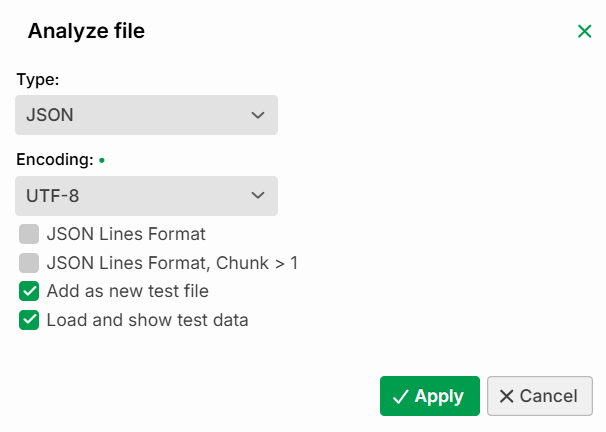
Setting | Description |
|---|---|
JSON Lines Format | You only need to check this box if the "JSON Lines Format" option is also used in Phase 2. |
JSON Lines Format, Chunk > 1 | In addition, the chunk size must match: if the chunk size is greater than 1, a different structure is generated, and parsing will only succeed with the correct structure. |
CSV
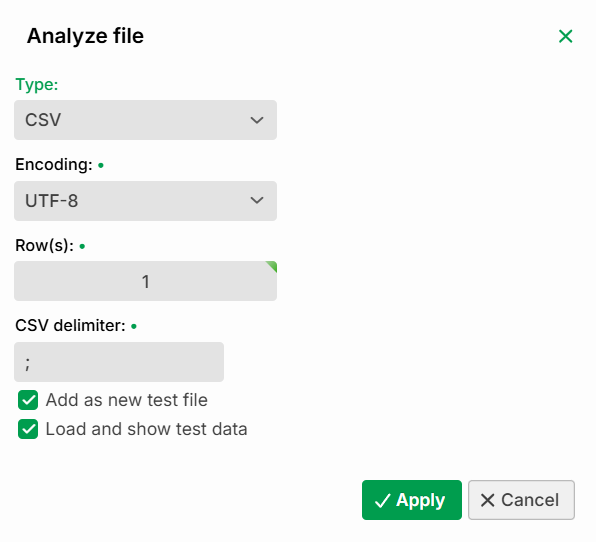
Setting | Description |
|---|---|
Row(s) | Here, specify the line in the file that will serve as an example for the structure to be generated. |
CSV delimiter | The field separator. |
Excel
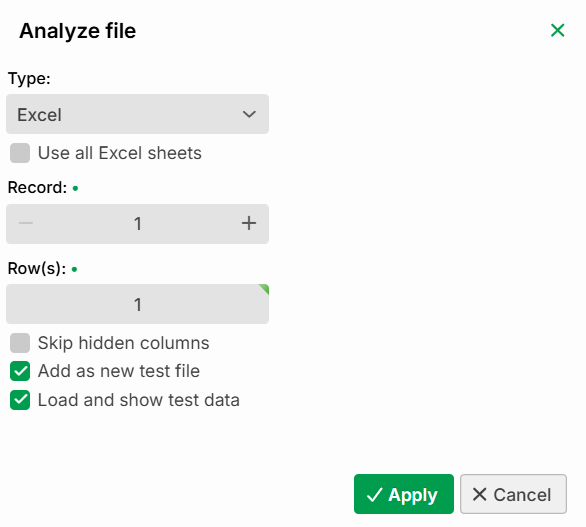
Setting | Description |
|---|---|
Record | The Excel worksheet to be used. |
Row(s) | Here, specify the row in the file that will serve as an example for the structure to be generated. |
XML
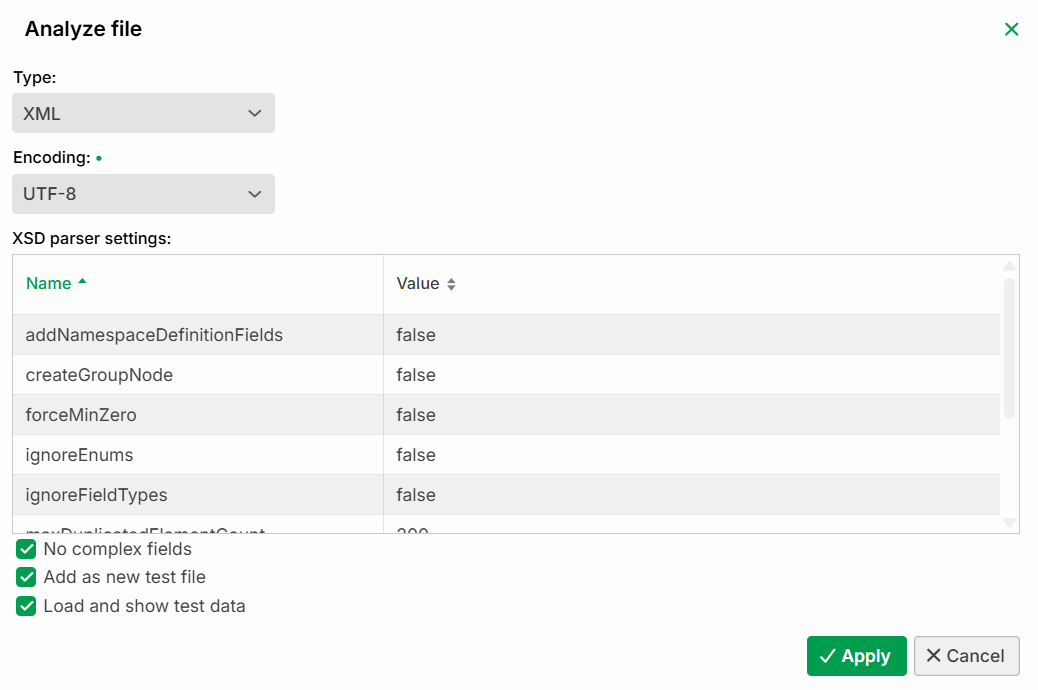
Setting | Description |
|---|---|
XSD Parser settings | These settings are identical to those in XML schemas – XSD/DTD files. |
No complex fields | This option should always be enabled when the same field cannot be repeated within a node. Any XML element without child elements or attributes will then be displayed as a simple field in the structure. Otherwise, each simple field would be displayed as a node containing a value field |
RAML (RESTful API ML)
Setting | Description |
|---|---|
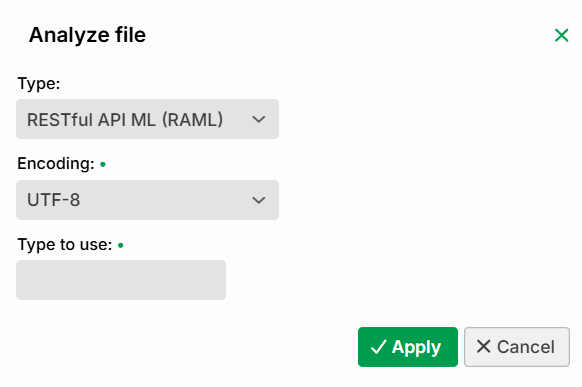
Type to use | Here, specify the RAML resource type (“Start” node) that you want to map in your structure. For more information about RAML, visit raml.org. |
Parquet
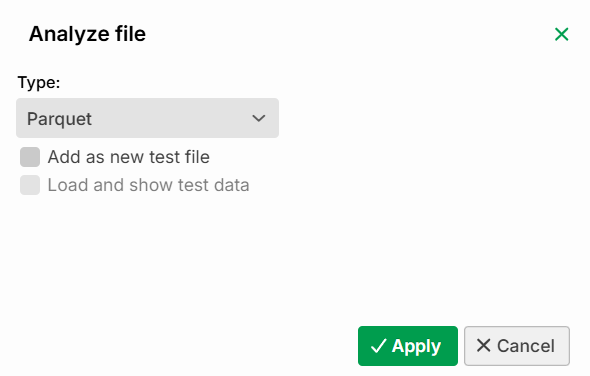
When analyzing a Parquet file, no format-specific settings are required. The schema is automatically parsed and converted into an appropriate source or target structure. Nested structures such as objects, lists, and key-value maps are represented as nodes and are not flattened.