This article describes the settings of the JMS Input agent. The input agent receives messages from a JMS broker and starts a Profile.
IMPORTANT: You can only select this input agent if at least one JMS connection is set up.
Settings
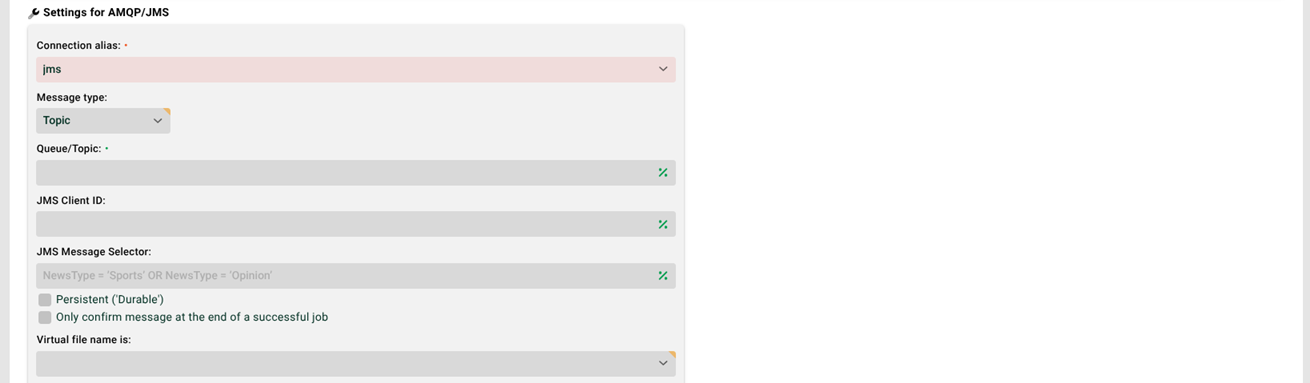

Start on IS only: This option only applies to the Load balancing module. It starts the profile on a specific node.
Connection alias: Select a JMS alias here.
Message type: Select the message type. The available types are Subscriber, Topic, Routing, and RPC. The message type RPC works synchronously. The other message types work asynchronously.
NOTE: The message type RPC also requires a Response of the Custom class type. Use the class PassBackDataResponse there. With an RPC call, the calling client expects a response. This response class generates the response and passes it to the input agent. The input agent then returns the response to the client. For more information, see the section “Third possibility: HTTP response chain" in Profile chains.
If you use the message type Topic, the checkbox Persistent (Durable) also appears. Set this checkbox if the queue under Queue/Topic is a durable queue. Such a queue survives a broker restart. With ActiveMQ, you must also set the JMS Client ID in the connection. Without the JMS Client ID, an error occurs. You cannot detect this error directly. It appears only in the server logging under Administration, in integration/error.logs, in the following form:
...javax.jms.JMSException: You cannot create a durable subscriber without specifying a unique clientID on a Connection...Queue/Topic: Enter the name of the queue to listen to. For the message type Topic, enter the name of the topic instead. See Message type.
With an Azure Service Bus and the message type Topic, a separate syntax applies: <topic_name>/subscriptions/<subscription_name>. An example is mytopic/subscriptions/mysubscription.
JMS message selector: A JMS message selector filters the messages you receive. As a message consumer, you specify here which messages you want. You find examples in the section JMS message selectors. For more information, see the Oracle documentation on JMS message selectors. This setting does not apply to the message type Topic.
Only confirm messages at the end of a successful job: Here you set the consumer delivery acknowledgement. It defines when Lobster confirms receipt of a message on the message bus.
Checkbox not set: The default behavior applies. Lobster confirms receipt once the backup file of the profile job is created. The message type RPC is an exception.
Checkbox set: Lobster confirms a received message only after a successful job run. Background processing is then not possible. See parallel processing and queueing of jobs in Phase 1.
If you set the checkbox Execute response in own thread in the Responses, Lobster always confirms receipt after Phase 6.
NOTE: Without a confirmation, the setting of the JMS server takes effect. The server either delivers the message again or rejects it. The server forwards rejected messages to the dead letter queue. In this setup, you can commit a transaction at the end of the processing in the profile, similar to a database. This requires a run without errors. For error cases, set up separate profiles. These profiles then process the faulty messages from the dead letter queue.
❼ Virtual file name is: Enter the name of a message property here. Lobster uses the value of this property as the name of the received file. You see the name in the log overview in the Control Center. Without an entry, Lobster uses the default value amqp.data. Lobster uses the same default value if the property is missing or has no value.
An example: The received message has the message property myfilename with the value test.txt. Enter the value myfilename in the field. The received file then gets the name test.txt. You cannot enter the file name itself in this field.
JMS message properties
You query the message properties of a message with system variables. You define the system variable in the profile. An example: The message property NameX is available in the profile as the system variable MSG_CALL_NAMEX. The variable name consists of the prefix MSG_CALL_ and the parameter name in uppercase. Further examples are MSG_CALL_GROUPID, MSG_CALL_SUBJECT, MSG_CALL_MESSAGEID, and MSG_CALL_CORRELATIONID.
JMS message selectors
JMS message selectors use their own query language. Its structure resembles a SQL WHERE clause. A selector filters on JMS message headers and JMS message properties. You cannot apply it to the message content. The following table shows the elements of the query language with examples.
Element | Description | Example selector |
|---|---|---|
Header fields | Any headers except |
|
Properties | Message properties. The same rules apply as for Java identifiers. |
|
String literals | String literals stand in single quotes. To escape a quote, double it. |
|
Number literals | Numbers in Java syntax, that is |
|
Boolean literals | The values |
|
| Brackets. |
|
| Logical operators. |
|
| Comparison operators. |
|
| String comparison with wildcards. |
|
| Finds a value in a set of strings. The operator does not work on sets of numbers. |
|
| Checks whether a number lies in a range. Both limits are included. |
|
| Checks whether a value is |
|
| Arithmetic operators. |
|
NOTE: The article Response JMS describes how to send messages to selectors. It explains how a specific selector picks up these messages.
Suspending profiles
You can suspend profiles (see Profile suspensions) that use this input agent. During the suspension, Lobster does not accept any messages. The messages remain on the broker. After you release the suspension, processing these messages can take up to 60 seconds.