The Firewalls module in the left-hand menu controls which addresses can reach your systems in the Lobster Cloud. Technically, you are editing the AWS Security Groups of your environment. Every change takes effect immediately, and no restart is required.
The page always applies to a single environment. If you switch the environment at the top left, you see the firewall rules of that other environment.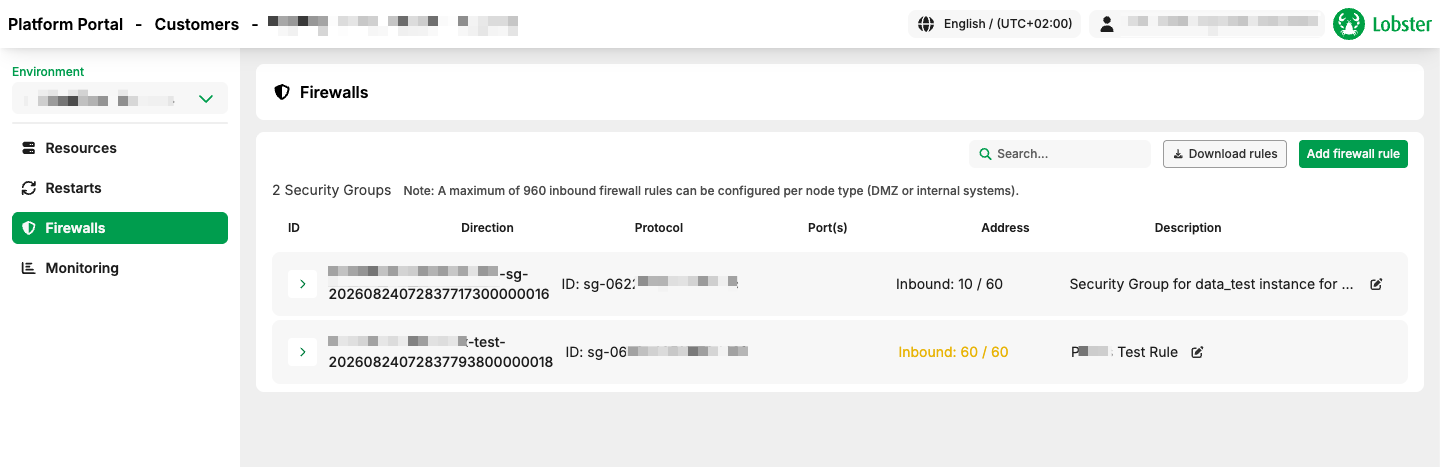
The overview
Page header
Element | Meaning |
|---|---|
Search… | Filters the list across all fields: group name, port, address, and description. |
Download rules | Downloads all rules of the environment as a CSV file. |
Add firewall rule | Opens the dialog for creating a new rule. |
Security group count | The number of security groups in this environment, for example "5 security groups". |
Limit note | A maximum of 960 inbound firewall rules can be stored per node type (DMZ or internal systems). |
The CSV file contains the columns Security Group ID, Security Group Name, Rule ID, Direction, Protocol, Port From, Port To, Address, and Description. Use it for audits or to coordinate with your IT department.
Security group row
Each security group is a collapsible row. It shows:
the name of the group,
the ID, for example
ID: sg-0622ff2a5ee7dcb7c. You need this when you discuss a specific group with Lobster support.the number of inbound rules, together with the limit where that information is available, for example
Inbound: 10 / 60.
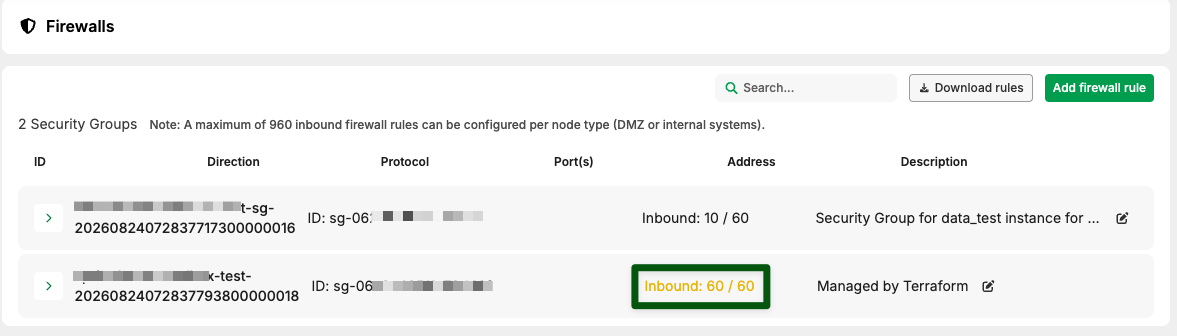
When a group approaches its limit, the number turns orange. If the row shows only Inbound: 12 without a limit, the quota could not be read. The rules still work without any restriction.
Only inbound rules are counted, because the limit applies per direction.
Your own description for a group
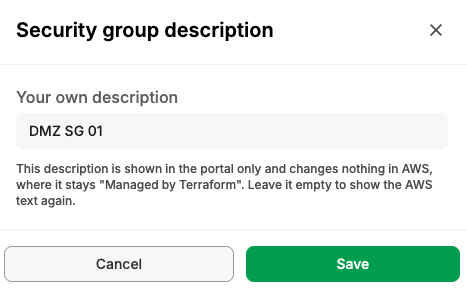
Use Edit description on the group row to give a group a label that makes sense to you, such as "DMZ – external access" instead of a technical AWS name.
This description is shown in the portal only and changes nothing in AWS. The original AWS text is preserved and displayed in the dialog. Remove description returns the row to the AWS text.
The reason for keeping the two apart: AWS does not allow the description of a security group to be changed once the group has been created, so the portal stores your label separately.

The rule list
Expand a group to see its rules with the following columns.
Column | Meaning |
|---|---|
ID | The AWS rule ID. Please include it when you contact support about a specific rule. |
Direction | Inbound means access to your system. Outbound means connections from your system to the outside. |
Protocol | TCP, UDP, ICMP, or ALL. |
Port(s) | A single port or a port range. |
Address | Where the rule applies from (inbound) or to (outbound). |
Description | Your own text describing the rule. |
Order of the rules
The list is sorted deliberately and does not follow the order in which AWS returns the rules:
Inbound before outbound. Outbound rules are managed by Lobster and therefore appear at the end, rather than in the middle of your own rules.
Ascending by port. 20-21 comes before 80, which comes before 443.
Protocol and address serve as further sort criteria.
This way you can reliably find a specific rule even in a group with more than a hundred entries, and no row jumps to a different position when the page reloads.
Rules you cannot change
Some rules are read-only for you. The buttons for editing and deleting are greyed out in that case:
Port 80 for all addresses (
0.0.0.0/0). This rule is managed by Lobster. Automatic certificate renewal (Let's Encrypt) validates your domain over unencrypted HTTP on port 80, from addresses that are not known in advance. If this rule were restricted, your certificate would expire unnoticed weeks later.Rules with protocols other than TCP and UDP, and outbound rules.
Port 443 (HTTPS) can be edited and deleted by you.
When a protected rule is selected for editing, the portal shows a notice explaining that the rule is managed by Lobster, cannot be changed in the portal, and that you should contact support if it needs to be adjusted.
Creating a new rule
Add firewall rule opens the Add rule dialog.
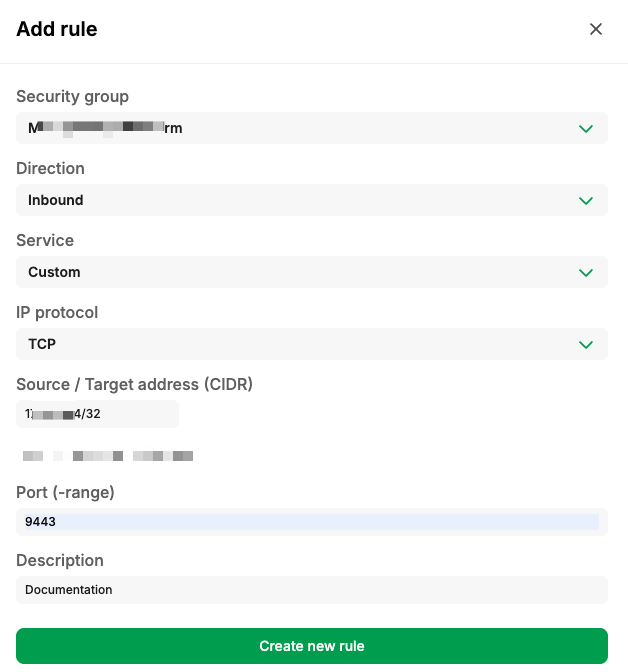
Step 1: Security group
Select the group the rule belongs to. If your environment has several groups, this choice determines which systems the rule applies to.
Step 2: Direction
Inbound is preselected and covers the normal case: you allow access from outside to your system. Outbound cannot be selected, because Lobster manages those rules.
Step 3: Service
The Service field is the most convenient route. You choose what you want to open up, and the protocol and port are set automatically.
Service | Sets |
|---|---|
HTTP (Port 80) | TCP 80 |
HTTPS (Port 443) | TCP 443 |
SSH (Port 22) | TCP 22 |
FTP (Port 20-21) | TCP 20–21 |
FTP Highport (Port 50000-50049) | TCP 50000–50049 |
Custom | Nothing. You specify the protocol and the port yourself. |
When you select a service, the IP protocol and Port (range) fields are hidden, because the service determines them. If you need a different port, select Custom.
Step 4: Source or destination address (CIDR)
Here you define which addresses are allowed to access the system. The following notations are accepted.
Notation | Example | Meaning |
|---|---|---|
Single machine |
| Exactly this one IP address. |
Network range |
| All addresses in this network. |
IPv6 |
| An IPv6 range. |
All addresses |
| The entire internet. |
The Use my current IP button enters the address you are currently accessing the portal from, as a /32, meaning this one machine only. It is the quickest way to give yourself access.
If the entry is invalid, a hint appears directly at the field with examples of valid notations, such as 192.168.0.0/24, 1.2.3.4/32, or ::/0.
Opening a port to the entire internet
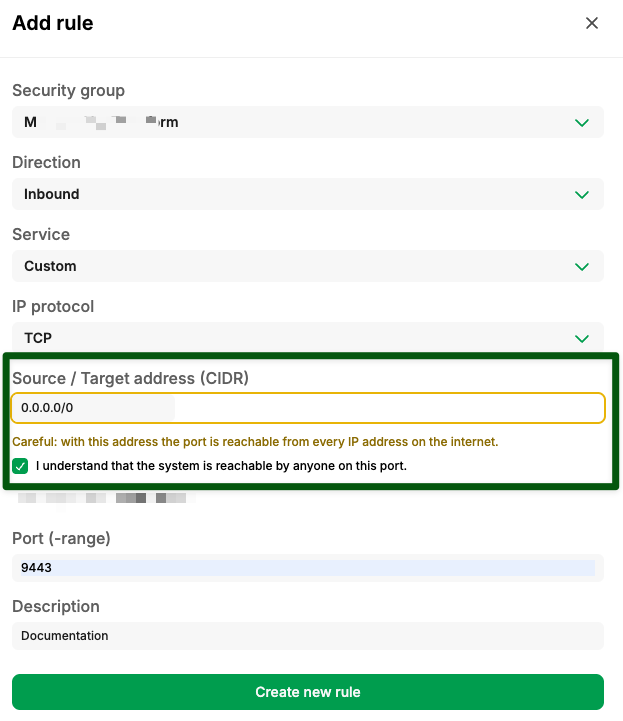
If you enter 0.0.0.0/0 or ::/0, a warning with an orange border appears:
Caution: With this address, the port is reachable from every IP address on the internet.
You also have to confirm that you are aware the system is reachable by everyone on this port. Without that confirmation, the rule cannot be created.
The rule itself is not blocked, because there are cases in which an open rule is the right choice. The confirmation exists so that the decision is a deliberate one rather than an accident.
Step 5: Port or port range, with Custom only
Entry | Meaning |
|---|---|
| A single port. |
| A port range. |
For the protocols ICMP and ALL, the field is omitted. Instead, the dialog explains that the protocol has no ports and that the rule automatically applies to all traffic of that protocol.
Which ports are available. The portal lets you open a defined selection of ports:
Single ports: 20, 21, 22, 25, 80, 443, 587, 3305, 5671, 6619, 8020, 8443, 9000, 9443, 30000, 30001, 30002, 30003, 30004
Ranges: 50000–50049 and 51000–51049
For a range, every port it contains must be permitted. 50000-50049 therefore works, while 8000-9000 does not, even though port 9000 is permitted on its own.
If a port is not permitted, the portal reports that the port cannot be opened and lists the ports that are available. If you need a different port, contact support.
Step 6: IP protocol, with Custom only
TCP is preselected and covers most cases. UDP is available as well. ICMP and ALL are displayed but cannot be selected: ICMP rules are managed by Lobster and cannot be created here, so please use TCP or UDP.
Step 7: Description
Free text that later appears in the list. Please use it. In a group with many rules, the description is the only indication of why a rule exists and whether it is still needed.
A format that has proved useful is purpose, responsible person, and optionally the date, for example Access accounting Berlin site, Ms Meier, 09/2026.
Up to 255 characters
Permitted characters:
a-z A-Z 0-9, plus space and. _ - : / ( ) # , @ [ ] + = & ; { } ! $ *Single line, because AWS does not accept line breaks
Step 8: Create the rule
Create new rule saves the rule. As long as an entry is missing or invalid, the button stays inactive.
The rule is active immediately afterwards.
Changing or deleting a rule
Clicking a rule row opens Rule details.
Edit makes the fields editable. Use Save to store the change.
Delete rule asks for confirmation and then removes the rule.
Alternatively, use the two buttons at the right-hand end of the rule row.
Changes take effect immediately here as well.
Messages and what to do
Message | Meaning | What to do |
|---|---|---|
This rule already exists | Same direction, protocol, port, and address. | Nothing. The access is already permitted. The description is not part of the comparison. |
This security group is full | The rule limit of the group has been reached. | Remove rules that are no longer needed, or ask support to add another group. Up to 960 rules are available per node type, spread across several groups. |
This rule no longer exists | Someone else deleted it in parallel. | Nothing. The view has been refreshed. |
This rule is managed by Lobster | A read-only rule, see the section on rules you cannot change. | Contact support if the rule needs to be adjusted. |
This port cannot be opened via the portal | The port is not part of the permitted selection. | Use a permitted port, or contact support. |
This is not an address that can be used here | Invalid CIDR notation. | For a single machine, enter the IP with |
E-mail notification
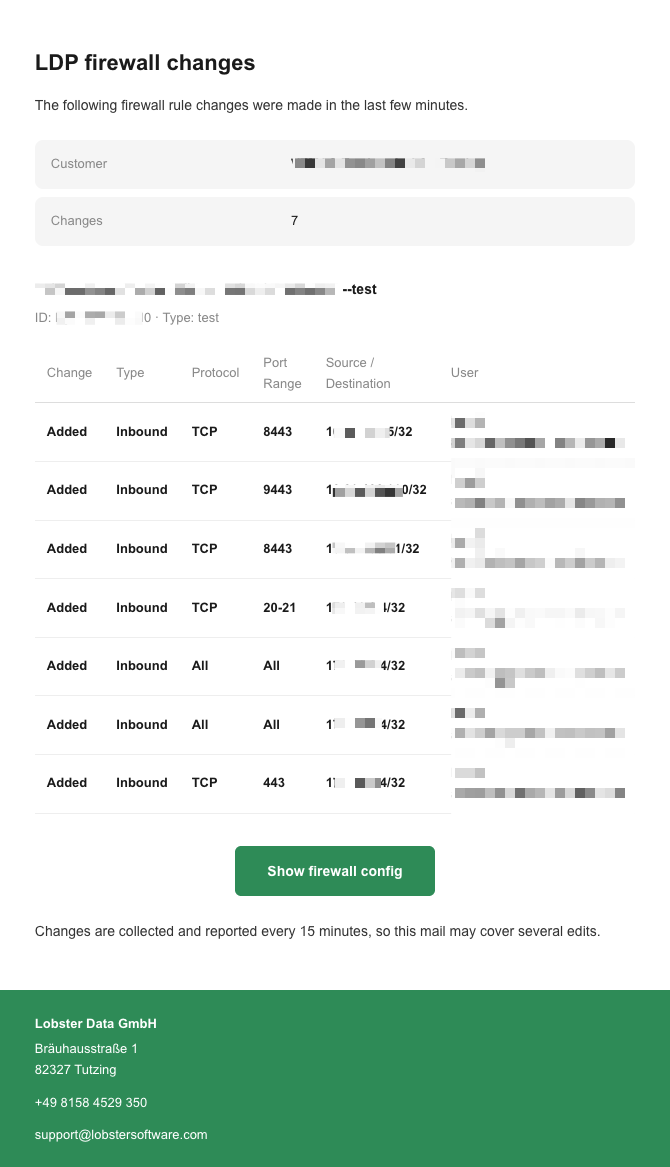
Every change to a security group is logged, and the users of your company are informed by e-mail.
The messages are bundled. The portal collects the changes and sends at most one message every 15 minutes, covering all changes made in that period. Creating ten rules in a row therefore does not trigger ten e-mails.
The e-mail contains the environment, the security group, the type of change, the port, the address, and who made the change.
Creating, changing, and deleting rules is reported. Renaming a group does not trigger an e-mail.
Each message goes to the users of the affected company only.
If you need support
Contact support@lobstersoftware.com. The following details help us process your request quickly:
The name and type of the environment
The security group ID (
sg-…) from the group rowFor a specific rule, the rule ID from the ID column
The exact wording of any message you received
Typical cases for support are a port outside the permitted selection, an additional security group, or a change to a rule that is managed by Lobster.