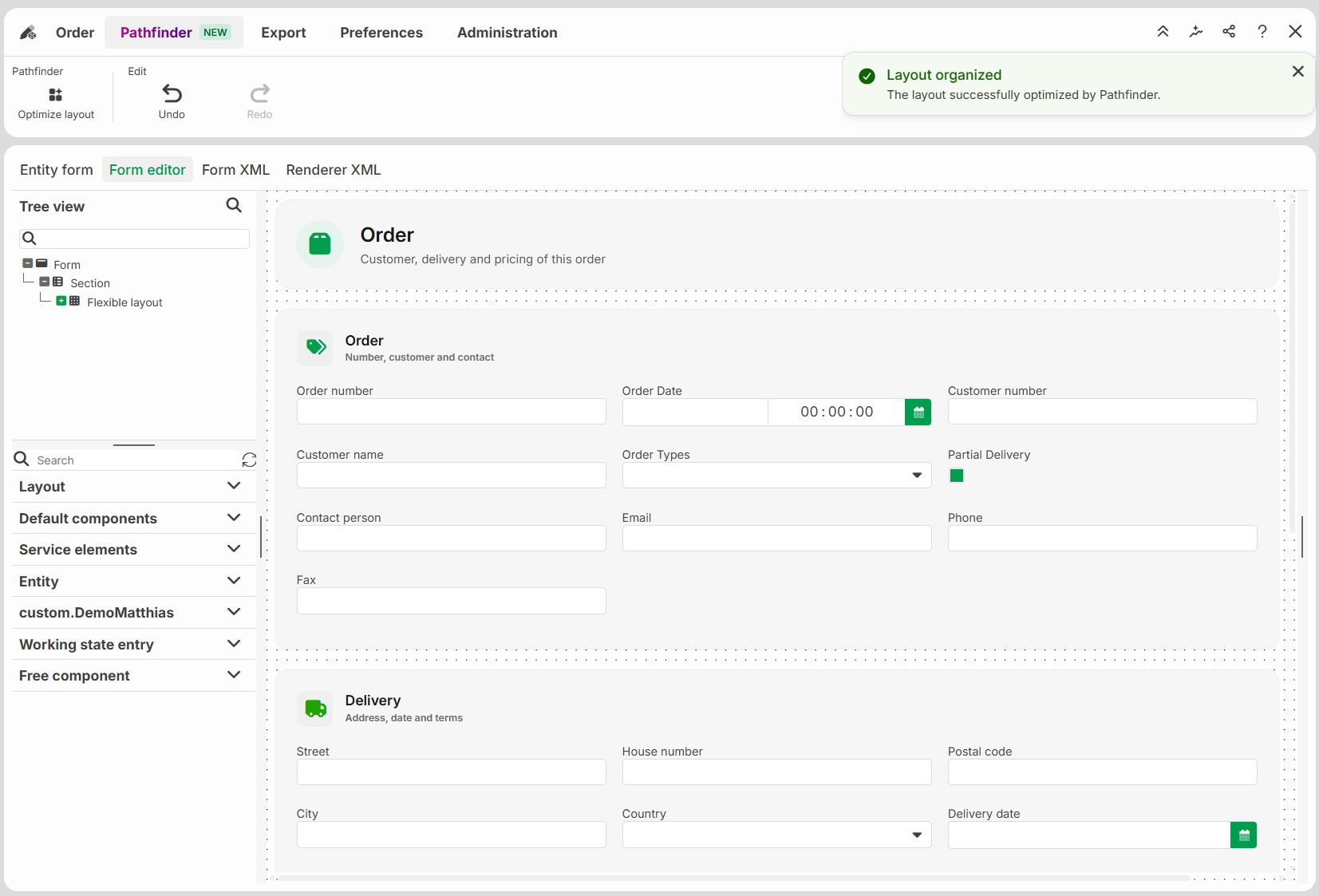
This guide describes how to optimize the layout of an Input form, a portal, a widget, or a dashboard with Pathfinder and how to check the result.
WARNING: Pathfinder is an AI function and can make mistakes. Check the optimized layout before you publish the form.
Prerequisites
Pathfinder is activated for your organization.
The form contains more than one element. Otherwise, the Optimize Layout button is deactivated, and a tooltip indicates that more elements are required.
Procedure
Open the form in the Form editor. NOTE: Depending on the type, this editor is called “Form editor”, “Editor”, or “Designer” in the user interface.
Open the Pathfinder tab.
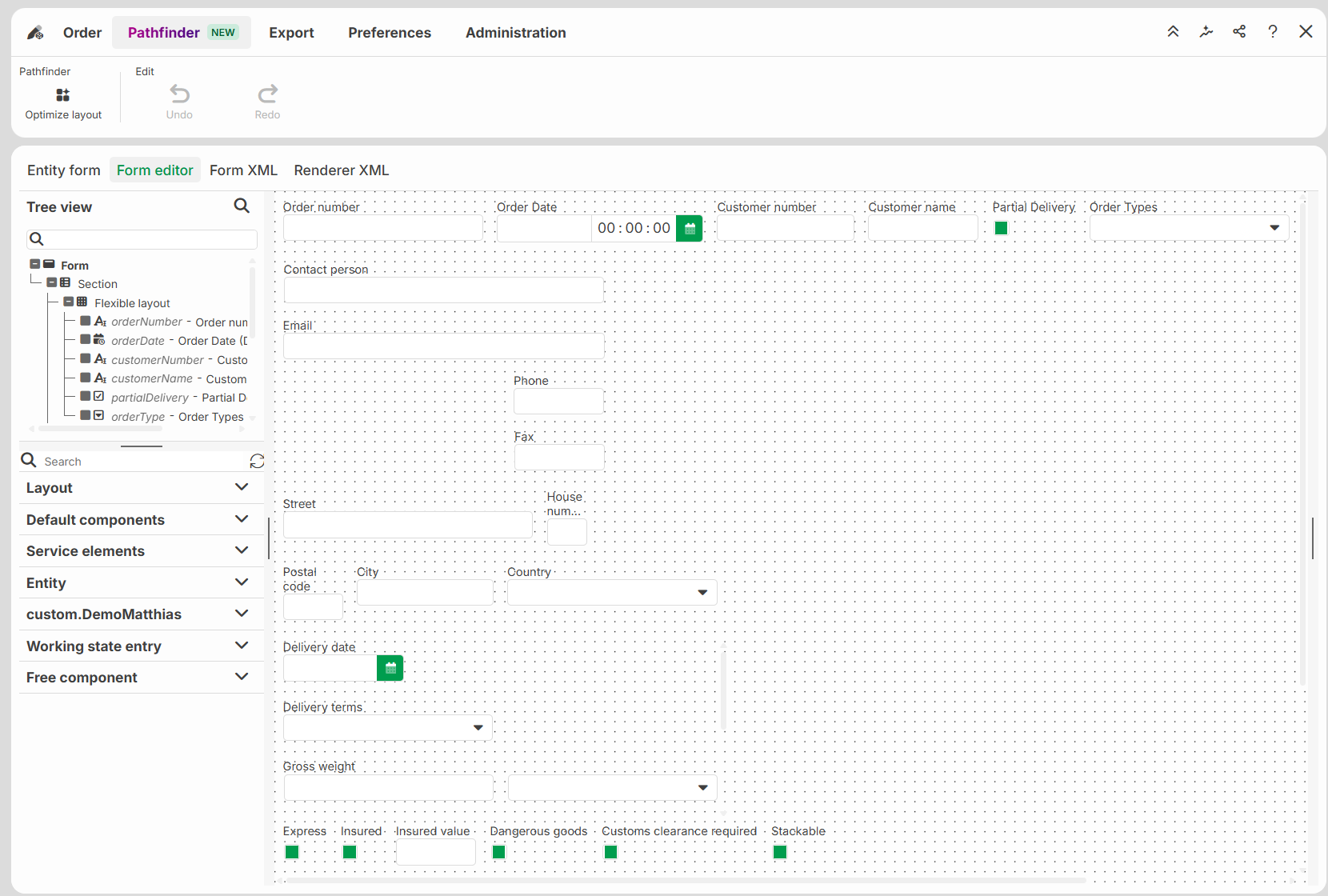
Click Optimize Layout.
NOTE:
You cannot edit the form while processing is in progress.
If the optimization fails, an error message appears. The existing layout remains unchanged.
Check the result in the form area and edit it if required.
NOTE: Undo and Redo remain available until you edit the form manually or save it.
Save and publish the form.
Result
Pathfinder has rearranged the existing elements. Colors, fonts, and spacing are taken from the existing style properties. All elements and their configuration remain unchanged. You can adjust the layout further afterward. If you change the style properties later, the form applies the new values automatically.