The Integration Server can act as an FTP server. The FTP/FTPS Input agent then accepts files from FTP users and starts a Profile. An input agent is the component that makes a profile react to an incoming event. This article describes the settings of the input agent and how it works.
The address of the FTP server follows this pattern.
ftp(s)://<URL or IP of the Integration Server>Assigning a file to a profile
Lobster checks every file uploaded via FTP. The check decides whether the file matches a profile. A profile matches under three conditions:
The user matches the entry in the profile.
The directory matches the entry in the profile.
The file pattern matches.
If a profile matches, Lobster starts a job. If several profiles can accept a message, the Profile scoring decides.
This input agent can check the maximum size of the input files. See Maximum size of input files and messages.
The system variable VAR_SENDER contains the name of the FTP user. See System variables.
Settings
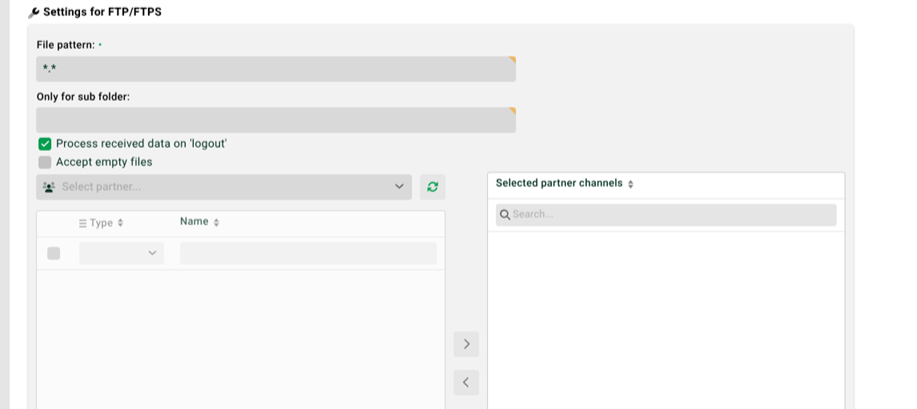
Field or option | Description |
|---|---|
File pattern | Defines the pattern for the file name. Separate multiple patterns with the pipe character |
Only for sub folder | Restricts the Response to a specific directory. The profile then only considers files from this directory that match the file pattern. The directory can contain the placeholder |
Process received data on logout | Starts processing the data only after the respective user logs out. See also the system variable |
Accept empty files | Accepts empty files with 0 bytes. IMPORTANT: For empty files to reach the input agent at all, the system property |
List on the left | Shows all FTP channels that are defined and active in the system. Use the arrow buttons in the middle to move a channel to the list on the right. |
Selected partner channels | Contains all selected and active FTP channels. Select at least one channel. |
How the input agent works
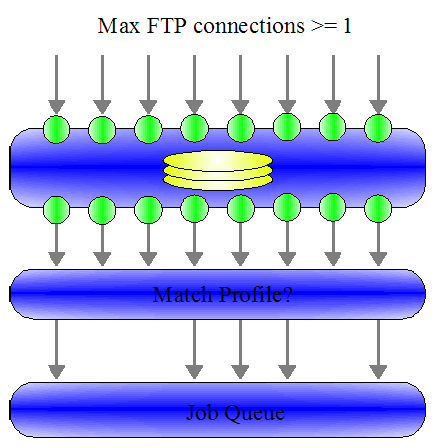
The FTP server provides a maximum number of FTP connections. FTP users store files in the assigned directories over these connections.
After a file is stored or renamed successfully, Lobster immediately checks whether a profile should process the file. If a profile matches, Lobster places a job in the job queue. The job queue is normally empty, and processing starts immediately. Lobster then saves the file as a job backup and deletes the original file.
Timing behavior
The following figure shows the timing behavior of a transfer.
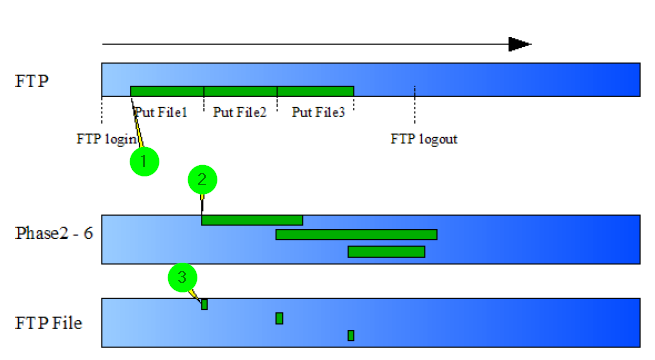
No. | Step |
|---|---|
1 | The transfer of the first file starts. |
2 | The transfer is successful. Lobster creates a backup immediately and starts analyzing the source data. |
3 | After the backup, Lobster deletes the stored file. The file is therefore visible in the directory only briefly. |
Lobster processes the different FTP connections in parallel. This creates a limitation for clients that check whether the files exist after storing them: by the time the get command arrives, Lobster has usually already deleted the files from the FTP directory.
Operation and shutdown
NOTE: If a DMZ server is in use, you can use the user management of the DMZ server.
FTP users can still be logged on when the Integration Server shuts down. The Integration Server normally ends these sessions after an adjustable waiting time. It then shuts down the FTP service.
Use the stopServices option to control this behavior. If the option is active, the FTP service ignores the maximum waiting time. The option also applies to the SMTP service.
The following listing shows the option. It is located in the configuration file ./etc/startup.xml in section com.ebd.hub.datawizard.app.DataWizard. By default, this entry is commented out.
<Set name="stopServices">false</Set>