Rule type: Summary
Purpose: This is considered 'passed' if the check value fulfills the test condition defined by the selected Matchers. Some matcher types use a compare value.
Tooltip
Usage: The Entity property rule checks the return value from a value resolver for the input value with a specific Matchers. This matcher can include a compare value via a second value resolver. Both value resolvers refer (by default) to the reference object from the context of the rule.
Parameter:
The input value is determined at runtime via a configurable value resolver. Instead of the Object property value resolver, from which the name of the rule is derived with regard to a reference object, any other value resolver can be used.
Below a Matchers must be selected, on whose logic depends whether a second value resolver appears for a compare value.
WARNING: When a selected Matchers is replaced, the configuration for the compare value (if present) is lost.
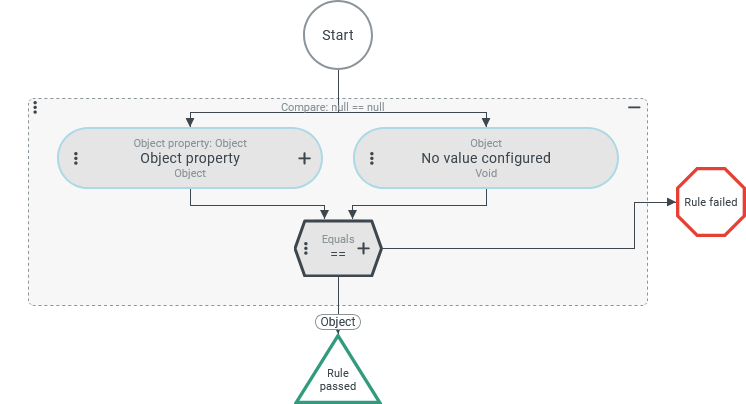
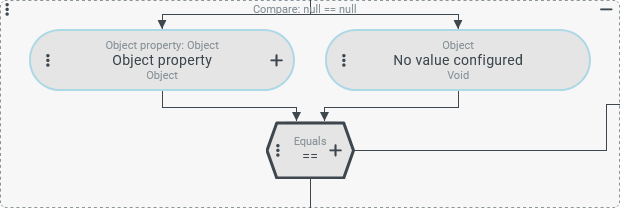
An Entity property rule compares a check value defined by a value configuration (in the screenshot above left) with a compare value which, depending on the selectable Matchers (in the screenshot below: by default Equals), must either be explicitly defined by a second value configuration (in the screenshot above right) or is implicitly specified by the Matchers selection:
Check logic | Check value type | Compare value | |
|---|---|---|---|
Equals(Default) | Agreement with a compare value. | Any | Explicit → Value configuration |
Match with list entry in the compare value. | Any | Explicit → Value configuration for 'list value' ( | |
Rank comparison with selectable compare operator (=, <, >, <=, >=). | Any | Explicit → Value configuration | |
Text comparison NOTE: The value configuration for the check value must provide a |
| Explicit → Value configuration | |
| Explicit → Value configuration | ||
| Explicit → Value configuration | ||
Checks whether the check value is empty. | Any | Implicit → 'No value' ( | |
Deviation from the Original entity. | Field value of an entity | Implicit → Corresponding field value in the Original entity. | |
Special case | |||
Custom logic that returns a Boolean value. | Any | Not provided. | |
The name of the rule refers to a typical possible use of the Entity property rule, namely the evaluation of a specific field of the given reference object, the value of which is 'resolved' using an Object property resolver. For this reason, the value configuration for the check value is preassigned by default with an Object property resolver.
However, all other Resolvers can also be used to feed input data to the test logic determined by the Matchers as a check value or compare value.
Access to the reference object in the context of the Entity property rule or one of its fields is by no means required. An Entity property rule is also the method of choice for comparing a Variable with a static value (see Static values) or for checking whether it is filled or not using the Is empty matcher type.
Configuration
The reference object in the context of the Entity property rule is available for value configurations within the configuration.
After adding a new Entity property rule, it appears as shown on the right:
|
|
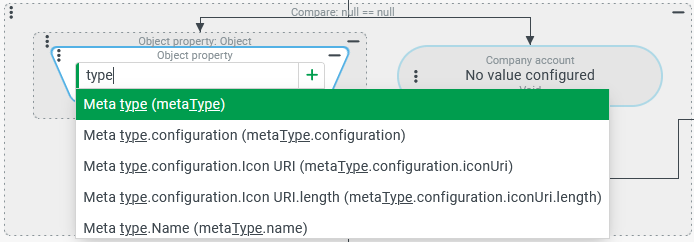
If there is a type reference for the reference object for the context of the Entity property rule, for example because a Check type is provided within an AND Junction 'above', a field can be selected immediately in the Object property resolver (after expanding). In the example on the right, a 'company account' (see Companies/Clients) is expected as the reference object, so that the 'Metatype' ( |
|
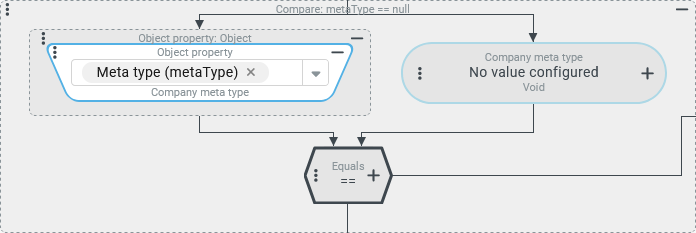
After selecting the 'Metatype' ( There is still no value configuration for the compare value, but in contrast to the first screenshot, the '+' symbol indicates that a value resolver is proposed when the value configuration is expanded, with which a Company meta type can be selected as a static value. |
|
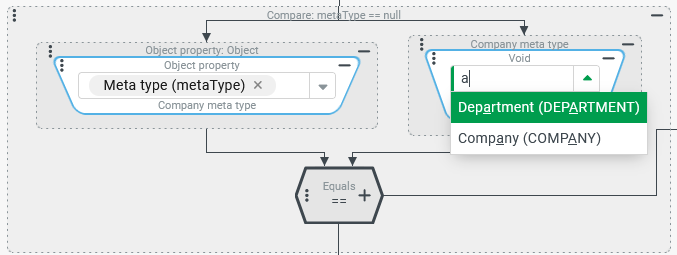
The screenshot on the right shows the Enumeration resolver proposed for the Company meta type based on the check value type, which returns two results in the dropdown for the entered search text ('a'). The Enumeration resolver only allows a single selection. If different 'metatypes' are defined as acceptable with the same Entity property rule, the Equals matcher type must be replaced by the In list matcher type. NOTE: Alternatively, it is possible to 'juxtapose' several instances of the Entity property rule in an OR Junction. |
|
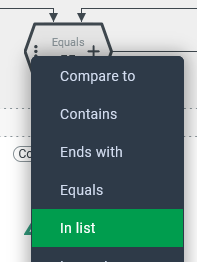
A change of matcher type must be initiated by clicking on the menu icon within the hexagon shape: |
|
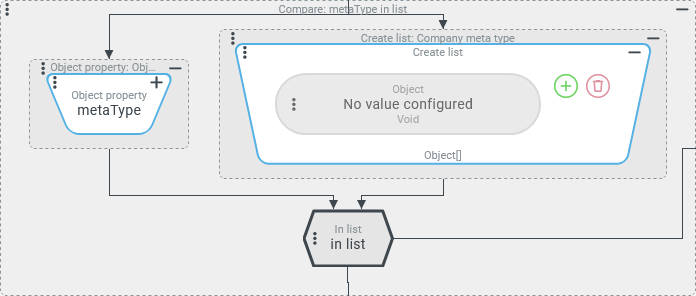
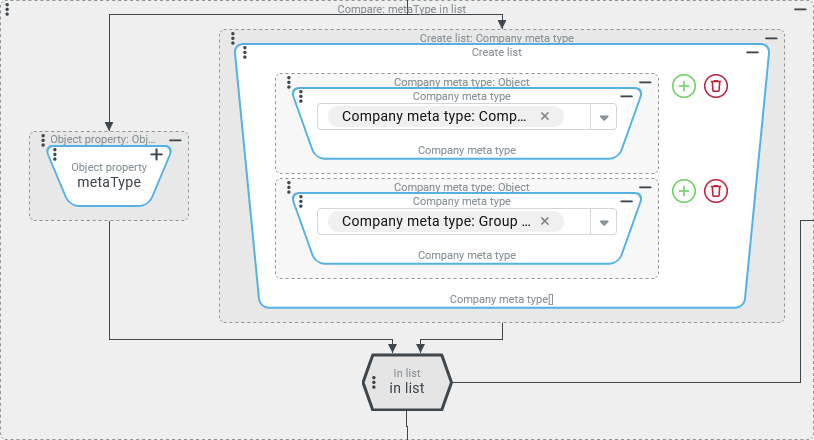
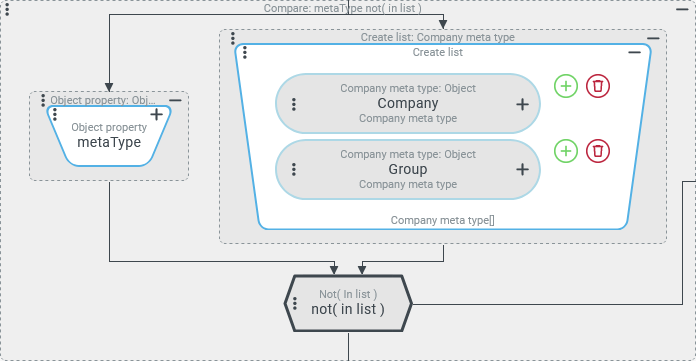
CAUTION: As can be seen in the previous screenshot (right), the value configuration for the compare value is overwritten when the Matchers changes. For the In list matcher type, a Create list resolver is proposed for the compare value configuration, with which any number of entries can be defined. The data type of the check value is not evaluated as an indication of the level of the list entries, so that the appropriate Enumeration resolver is not automatically suggested here. Instead, Any enumeration must be used to select specific values for the Company meta type enumeration. NOTE: If all selected enumeration values come from the same enumeration, this appears as a type hint for the return value of the Create list resolver (see screenshot on the right). |
|
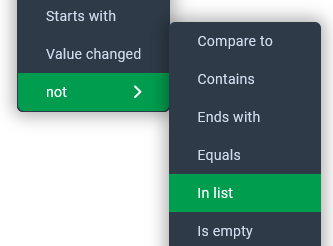
By default, the In list matcher type is considered passed if the check value is contained in the list provided as a compare value. The list therefore acts as a positive list (allowlist). If the list needs to act as a negative list (blocklist) instead, the logic must be 'reversed':
This is made possible by the not menu item in the context menu for the Matchers selection. |
This Entity property rule passes only for companies whose Company meta type is neither 'Company' ( |
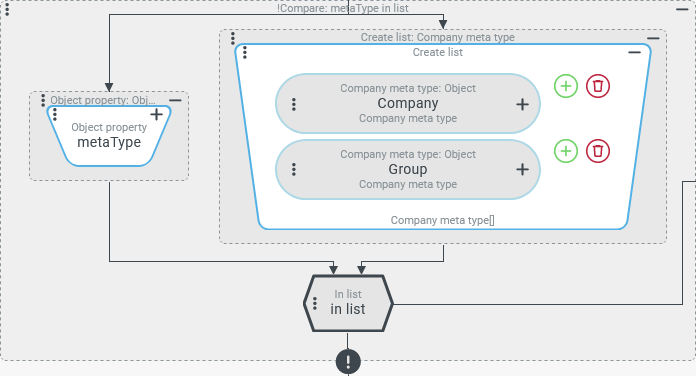
NOTE: Instead of reversing the logic for the Matchers, this could also have been done for the Entity property rule as a whole (see screenshot on the right). This is made possible by the 'not' menu item in the context menu for editing the rule. You open the context menu by clicking the menu icon in the top left corner of the surrounding rectangle.
The screenshot on the right shows the 'negated' Entity property rule. The '!' indicator appears as an icon at the bottom of the rectangular shape and as a prefix in front of the text in the title bar ('!Compare...'). |
|
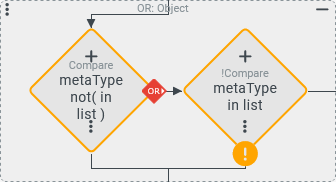
NOTE: The screenshot on the right compares the appearance of the two variants for the negation in the context of an
|
|