Navigate to Configuration > Databases and Connectors.
Here you can manage your database connections (aliases). You also find licensed Business Connectors here (plug icon). Use the context menu to create, edit, or delete entries.
IMPORTANT:
Databases and JDBC drivers are third-party products. Lobster does not provide or support them. Any support provided by Lobster support is voluntary and does not imply a transfer of responsibility to Lobster. Installation, operation, and maintenance of databases and JDBC drivers are exclusively the responsibility of the customer.
Lobster support is happy to assist you with the internal configurations required to connect functioning third-party systems.
Overview

Manage drivers: Opens a dialog for managing the database drivers in ./extlib.
NOTE:
Upload JDBC drivers as
.jarfiles only. A restart of the Integration Server is required afterward. After the restart, check./logs/wrapper.log(Windows) or./logs/console.txt(Linux) to verify that the driver was loaded. Search for the name of your.jarfile.
Business Connector: Select a paid Business Connector. Contact info@lobstersoftware.com to set one up. See also Update Center.
Left column: Indicates whether the entry is a classic database connection or a Business Connector (plug icon). The database used internally by Lobster Integration is identified by a green icon.
Context menu
Name | Description |
|---|---|
Edit | Opens the edit dialog for the selected connection. |
Connection test | Tests the selected connection. See Connection test. |
Create copy | Creates a copy of the selected connection. |
Delete | Deletes the selected connection. This action cannot be undone. |
Export | Exports an entry as a text file (without password). |
Import | Imports a previously exported entry. |
New connection | Creates a new database connection. See Create a new database connection. |
Create a new database connection
Create a new database connection using the plus icon in the bottom right or via the context menu. The configuration file ./etc/database.xml is not required for this. You can work exclusively in the GUI. A restart of the Integration Server is only required for newly uploaded drivers (see above).
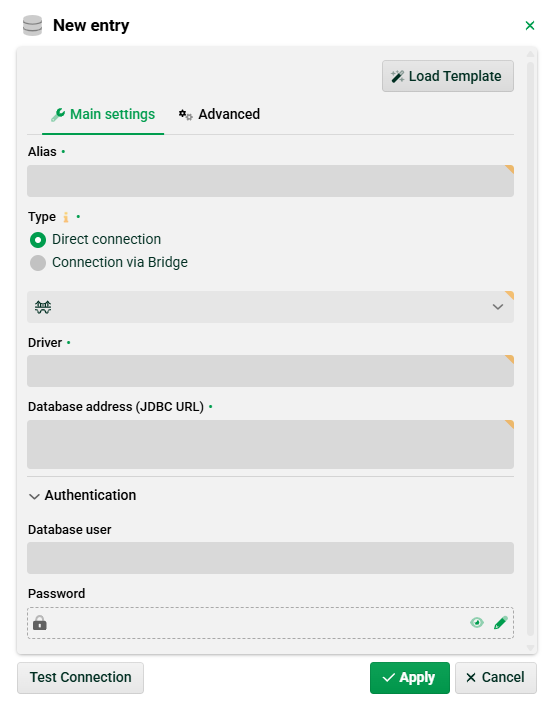
Load template: Select a pre-configured connection template here. You can get the latest templates via the Update Center.
On the left, you find classic database connections. Replace the
DB_HOST_OR_IPandDB_NAMEplaceholders with your specific values. Fill in any missing fields and JDBC properties as required, for exampleCatalog Name,User,Password.On the right, you find the connectors.
Type: In most cases, select "Direct connection". For "Connection via Bridge", see Bridge.
Driver: JDBC driver class for the database connection, for example org.gjt.mm.mysql.Driver.
Database address: Full JDBC connection string for the database, for example jdbc:mysql://myserver:3306/db.
Database user: Enter the database username.
Password: Enter the password here. For Vault passwords, see Vault provider configuration.
Connection test
Run the connection test from the context menu of a selected connection. The system executes a standard SQL query. You receive a success or error message.
NOTE:
For CData connections, enter a suitable SQL query manually.
See also Database access via GUI tools.
Database access via GUI tools
Plugin "SQL console".
Admin console > SQL monitor.
Database access in input agents in Phase 1
Basic SQL (Cron Input agent).
Business Connector (Cron input agent) (paid connectors and classes
DefaultFileSQLCron,DefaultSQLCron, andCrossSQLCron)
Database access via functions in Phase 3
select into list()select into map(a,b,[param &1 = c], d,e, f,g,h,i,j], delimiter k, map l,m,n,o,p)select into map(a,b,list name c, delimiter d, map e,f,g,h,i)select-statement a [[param &1 = c], d,e, f,g,h,i,j], default k,l,m,n dbAlias = bcall db procedure a, alias b, [c,d,e,f,g,h,i,j],k,l,m,[n],o,[p]call db procedure a, alias b,c,d,e,fcall db procedure a with ResultSet()call db procedure a with ResultSet into Map/List()update()update-statement()exists db-row()set-vars()
Relevant system variables
VAR_SYS_EXCEPTION_STACKTRACEVAR_SYS_HAS_SQL_ERROR
Database access in Phase 4
See Phase 4.