In the Info tab, you enter descriptive text for a profile: description, tags, and notes. You can also view the Changes and History fields. This information helps you keep an overview when you work with a large number of profiles. Together with the internal backup, the change entries form a version history for profiles.
Navigation path
Integration > Profile > [Select profile] >Main Settings > Info
Settings
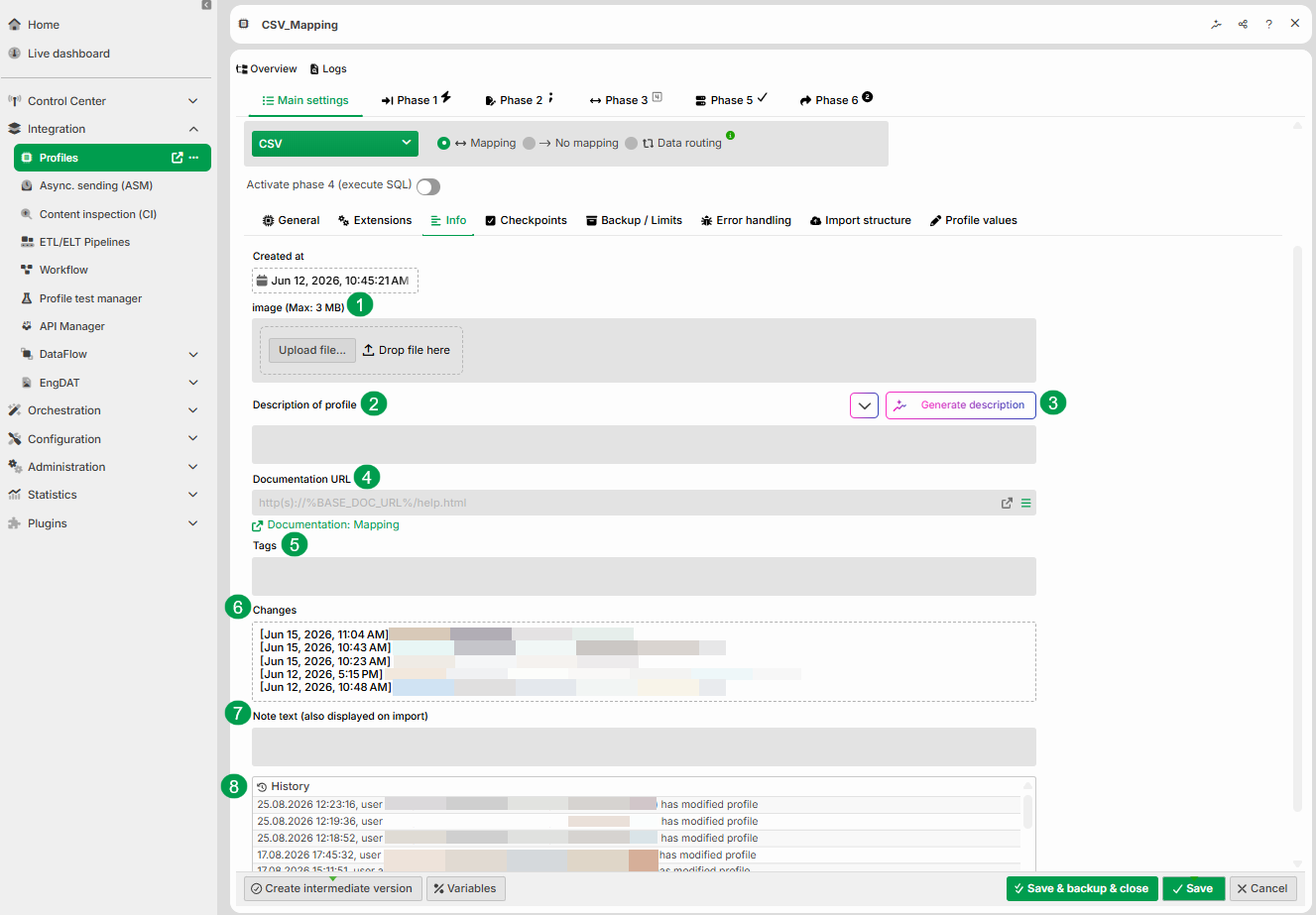
① Image (Max: 3 MB): Here you upload an image for this profile. The image appears in the profile overview if the tile view is active.
② Description of profile: Free text field for a brief summary of the profile's task. The description makes it easier for you and your team to understand the profile later. The profile overview searches this field as soon as you activate the switch next to the Name filter field.
③ Generate description: Generates a profile description using Pathfinder. Pathfinder analyzes the profile's configuration and suggests a description text.
If the profile already has a saved description, the button is called Improve description. Pathfinder then revises the existing text. An accepted suggestion is only retained after saving the profile.
Use the button with the arrow icon to the left of Generate description to access additional actions:

Undo: Restores a previously saved version of the description. Repeated execution steps back through the available versions one at a time.
Fix spelling and grammar: Pathfinder generates a corrected version of the existing description.
The button is always visible. The entries are grayed out as long as the profile does not have a saved description. See also Creating a profile description with Pathfinder.
NOTE:
The buttons only appear when Pathfinder is active. If Pathfinder is disabled for your organization, all AI features remain hidden. See the Pathfinder section.
④ Documentation URL: Here you specify any URL that contains documentation for this profile. Use the icon on the right to open the URL. You can also insert system constants into the URL. The Documentation: Mapping link opens another tab. This tab shows the contents of the Changes and History fields as well as the profile's mapping logic.
⑤ Tags: The profile search takes into account the tags assigned here.
⑥ Changes: When a profile is saved for the first time and with every backup, you can enter a change note. The Lobster Data Platform collects these notes in this field.
NOTE:
Use the option
<Set name="remarkForSaveRequired">true</Set>in the configuration file./etc/startup.xmlto enforce a change note.You set the date format in the configuration file
./etc/admin/datawizard/default.propertiesusing the propertyprofile.history.dateformat, for exampleprofile.history.dateformat=yyyy-MM-dd HH:mm:ss. This setting only applies to new entries.
⑦ Note text (also displayed on import): If you export a profile and later import it again, the note text appears in a message window. This is useful, for example, when migrating from a test system to a live system.
⑧ History: Shows which user modified the profile and when.