Settings
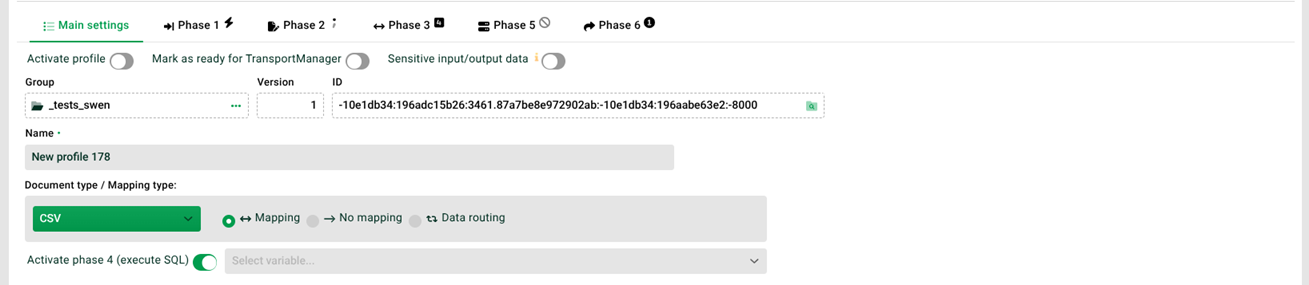
Go to Home > Profiles > Select and click on a profile name in the overview. This takes you automatically to Main settings.
Click the sub-tab General.
The following screen appears:
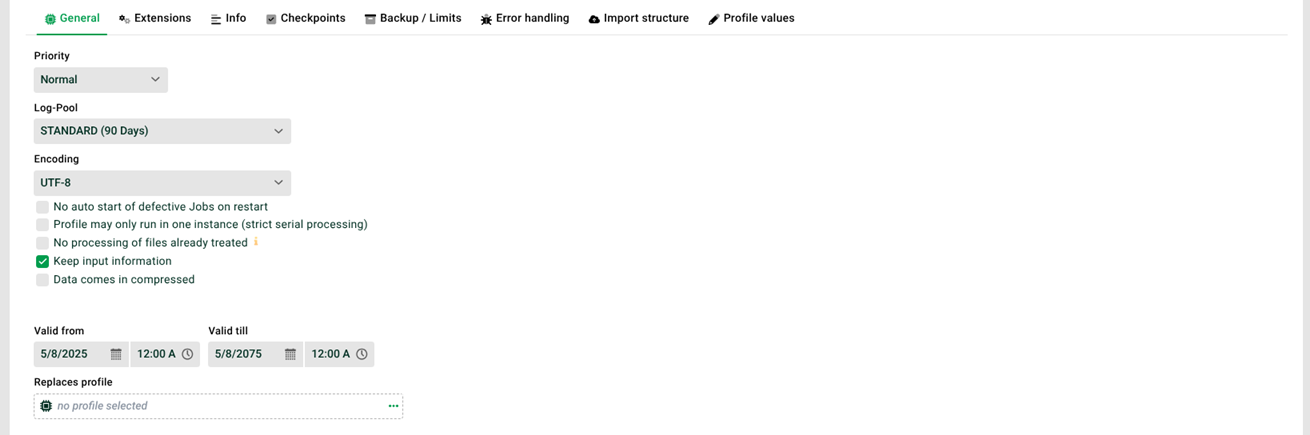
Priority: Sets the priority of jobs for this profile. See also Thread queues (GUI).
NOTE: Changes cannot be saved here if Profile may only run in one instance (strict serial processing) is set. See also Backup and limits.
Log-Pool: The logging of a profile job can take place in a separate log pool. See also Log pools .
Encoding: The character encoding of the incoming data.
NOTE: The default value for new profiles can be set in the configuration file ./etc/admin/datawizard/defaults.properties using the entry profile.<client-ID>.encoding=<Encoding>. For example: profile.-1.encoding=UTF-8 for the default client with the encoding UTF-8.
No auto start of defective Jobs on restart: If this checkbox is selected, crashed jobs (see System crash and crashed jobs) of this profile cannot be restarted. See also Retention periods for backup files, logs, and crashed jobs.
Profile may only run in one instance (strict serial processing): Depending on the Input agent, you can create multiple jobs in parallel for a profile. Selecting this checkbox prevents this. Jobs are then processed sequentially in the order they were created.
CAUTION:
For the HTTP (Input agent) and Message input agents (with the synchronous option), the external client waits for a Response. The job delay enforces a strict sequence. This can cause instability, disruptions, or timeouts. The checkbox therefore has no effect there. Parallel jobs for these profiles remain possible even when the checkbox is selected.
No processing of already handled files: If this checkbox is selected, the Comm log service checks whether the file has already been processed when data is received. The check uses an ID or, if no ID is available, the file name. AS2, Mail, and X.400 use a message ID. OFTP uses a self-generated ID based on the partner ID, file name, date, and file counter. For (S)FTP(S), only the file name is used. This option only applies when a partner channel is used with the Use Comm-Log setting enabled, and when the underlying service does not already reject duplicates itself.
Keep input information: If this checkbox is selected, certain information is stored in System variables. See VAR_MAILSUBJECT, VAR_SENDER, VAR_SYS_MAIL_RECIPIENTS, and VAR_TIMESTAMP.
Data comes in compressed: Specifies whether the data is delivered in an archive. In this case, the files are extracted from the archive and passed to the profile as individual files. Each file extracted from the archive is processed in its own job. Processing occurs sequentially (in archive order) in the same Thread queues (GUI). All jobs receive the name of the archive file in the system variable VAR_SYS_ARCHIVE_NAME (see also VAR_ORIGINATOR_JOBNR, VAR_SYS_ARCHENTRY_PATH, and VAR_SYS_LAST_IN_ARCHIVE). In the HTTP (Input agent), archives with multiple files can only be processed if the input agent has the Send response by fixed value setting configured.
CAUTION:
The input file must have a file extension (for example,
.zipor
Valid from/Valid till: The profile is valid within this time frame. Only valid and active profiles can receive data. See also Profile suspensions.
Replaces profile: It may be necessary for a profile to be automatically replaced by another profile or a newer version at a predetermined time. The new profile takes on the name and profile ID of the old profile, including the current backup data. Proceed as follows.
Create the new profile.
Set the start of the new profile's validity period to a future point in time.
Enter the name of the old profile to be replaced in the Replaces profile field of the new profile. Save and activate the new profile. The user account must have administrator rights.
The old profile is replaced by the new one when the following conditions are met.
The validity period of the new profile has started.
Both profiles are activated and not suspended (see Profile suspensions).
With the replacement, the new profile receives the name and ID of the old one. It takes the place of the old profile. The replaced old profile becomes inactive and receives the name DEPRECATED<timestamp>_<old name> and the previous ID of the new profile. The Replaces profile field in the new profile is now empty. The following line is appended to the description field and the change text of the new profile. A corresponding entry appears in the Control Center under Logs -> General messages.
The system message appears in English:
|
The profile is not replaced in the following error cases.
If the entry in the Replaces profile field references itself.
If the profile to be replaced no longer exists.