The Input agent HTTP accepts HTTP requests and starts a Profile. An input agent is the component that makes a profile react to an incoming event. This article describes the settings of the input agent. It also describes how Lobster matches requests and generates responses.
Settings
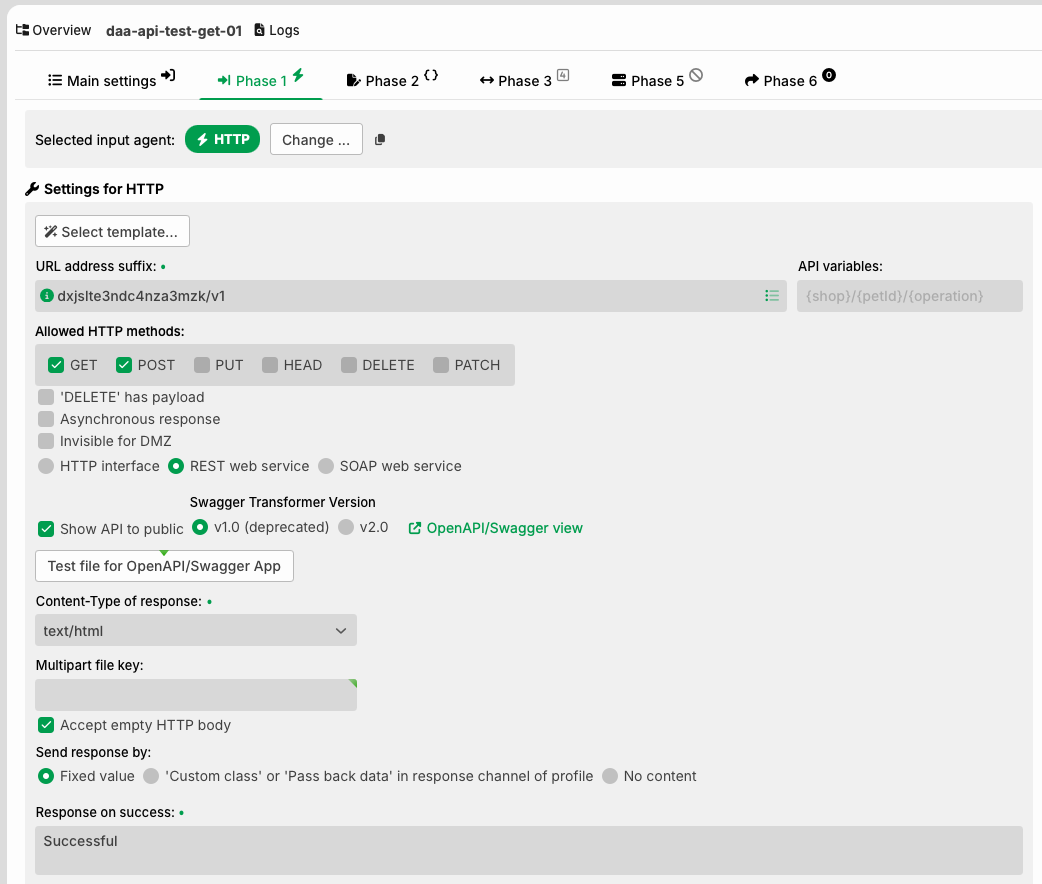
Settings for HTTP methods and API variables in a software interface.
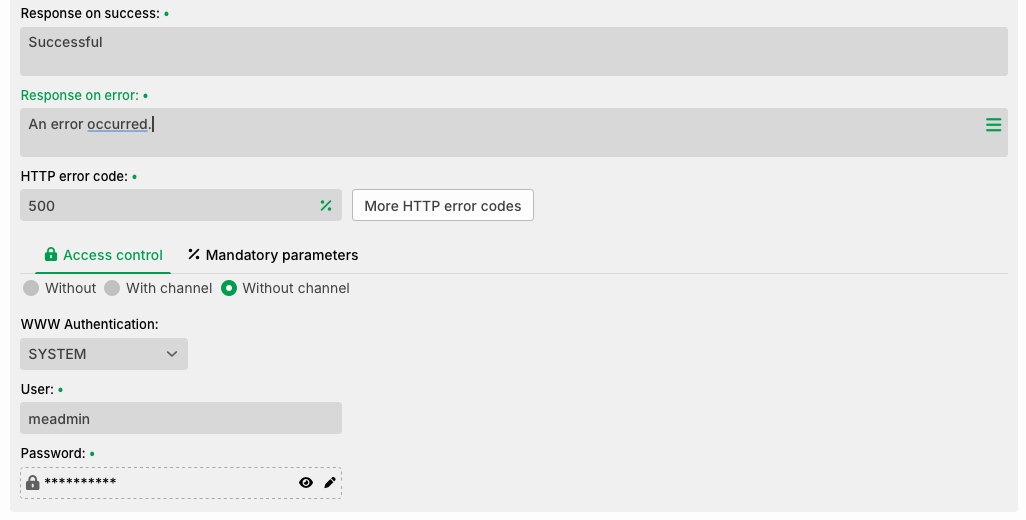
Form fields for success and error responses with access control options displayed.
Field or option | Description |
|---|---|
Select template | Loads a template with presets. You get the templates from the Update Center. |
URL address suffix | Defines the suffix of the endpoint URL. Example: The question mark icon on the left shows the leading part of the URL. The leading part and the suffix together form the complete URL. The section "Schematic structure of the HTTP address" below describes the structure. |
API variables | Defines the path parameters of the REST interface. A path parameter is a variable section of the URL. This field appears only in the mode REST web service. Between two slashes you define exactly one path parameter. The section "Reading path parameters" below shows an example. |
Allowed HTTP methods | Defines which HTTP methods the input agent accepts. The section "Request body, profile behavior, and profile input data" below describes the behavior for each method. |
"DELETE" has payload | Controls whether the profile uses the body of a DELETE request as input data. The table in the section "Request body, profile behavior, and profile input data" below shows the complete case distinction. |
Asynchronous response | Allows several parallel instances of this profile. Lobster sends the response immediately, not after the profile job ends. This option works only with a fixed response. The checkbox "Profile may only run in one instance" (see General (Main settings)) must not be set for this profile. Lobster then processes the jobs of this profile in a thread queue (see Phase 1). |
Invisible for DMZ | Hides this interface from the DMZ server. The DMZ server then forwards no requests to this profile. |
HTTP interface, REST web service, SOAP web service | Defines the mode of the input agent. The section "Modes of the HTTP input agent" below describes the modes. |
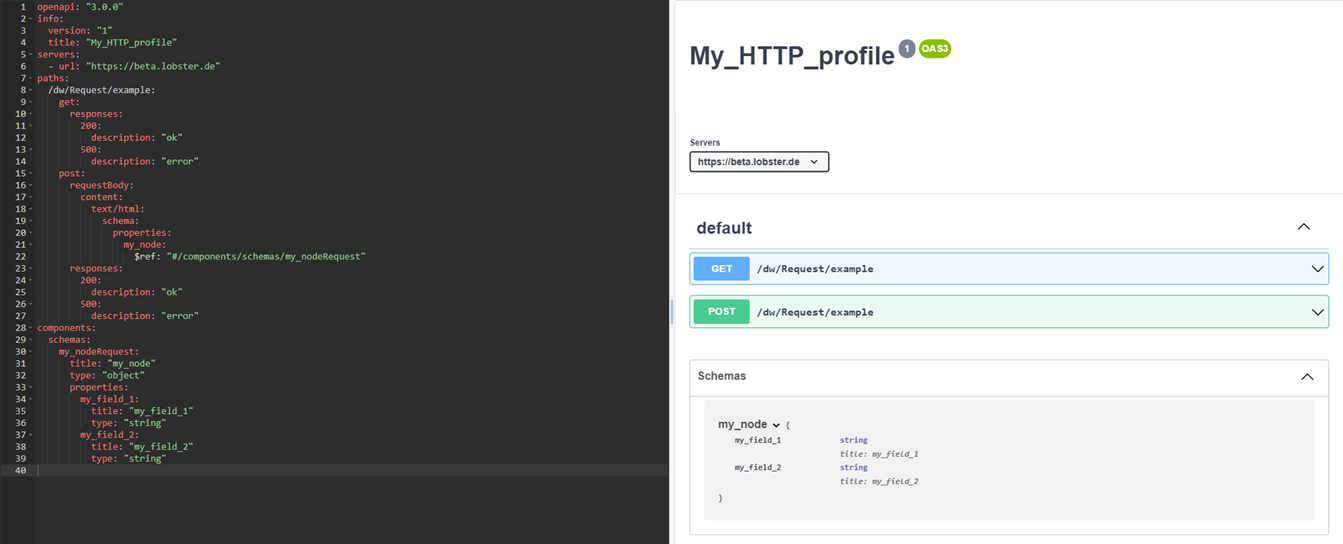
Publish interface (API documentation) | Provides a Swagger/OpenAPI interface description, in JSON or YAML format. The section "Publishing the interface description" below describes the details. |
Swagger Transformer Version | Defines which version generates the interface description. |
Open OpenAPI/Swagger app | Opens the OpenAPI/Swagger app in a new browser tab. There you check the interface description and test requests. |
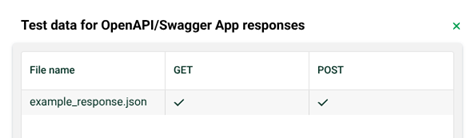
Test data for OpenAPI/Swagger app | Opens a dialog with all test files stored in the profile. This field appears only in the mode REST web service. For each file you select an HTTP method from Allowed HTTP methods. The file is then available in the graphical tool for this method. There you select the file for a request, for example for POST. |
Content type of response | Defines the MIME type of the response. |
Multipart file key | Defines the name of the multipart that contains the main data. By default, Lobster looks for the part named NOTE: This field takes effect only for multipart requests. It takes effect only if no part named |
Accept empty HTTP body | Does not treat an empty HTTP body as an error, for example with POST. Lobster then creates a dummy input file with the content |
Send response by | Defines the response for the success case. The section "Defining the response for the success case" below describes the three variants. You always define the response for the error case in Response on error. |
Response on success | Contains the fixed response value for Send response by. You insert a line break with Available placeholders: |
Response on error | Contains the response for the error case. It applies to both variants in Send response by. With the placeholder Alternative placeholders: |
HTTP error code | Defines the HTTP response status code for the error case. You find the button More HTTP error codes to the right of the field. There you enter additional codes. You assign each code its own Response on error. The function |
WWW Authentication | Defines the access control. You have three options. For access control you also select the authentication method: For |
User | Contains the user name for the access control. This field appears only with the option Without channel. |
Password | Contains the password for the access control. This field appears only with the option Without channel. You use a Vault password through the lock icon. |
Mandatory parameters | Access control and Mandatory parameters are in two tabs. Defines which request parameters an HTTP request must contain at minimum. The sections "Request procedure" and "Request parameters" below describe the details. |
☰ menu to the right of the field URL address suffix | Opens a menu for your own Swagger files. There you create your own interface description. Lobster uses it instead of the automatically generated one. See the section "Publishing the interface description" below. |
Reading path parameters
You read each path parameter from the field API variables through a system variable. The name of the variable follows this pattern.
MSG_CALL_HTTP_REST_API_PATH_<name of the path parameter>You must create System variables in the profile. The following example shows a configuration with two path parameters.
Element | Value |
|---|---|
Field URL address suffix |
|
Field API variables |
|
HTTP request |
|
The profile then receives these values.
System variable | Value |
|---|---|
|
|
|
|
|
|
|
|
NOTE: If you specify path parameters, add a slash at the end of the suffix in URL address suffix. Here this is example/. Lobster automatically removes a leading slash in the field API variables when you save the profile.
In Swagger/OpenAPI, path parameters are mandatory. If you address the profile directly, they are optional. For more information, see the Swagger documentation on path parameters and the Swagger Petstore example.
Modes of the HTTP input agent
The mode determines how the input agent accepts requests.
Mode | Description |
|---|---|
HTTP interface | This is the standard mode. The input agent accepts requests through the URL from URL address suffix, in this case |
REST web service | The input agent works as a REST interface. It also accepts requests with an appended path. Example: With the URL Lobster stores the additional suffix In this mode an additional button appears. It opens a dialog where you store sample response files through the context menu. The graphical tool shows these files only if the checkbox Show response data is set there. |
SOAP web service | The input agent works as a SOAP web service. The sections Profile as SOAP web service (static response) and Profile as SOAP web service (dynamic response) describe the details. |

Publishing the interface description
Lobster provides a Swagger/OpenAPI interface description if these four conditions are met:
The checkbox Publish interface (API documentation) is set.
The mapping is active.
The mode REST web service is selected.
The profile is saved.
You retrieve the description directly through the endpoint URL, in JSON or in YAML format.
https://localhost/dw/Request/example?api
https://localhost/dw/Request/example?api&yaml
Lobster also provides the description in a graphical tool. There you also send requests to the interface. The URL of the tool follows this pattern.
http(s)://<URL or IP of the Integration Server>/openapi/?endpoint=<URL suffix>Example: https://localhost/openapi/?endpoint=example
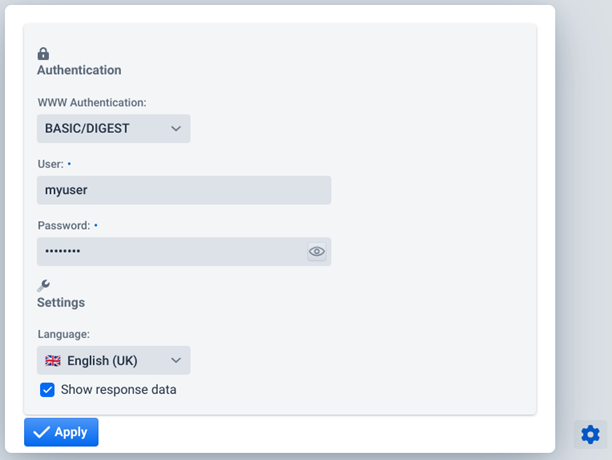
The credentials for the authentication dialog come from WWW Authentication. You also open the dialog through the gear icon. You find instructions for the tool in the section REST API. You combine several profiles into one REST API. See Main settings (Data Flow).
You create your own Swagger files through the ☰ menu. Lobster then uses them instead of the automatically generated description. The files are named <profile name>.json and <profile name>.yaml and are located in the directory ./conf/openapi. The OpenAPI documentation describes the structure of these files.
IMPORTANT: The graphical tool reads the server address from the parameter webServiceUrl in the configuration file ./etc/startup.xml. If this address is not correct, the requests do not work. Adjust the parameter in two cases:
You provide the interface through a DMZ server. On the inner Integration Server, enter the IP or URL of the DMZ server. Add the port if needed. For this you must set up forwarding rules (see Inbound forwarding of HTTP, FTP, SSH, OFTP).
If you also provide the graphical tool outside the intranet, enter the public address of the Integration Server. Add the port if needed.
Defining the response for the success case
The Send response by field offers three variants.
Variant | Description |
|---|---|
Fixed value | Lobster sends the value from the field Response on success. |
"Custom class" or "Return data" in the response path of the profile | Use a response path Custom class with the class |
No return value | Lobster sends an empty response with the response status code |
Schematic structure of the HTTP address
To send data to a profile through HTTP, you address a specific URL. The URL is structured as follows.
<protocol>://<server>:<port><URL context>/<URL suffix><query>Placeholder | Description |
|---|---|
|
|
| DNS name or IP address of the Integration Server, optionally with the port number. Use the values that you configured for the HTTP listener or the HTTPS listener (see Adding an HTTP listener). You can omit the default ports A firewall can broker external access through port forwarding. In this case, use the parameters of the external connection. For access through a DMZ server, the external connections of the DMZ server apply. |
| For a profile with an event-driven input agent HTTP, normally You change the default settings system-wide in the configuration file |
| The value from the field URL address suffix. |
| Additional call parameters. Structure: |
The following entries in ./etc/startup.xml show the default contexts.
<Call name="addServletContext"><Arg>DW trigger</Arg><Arg>/dw/trigger</Arg><Arg>/*</Arg></Call>
<Call name="addServletContext"><Arg>DW request</Arg><Arg>/dw/Request</Arg><Arg>/*</Arg></Call>
Request body, profile behavior, and profile input data
The profile behaves differently for each HTTP method. It also receives different input data, depending on the body of the request.
IMPORTANT: If you use a mapping in the profile, the input data must match the source structure. Keep this in mind for the allowed HTTP methods. An example: You allow POST and expect certain input data in the request body. If you also allow GET, the profile receives the dummy string as input data. This does not match the source structure, and parsing fails.
The following table assumes that the respective method is selected in Allowed HTTP methods. For a method that is not selected, Lobster starts no job. The profile then returns the response Your request could not be processed due to unknown/mismatched parameters with the response status code 404. In this case, the following sections on request and response do not apply.
HTTP method in request | Behavior and input data |
|---|---|
GET | A GET request normally has no body data. Lobster ignores existing body data. Because a profile requires input data, Lobster generates a dummy string. The content depends on the Document type of the profile.
|
POST | If the request contains body data, this data is the input data of the profile. That is the normal case. If the request contains no body data, the checkbox Accept empty HTTP body decides:
|
PUT | Like POST. |
HEAD | Like GET. |
DELETE | If the request contains no body, the checkbox "DELETE" has payload decides:
If the request contains a body, the same checkbox decides:
|
PATCH | Like POST. |
Request procedure
The HTTP servlet starts with the Integration Server. By default, it responds to the HTTP contexts /dw/request and /dw/Request.
http://<URL/IP Integration Server>/dw/request/For an incoming request, the HTTP servlet first looks for the matching profile. Lobster considers all active profiles that meet two conditions: They have an event-driven HTTP input agent. Their suffix (URL address suffix) matches the suffix in the request.
http://<URL/IP Integration Server>/dw/request/<suffix>The request parameters must also match the mandatory parameters in the field Mandatory parameters. An example: The URL address suffix is example. The parameter list under Mandatory parameters contains two parameters: p1=value1 and p2=value2. The URL must then look like this.
http://<URL/IP Integration Server>/dw/request/example?p1=value1&p2=value2Lobster selects the first matching profile and starts processing. Other matching profiles are not considered. If the profile requires authentication (WWW Authentication), Lobster starts it only after successful authentication.
Request parameters
Defining mandatory request parameters
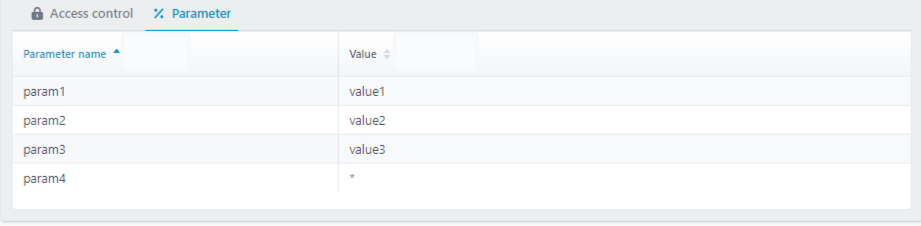
You define which parameters an HTTP request must contain at minimum. The following figure shows an example.
Field | Description |
|---|---|
Parameter name | The name of the HTTP request parameter that must be present. You can use system constants. To allow several values for one parameter, create the parameter name several times. |
Value | Expected value of the parameter. If you enter a value, the parameter in the request must have exactly this value. With the symbol |
Lobster accepts the following HTTP requests in the example.
...?param1=value1¶m2=value2¶m3=value3¶m4=value4
...?param1=value1¶m2=value2¶m3=value3¶m4=valueX
...?param1=value1¶m2=value2¶m3=value3¶m4=valueX¶m5=value5Lobster does not accept the following HTTP requests.
...?param1=value1¶m2=value2¶m3=value3
...?param1=value1¶m2=value2¶m3=valueX¶m4=valueYSeveral profiles can have the same URL suffix and a matching parameter definition. These profiles are then equally ready to accept the request. In this case, Lobster uses the first matching profile.
Reading HTTP request parameters
You access the values of the HTTP request parameters through variables with this syntax.
MSG_CALL_<name of the parameter in capital letters>An example: In the following request, you read the parameters param1 and param2 through the variables MSG_CALL_PARAM1 and MSG_CALL_PARAM2.
http://192.168.213.64:8080/dw/trigger/example?param1=value1¶m2=value2Request headers
You read request headers through system variables with this naming pattern.
MSG_CALL_HEADER_HTTP_<name of the header in capital letters>By default, Lobster does not set the system variable MSG_CALL_HEADER_HTTP_AUTHORIZATION for the header Authorization. With the system property hub.datawizard.http.copy.allHeader=true you force this variable to be set.
Further system variables are available.
MSG_CALL_HEADER_HTTP_METHODMSG_CALL_HEADER_HTTP_PROTOCOLMSG_CALL_HEADER_HTTP_REMOTE_HOSTMSG_CALL_HEADER_HTTP_URIMSG_CALL_HEADER_HTTP_QUERYMSG_CALL_HTTP_AUTH_USER
Response procedure
If Lobster finds no matching profile, you get an error message back. This also applies if the mandatory parameters do not match.
If Lobster finds a matching profile, the response follows after the profile ends. This applies to the success case and to the error case. If the option Asynchronous response is set, the response follows immediately.
You define the content of the response in Send response by.
This section does not apply if an error occurred in connection with the HTTP method. See the section "Request body, profile behavior, and profile input data" above.
Response headers
Lobster sets response headers from system variables with this naming pattern. This applies only if you defined a response under Send response by.
VAR_RESPONSE_HTTP_HEADER_<name of the response header>An example: The variable VAR_RESPONSE_HTTP_HEADER_Test with the initial value mytest creates the HTTP response header Test with the value mytest.
Lobster ignores the response header Content-Length. You cannot overwrite it.
This section does not apply if an error occurred in connection with Allowed HTTP methods. See the section "Request body, profile behavior, and profile input data" above.
Response status
Situation | Response status |
|---|---|
The profile ran successfully. |
|
In Send response by, Custom class is set. |
|
In Send response by, No return value is set. |
|
An error occurred during profile execution. | The value from HTTP error code. Alternatively the value that the function |
The option Asynchronous response is set. |
|
This section does not apply if an error occurred in connection with Allowed HTTP methods. See the section "Request body, profile behavior, and profile input data" above.
Handling HTTP multipart messages
The input agent always accepts only the first multipart as input data, see Multipart file key. The other parts are not lost. Lobster stores them internally in system variables.
Part | System variable for the name | System variable for the value |
|---|---|---|
Second part |
|
|
Third part |
|
|
Lobster stores the total number of all parts in the system variable MSG_CALL_HTTP_MULTIPARTS. This number includes the main part from Multipart file key. However, you can read from the variables only from the second part onward.
Ideally, you know the number of parts and create the required variables in the profile. Otherwise, you read the values dynamically. Proceed as follows:
Create the system variable
MSG_CALL_HTTP_MULTIPARTSin the profile.Iterate a node with the value of this variable (see Path types (repetition of target structure nodes)).
Create the name of the respective variable with the functions iteration-level() and concat(a,b,c,d,e,f,g,h,i).
Read the variable value with the function copy field by name(). Use the type Value for the parameter a.