This Input agent retrieves data from an HTTP(S) server on a schedule. It sends an HTTP request and processes the Response as input data. You configure the request manually or generate it from a Swagger or OpenAPI definition.
Settings

.png)
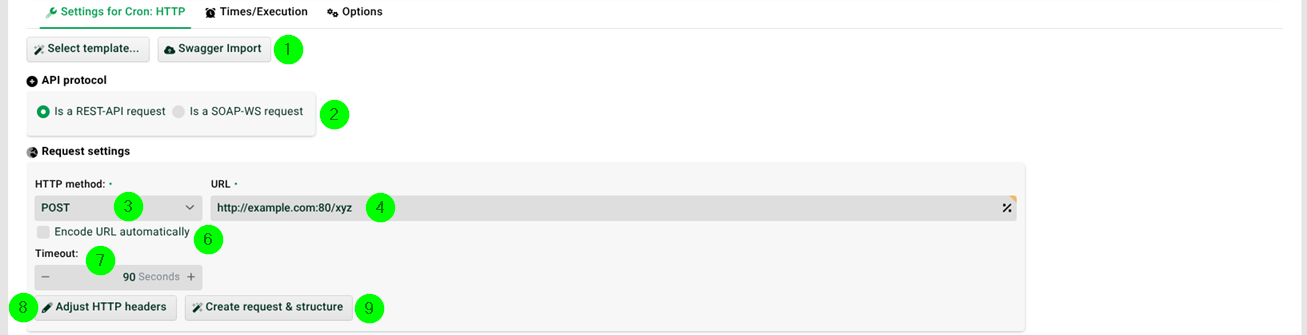
① Swagger import: You obtain the templates from the Update center. To the right, you upload a Swagger file, either directly or by URL. The input agent then sets the HTTP method, the URL, and the content type automatically. If needed, it also creates a suitable source structure, including a target structure through 1:1 mapping. If the path contains a URL variable, the input agent creates matching MSG_CALL_ variables in the profile. It also inserts them into the URL. See Trigger/External call.
Example: https://petstore3.swagger.io/api/v3/openapi.json with the path [GET] /pet/{petId}.
Swagger import dialog
The Swagger import dialog has its own numbering.
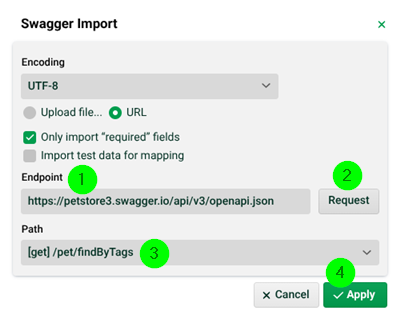
① Endpoint: Enter the URL, or upload a file. Example: https://petstore3.swagger.io/api/v3/openapi.json.
② Request: Retrieves the Swagger or OpenAPI definition from the specified URL.
③ Path: Select the desired path.
④ Apply: Transfers the selected path and its settings to the input agent.
For further details, see the "Swagger import" section in Designer (Data Flow).
Further settings
② API protocol: Activate the option Is a soap WS request only when you call a SOAP web service. Additional buttons then appear below the data field. See Calling SOAP web service with profile in an input agent.
③ HTTP method: Defines the HTTP method to use. The allowed values are GET, GET (with content), POST, PUT, PATCH, DELETE, DELETE (with content), and HEAD.
④ URL: The URL (with port) of the remote HTTP(S) server.
NOTE: The field does not encode the URL. For automatic encoding, set the checkbox in ⑥.
The following rules also apply to this field:
If you select a Channel in ⑭, the input agent replaces the placeholder
<serverurl>. It uses the value of the channel field Partner address for this.You can use the placeholder
{--0:s#<template>--}for the timestamp of the last run of the profile (see Options).
Example:http://example.com?time={--0:s#yyyyMMdd--}. The input agent updates the timestamp only if you actually use the placeholder in the URL or in ⑬. In addition, the HTTP response status code must be in the range 200 to 299. See also the "Paging/Pagination" section below.Variables
@MSG_CALL_MYVAR@, system constants%MYCONST%, and Profile values%perm:KEYNAME%are allowed. A selection menu shows the available values.
⑤ Via DMZ: Activate this option so that the input agent sends the request through the DMZ server. Without a DMZ server, the request goes through the internal Integration Server. The option also applies to the OAuth token refresh. This requires a channel ⑭ with OAuth configured.
⑥ Encode URL automatically: If the checkbox is set, the input agent URL encodes the value from ④ automatically.
⑦ Timeout: Defines the timeout for the HTTP connection.
⑧ Adjust HTTP headers: Here you add additional HTTP request headers. See the "Request headers" section below. If you use a channel, you can also define headers there in the additional IDs (see Channels). For header names and header values, you can use variables @MSG_CALL_MYVAR@. For the value, system constants %MYCONST% and permanent profile values %perm:KEYNAME% are also allowed. A selection menu shows the available values.
⑨ Create request & structure: Executes a request and opens the file structure analysis dialog (see Analyze file for structure) for the response. From there, you generate a suitable source structure. Use this function also when you have set SOAP in ② and the server does not provide a WSDL.
⑩ Multipart/form-data: Creates a multipart request. You insert parts or file parts. See the "Multipart" section below.
⑪ Content type: Defines the MIME type for the header Content-Type. By default, the input agent also adds the encoding from the main settings there, for example application/octet-stream;charset=ISO-8859-1. To prevent this, enter the value application/octet-stream;raw instead. The input agent then uses only application/octet-stream as the content type. If you remove the tick in ⑫, the input agent enters this value automatically.
⑫ Add encoding to content type: Controls whether the input agent appends the encoding to the content type. For details, see ⑪.
⑬ Data: Contains the body data. The field is not available for the HTTP methods HEAD, GET, and DELETE, see ③. It is also missing when you use ⑩.
The following rules also apply to this field:
You can use system constants in the form
%MYCONSTANT%. If the system constant contains a date placeholder (see File names, file patterns, paths, placeholders), for example<yyyy>-<MM>-<dd>, the input agent outputs the current date in that format.You can use the placeholder
{--0:s#<template>--}for the timestamp of the last run of the profile (see Options). Example:{--0:s#yyyyMMdd--}. The input agent updates the timestamp only if you actually use the placeholder in the data or in ④. In addition, the HTTP response status code must be in the range 200 to 299.Variables with prefix MSG_CALL_ are allowed.
⑭ Channel selection: Here you select a channel of type HTTP. The input agent then uses the authentication data from the channel in ⑯. It uses the fields Own ID and Own password for this.
⑮ Certificate selection: If ④ is an HTTPS URL, you can optionally assign a client certificate (see Certificates). Select one of the local certificates for this.
⑯ User, Password: Optionally store authentication data here. For Vault passwords, see Vault provider configuration.
You can also use MSG_CALL_ variables. Alternatively, use the authentication data of a selected channel, see ⑭.
MS-IIS with NTLM authentication: Some HTTP servers expect an integrated Windows authentication of NTLM version 1 or 2. Place a domain name in front of the user name in that case. Use the syntax domain\\user in the user name field, with a double backslash.
⑰ Ignore HTTP status not matching 2xx: If this checkbox is set, HTTP status codes outside 2xx do not terminate the profile. This lets you implement your own error handling. See the "Response and response headers" section below.
NOTE: If the request fails completely, the option has no effect. This happens, for example, when the server cannot be reached. If the profile receives no data, no job is created.
⑱ Activate parallel processing: If this checkbox is set, several instances of this profile work in parallel. The checkbox "Profile may only run in one instance" (see General (Main settings)) must not be set for this profile. With the option active, the input agent processes the jobs of this profile in a thread queue (see Phase 1).
⑲ Activate paging: Activates retrieval in several partial data sets. For details, see the "Paging/Pagination" section below.
⑳ Validate server certificate chain: If this option is active, the input agent verifies the server certificate against the internal JVM trust store. The trust store is a repository of trusted SSL certificates.
Multipart

Multipart mode | Allowed values: Headers: With |
HTTP method | The multipart mode supports only the HTTP methods |
Is file | Without a tick, the input agent inserts a part. With a tick, it inserts a file part. |
Key | Required. Choose any key, but keep it unique. |
Value/path | The input agent inserts the content of the column Value/path as a part. Set the checkbox Is file, and it inserts the content as a file part. If you use the prefix |
File name | Optional. If you use the prefix |
Content-Type | Required. By default, the input agent also adds the encoding to the content type, for example In the header |
Encoding | Optional. For parts, the input agent uses |
Request headers
You insert additional request headers through ⑧. If you use a channel ⑭, you can also set request headers there. See Channels. If you set a header with the same name in both places, the header from the profile takes priority.
You write cookies through the header Set-Cookie.
Response and response headers
The profile continues execution for all response status codes 2xx. For other status codes, an error occurs. The checkbox ⑰ changes this behavior.
You read response headers through the System variables MSG_CALL_VAR_HTTP_<name of the header in capital letters>. See also MSG_CALL_VAR_HTTP_STATUS_CODE and MSG_CALL_VAR_HTTP_STATUS_LINE.
Raw request/response
Activate the trace messages for Phase 1 in the logging configuration. You then see the raw request and the raw response, including the headers, for test purposes. This is particularly useful with the HTTP method POST and multipart. You find this data on the page General messages in the Control Center as a Base64-encoded string. Decode the string with the plugin Encode/Decode. Alternatively, use external tools such as requestcatcher.com.
Paging/Pagination
Paging (or pagination) refers to retrieving very large data sets from a REST API in several partial data sets.
To implement paging, proceed as follows:
Create a profile with this input agent. Enter the first URL. This URL depends on the REST API you use, for example
https://example.com/users?limit=100&page=1.Set the checkbox Activate paging ⑲.
Create the variable
VAR_SYS_HTTP_PAGING_URL.Fill the variable in the mapping with the URL for the next partial data set. Build this URL yourself, or read it from a response header of your request.
A normal start of the time-driven profile triggers the first call. After that, the profile starts again automatically with the URL from the variable. Each run creates another job. The checkbox ⑥ has no effect during paging.
The process repeats until the variable contains the same value as in the last request. It also ends when the last request returns an empty body. If you also set the checkbox Other pages can be accessed via the same URL when paging, the process repeats even when the value of the variable does not change.
CAUTION: Use this option with discretion. It can generate a large number of jobs. The input agent cancels automatically after 1000 repetitions.