Prerequisites
Administrator role
All cluster instances run within the Lobster Application Wrapper.
Cluster overview
Open the page Administration > Base Settings > System, DMZ, Loadbalancing.
The System, DMZ, Loadbalancing page shows a complete overview of the cluster. This includes all DMZ servers and nodes (Working Nodes and Node Controller) with their status (online or offline) and the uptime of each instance.
The page also bundles and replaces functions from the legacy Load Balancing and System Settings View pages. The following functions are now available here:
Stop the platform with the system actions Force Stop and Maintenance Stop.
Configure a temporary DMZ server with the Configure temporary DMZ server button.
Edit the load balance XML with the Edit etc/loadbalance.xml button.
Check that all instances are shown as running in the Application Wrapper.
Under Wait for running jobs, set the wait time. Default: 1min.
Click Forced restart ….
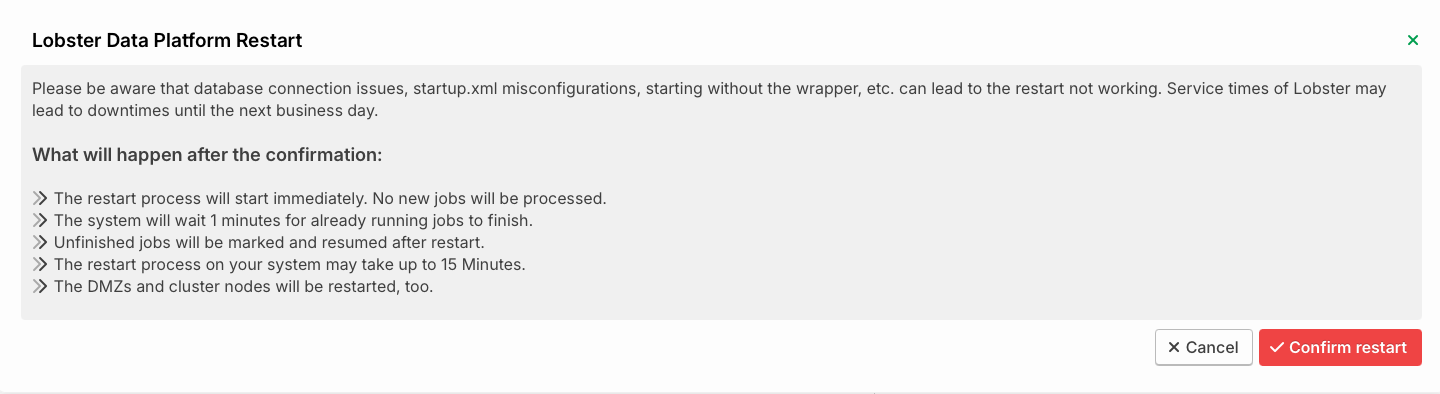
Instructions for restarting the Lobster Data Platform and potential downtime warnings.
Review the safety notes in the dialog.
Click Confirm restart.
Follow the progress on the page. Update the view with the Refresh button.
CAUTION: After the wait time expires, the system forces the restart. It stops jobs that are still running.
After the restart completes, you are automatically redirected to the login page.
Staged restart sequence
The restart runs step by step to keep the platform available:
The system restarts all secondary DMZ servers first. Because they are in standby, they restart at the same time.
As soon as one secondary DMZ server is back online, the system restarts the primary DMZ server. During this time, the secondary DMZ server takes over its tasks.
Next, the Working Nodes restart in two groups. The second group only restarts after nodes of the first group are back online.
The Node Controller only restarts after more than half of the Working Nodes are running again.
NOTE: While the Node Controller restarts, the connection can be interrupted briefly.
Via the REST API
Authentication
The endpoints under /system require an authenticated session. Configure an HTTP channel with OAuth2 server authentication. For details, see OAuth2 for API access.
The following headers are required:
X-ENV-SessionToken: Active session token.X-ENV-ClientId: ID of the client endpoint.
Triggering a restart
POST /system/restart
Content-Type: application/json
X-ENV-SessionToken: <session-token>
X-ENV-ClientId: <client-id>
Request body:
{
  "reason": "Routine maintenance",
  "gracePeriodInMinute": 1,
  "updatePlatform": false
}
Success response (202 Accepted):
{
  "status": "SCHEDULED",
  "isUpdatingPlatform": false,
  "version": "26.2.0"
}
Querying the status
GET /system/restart
X-ENV-SessionToken: <session-token>
X-ENV-ClientId: <client-id>
Response during a running restart (200 OK):
{
  "status": "RUNNING",
  "isUpdatingPlatform": false,
  "version": "26.2.0"
}
Response when no restart is running: 204 No Content.
Querying the health status
An additional endpoint returns the health status of the cluster.
Error responses
409 Conflict: Another restart is already running.503 Service Unavailable: The prerequisite "all instances in the Application Wrapper" is not met.403 Forbidden: The user has no administrator permission.401 Unauthorized: Authentication is missing or expired.
For the complete endpoint reference, see Cluster restart reference.