The system email settings determine where and how Lobster Data Platform sends internal messages by email. These include failed profile jobs, profile checkpoints, errors in ASM, errors in CI, and errors in Statistic Manager.
Note as of version 26.3
These settings are only kept in the database. Direct configuration via the file
startup.xmlis no longer supported.
Click path
Administration > Base settings > System Emails
Access is restricted to users with the admin or super user role.
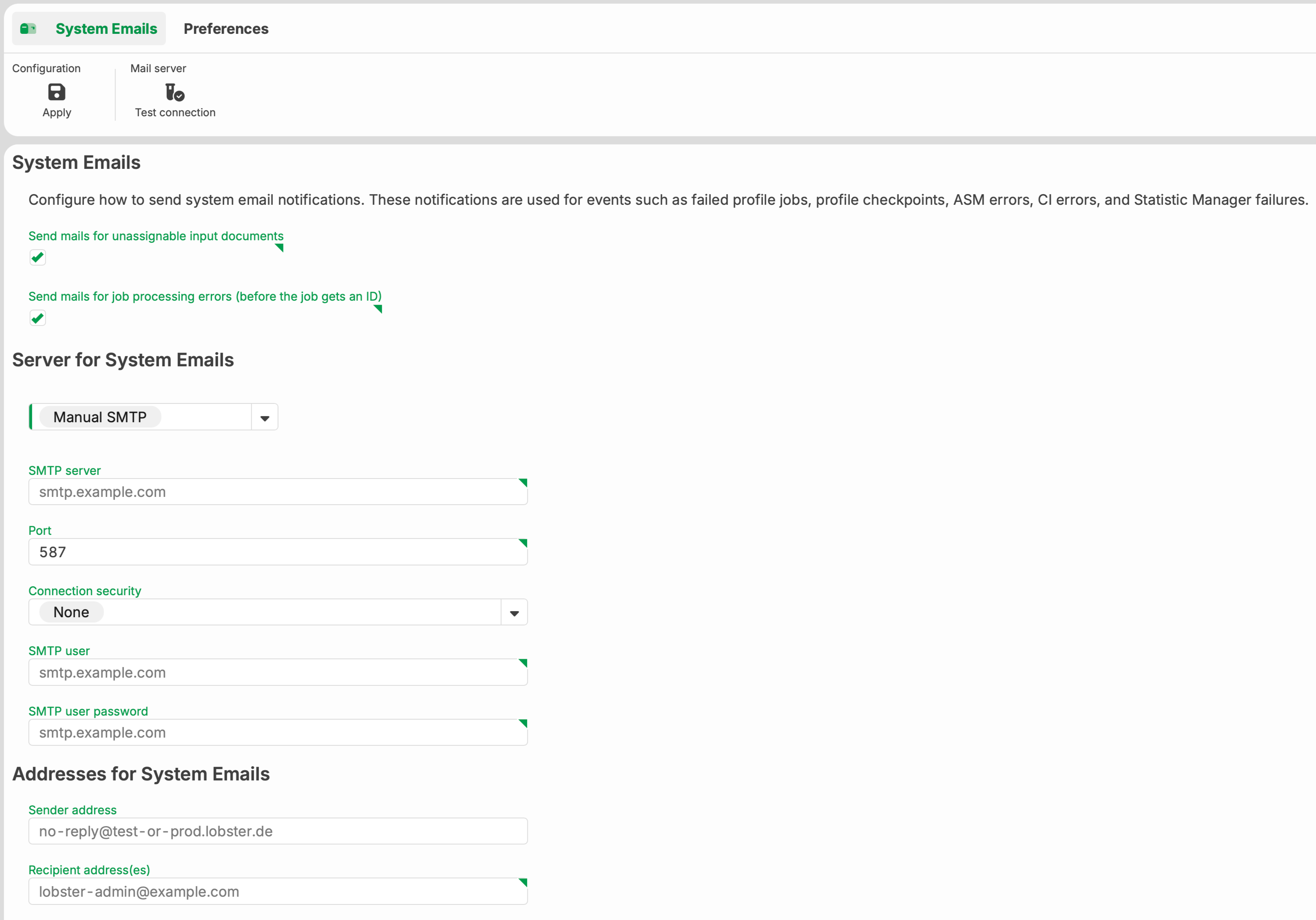
Toolbar
The toolbar offers two actions for the settings.
Area | Action | Description |
|---|---|---|
Configuration | Apply | Saves the current settings to the database. |
Mail server | Test connection | Checks the configured mail server connection. The result is displayed in a modal window. |
System messages by email
Two checkboxes control additional event classes that are reported by email.
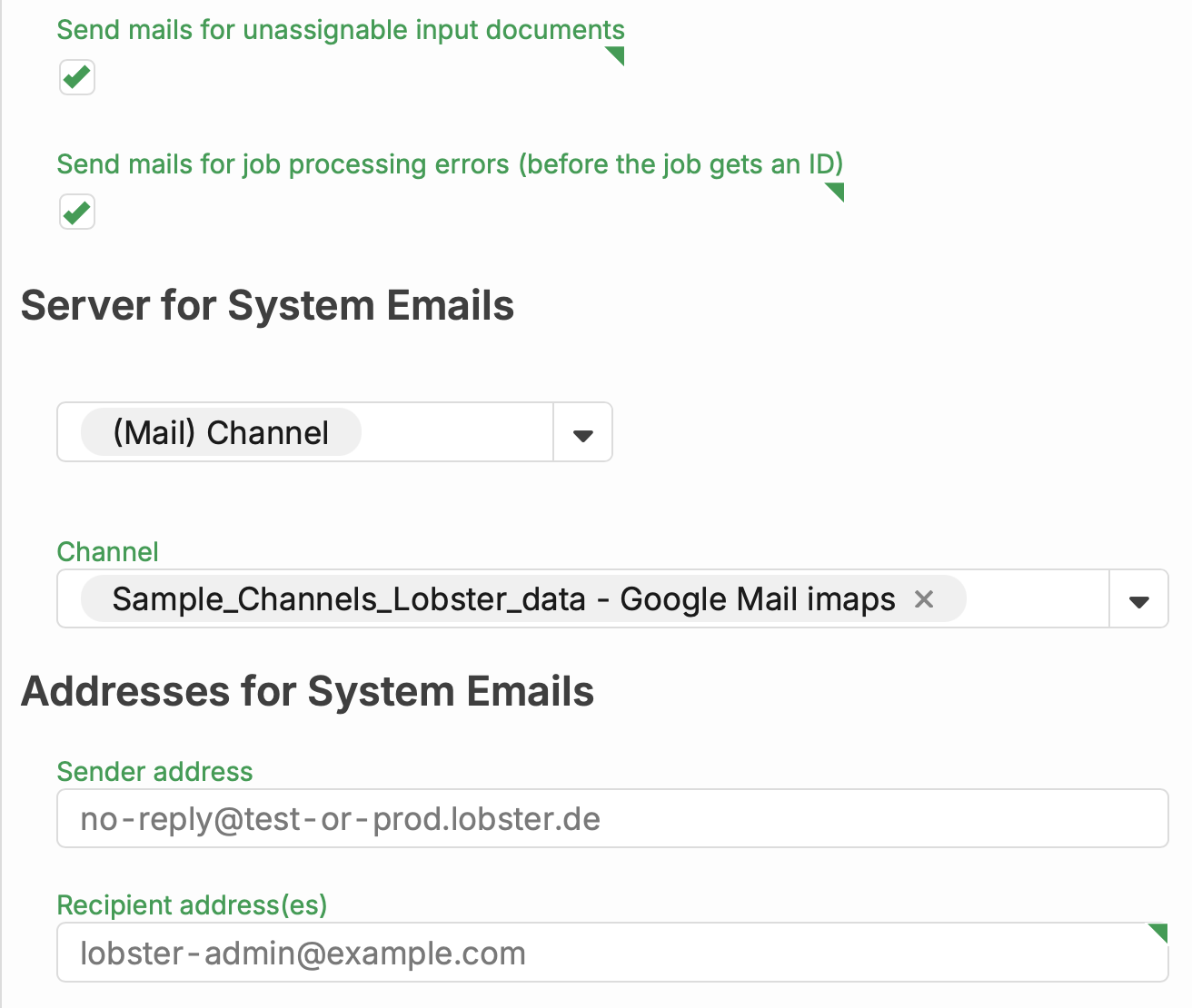
Field name | Type | Default | Description |
|---|---|---|---|
Send emails for unassignable input documents | Checkbox | Deactivated | Sends an email if an incoming document can't be assigned to a profile. The document is then moved to Control Center > Unresolved. Replaces the former XML setting |
Send emails for job processing errors (before the job receives an ID) | Checkbox | Deactivated | Sends an email if errors occur in profiles. These errors occur before the job has an ID and can be logged. Replaces the former XML setting |
Mail server configuration
A dropdown lets you choose the configuration method.
Selection | Description |
|---|---|
Manual SMTP | Direct SMTP configuration with server, port, encryption, and credentials. |
(Mail) Channel | Uses a mail channel already set up in the system. |
Manual SMTP
The following table shows the fields for manual SMTP configuration.
Field name | Type | Default | Description |
|---|---|---|---|
SMTP server | Text field | Empty | Hostname or IP address of the SMTP server, for example |
Port | Number field | 25 | Port of the SMTP server. Common values are 25 for unencrypted connections, 465 for implicit TLS, and 587 for STARTTLS. |
Connection security | Dropdown | None | Transport-layer encryption of the connection. See table below. |
SMTP user | Text field | Empty | Login name for SMTP authentication. If the field is left blank, no authentication takes place. |
SMTP user password | Password field | Empty | SMTP user password. Stored encrypted in the database. |
Possible options in the Connection security dropdown menu:
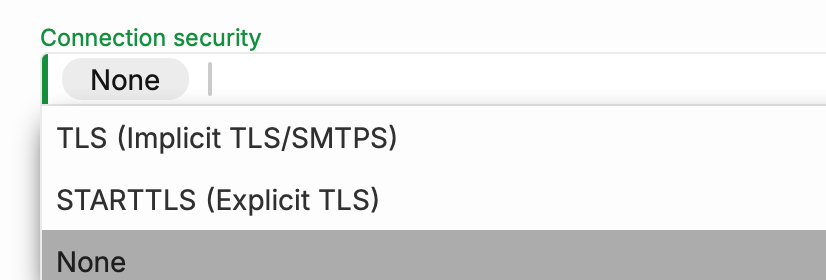
Value | Description |
|---|---|
TLS (Implicit TLS/SMTPS) | The connection is established immediately via TLS. Common on port 465. |
STARTTLS (Explicit TLS) | The connection starts unencrypted and switches to TLS via the STARTTLS command. Common on port 587. |
None | No transport encryption. For internal, trusted networks only. |
Mail Channel
The following table shows the field for selecting the channel.
Field name | Type | Description |
|---|---|---|
Channel | Dropdown | Shows all mail channels configured in the system in the form of partner name and channel name. |
Email addresses
Two fields define the sender and recipient addresses for system emails.
Field name | Type | Description |
|---|---|---|
Sender address | Text field | Sender in the From header of system emails. No default value preset. |
Recipient address(es) | Text field | One or more destination addresses for system emails. Enter multiple addresses separated by commas. No default value preset. |
Connection test
Clicking Mail Server > Test Connection causes Lobster Data Platform to check the configured connection and log in without sending a test email. The result appears in a separate modal window with three verification steps.
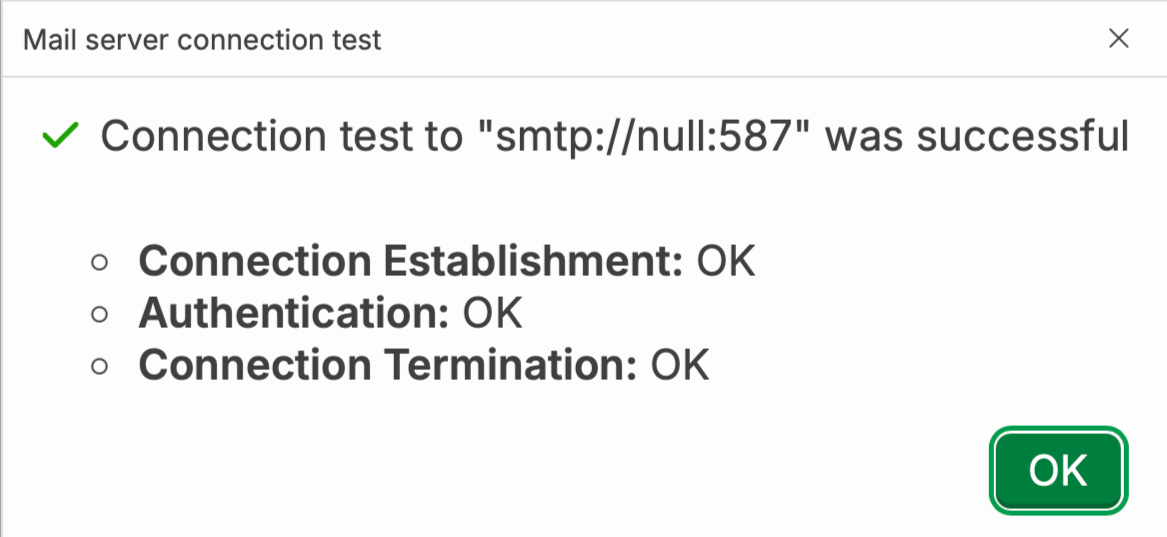
Verification step | Description |
|---|---|
Connection Establishment | Establishing a TCP connection to the configured server and port. |
Authentication | Logging in with the SMTP user and password. If the server doesn't require authentication, this step still reports |
Connection Termination | Closing the connection with the |
On success, the modal window shows an OK for all three steps. If an error occurs, the modal window names the failed step and the cause.
Migration from startup.xml to the database
Starting with version 26.3.0, the system migrates existing values from startup.xml to the database. This happens once, at the first startup after the update. The startup.xml file remains unchanged. Its historical values are preserved. If values already exist in the database, the migration is skipped. Then the existing database values continue to apply.
Known limitation
With a manual SMTP configuration without a mail channel, the automatic migration can fail. The system then doesn't create an internal mail channel in the database.
In this case, open Administration > Base settings > System Emails. Save the settings there once manually. The system then creates the internal mail channel automatically.
Note
The
startup.xmlfile can still contain email settings. As long as this is the case, the system writes an informational message to the log at every startup. These values no longer have any effect after the migration.
See also
These articles contain further information.