Resolved
Patch release LDP Release 26.3.6 fixes this issue.
After an update to version 26.3.3 or later, the configuration for sending emails may not be transferred correctly to Base settings > System Emails. This can happen in particular when settings already exist in ./etc/startup.xml.
If you notice problems with sending emails, carry out the steps described below.
IMPORTANT:
If sending emails works correctly in your system, no action is required.
Checking for errors
First check in Control Center > Logs > Errors whether errors related to sending emails have occurred. Such errors can look like this, for example:
Couldn't connect to host, port: localhost, 25; timeout 60000;

javax.mail.MessagingException: no sender given!

com.sun.mail.smtp.SMTPSendFailedException: 554 Message rejected:
Email address is not verified. The following identities failed the check in region EU-CENTRAL-1: info@example.com
Applying the workaround
If corresponding errors related to sending emails are present, proceed as follows.
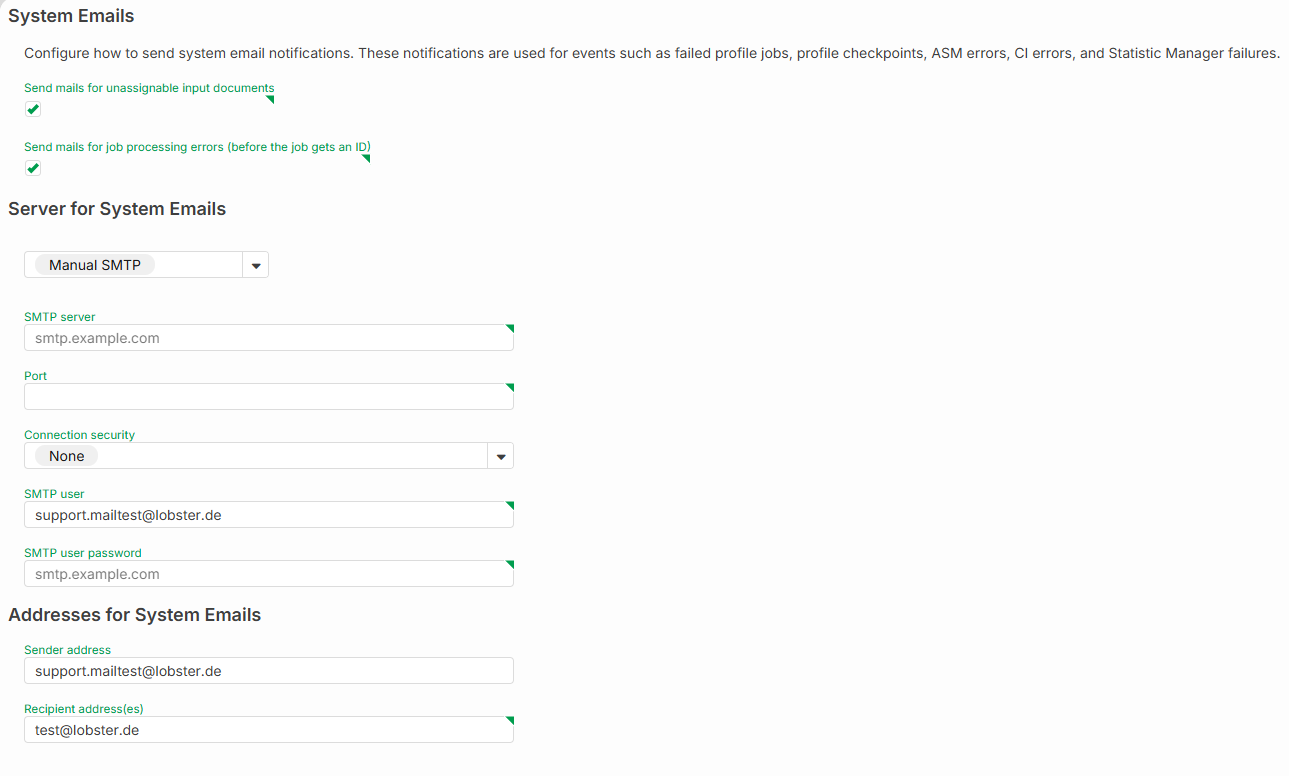
Open Administration > Base settings > System Emails.
In the dropdown menu, first select Manual SMTP.
Clear the following fields:
SMTP server
Port
Check the following fields and enter the correct values:
SMTP user
Sender address
Recipient address(es)
Then switch the dropdown menu to Mail Channel. Select the mail channel that Lobster Data Platform should use to send the emails.
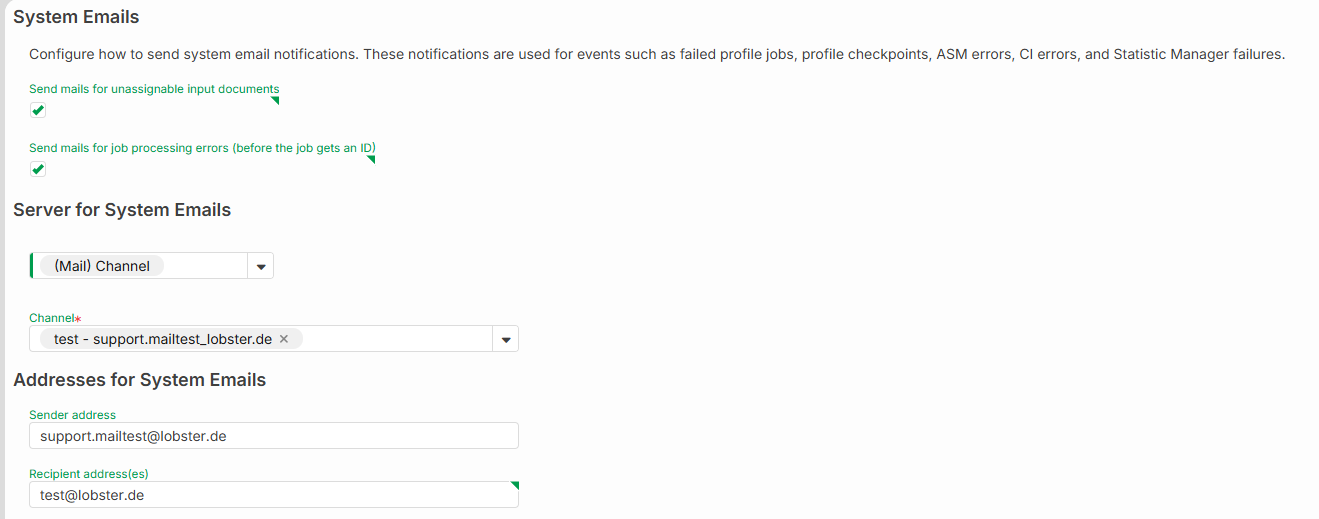
Save the configuration with Configuration > Apply. If an error message appears when you save, confirm it with Ok.
From this point on, the selected channel handles email sending.
NOTE:
Incorrect data may still be displayed under Manual SMTP. These values are no longer active and can be ignored.