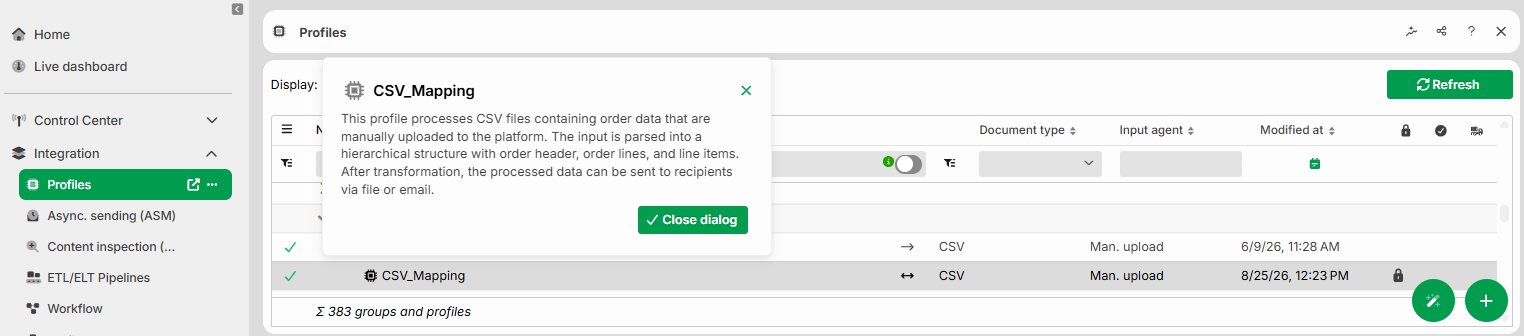
Pathfinder generates a description for an existing Profile. To do this, Pathfinder analyzes the profile's configuration and suggests a text in natural language. This guide shows how to generate, revise, and save a profile description.
Prerequisites
Pathfinder is activated for your organization.
You have write permissions for the profile.
Procedure
Go to Integration > Profiles > [Open Profile] > Main settings > Info.
Click Generate description. The Pathfinder chat window opens and Pathfinder generates a description.
Optional: Revise the description in the chat window. Use the quick actions to lengthen or shorten the text. Use the input field to request further adjustments.
Click the insert icon
 . The description appears in the Profile description field. The Generate description button is now labeled Improve description.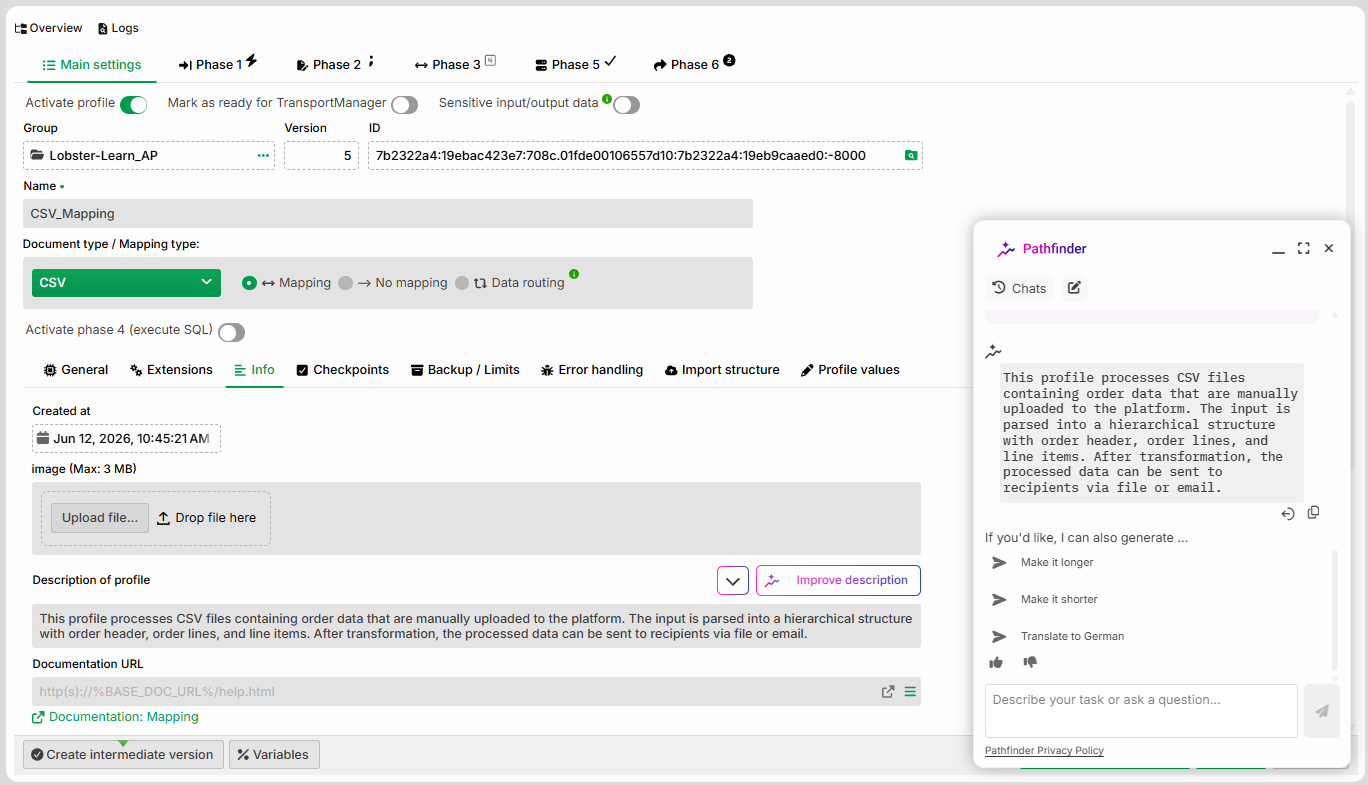
Optional: Open the menu using the button with the arrow icon. There you can undo changes or correct spelling and grammar.
Click Save.
NOTE:
If Pathfinder does not return any text, a corresponding message appears in the chat window. In this case, start a new attempt.
Result
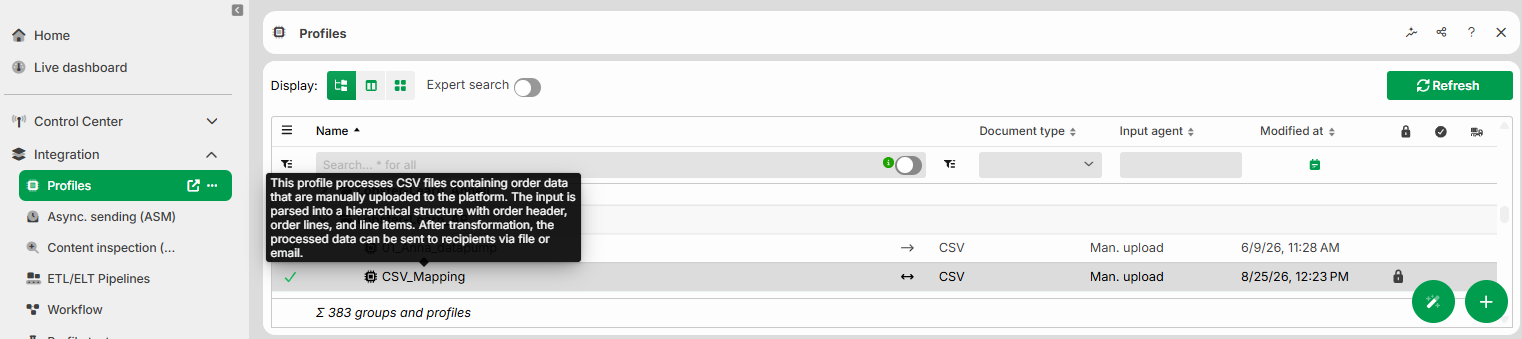
The profile now contains the description. You can see the description in two places:
As a tooltip in the profile overview when you hover over the profile with your cursor.
In the profile's context menu via the Show description option. The description appears in a dialog, which you close using the Close dialog.