Pathfinder is the AI assistance function of the Lobster Data Platform. The chatbot uses the product documentation as its knowledge base.
Pathfinder supports you with the following tasks:
Answering general questions in the chatbot.
Creating and explaining cron expressions.
Generating SQL queries.
Generating and explaining regular expressions (regex).
Documenting function chains.
Searching and summarizing functions.
Explaining error messages.
In Phase 3, generate auto-mappings, including function chains.
Generating profile descriptions
Reading values from JSON and XML files
Creating custom type definitions
Optimizing form layouts
Enable or disable Pathfinder
Administrators enable or disable Pathfinder for their organization. Pathfinder is only visible with an active API client and a valid AI license. Without these prerequisites, Pathfinder does not appear in the interface.
General chatbot
The chatbot answers questions on all topics related to the Lobster Data Platform. When opened, Pathfinder greets you with a brief introduction. Pathfinder suggests three example questions.
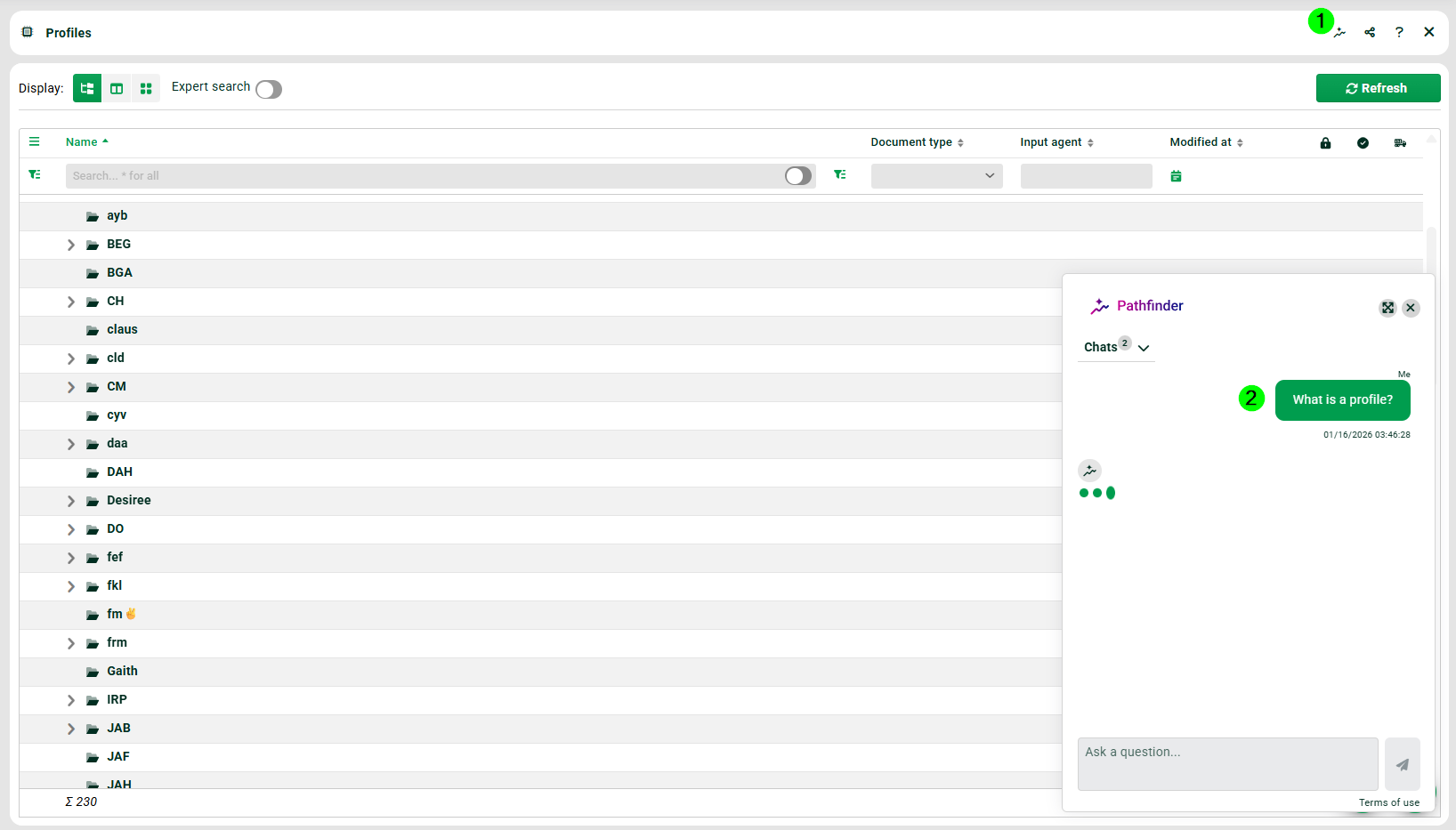
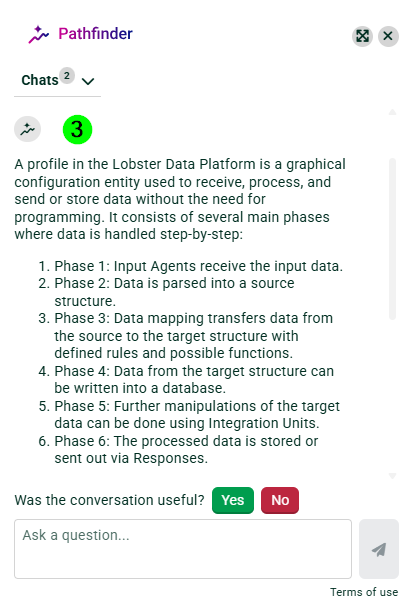
To use the chatbot:
Open Pathfinder using the Pathfinder icon in the top bar (the first one in the row).

Enter your question in the input field.
Read the generated answer.
Ask follow-up questions if needed.
The example questions on the chatbot start page adapt to the current context. In a profile, Pathfinder suggests different questions than in the log view. Pathfinder recognizes the following contexts:
SQL query generator: Help with generating and explaining SQL for the selected database.
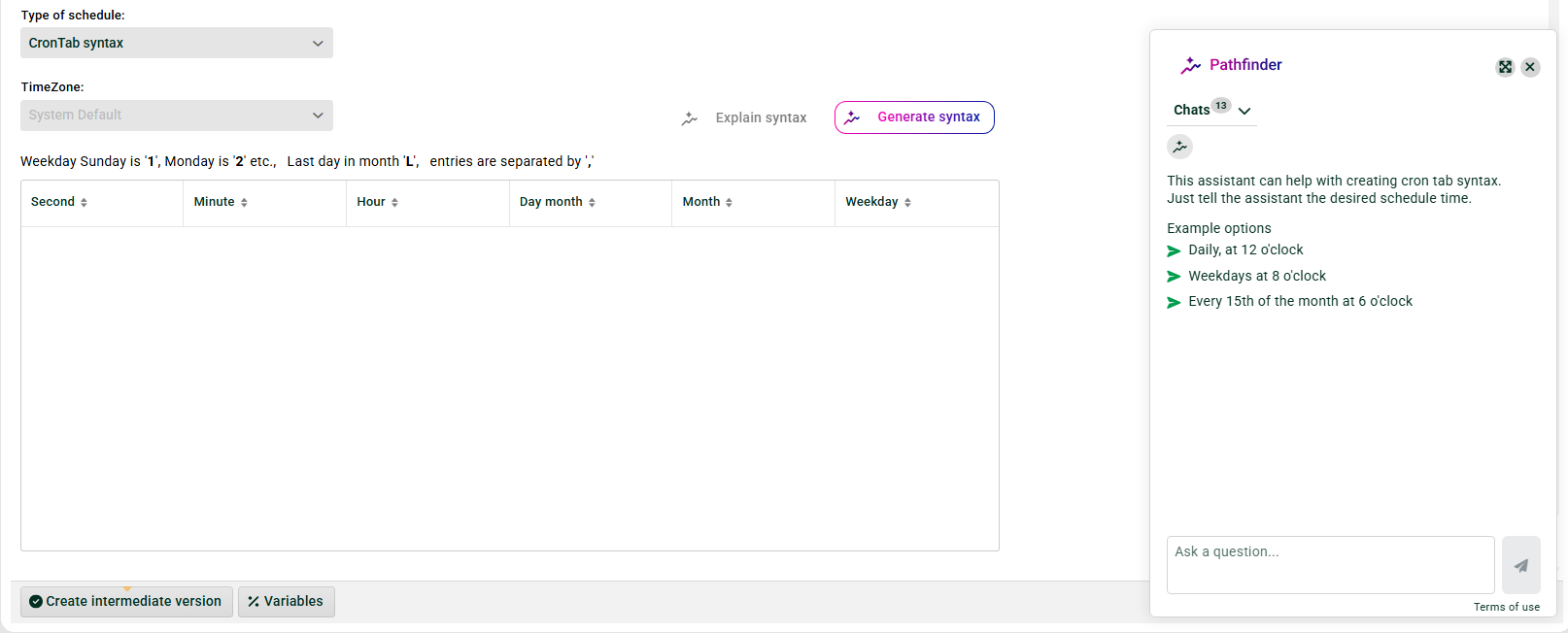
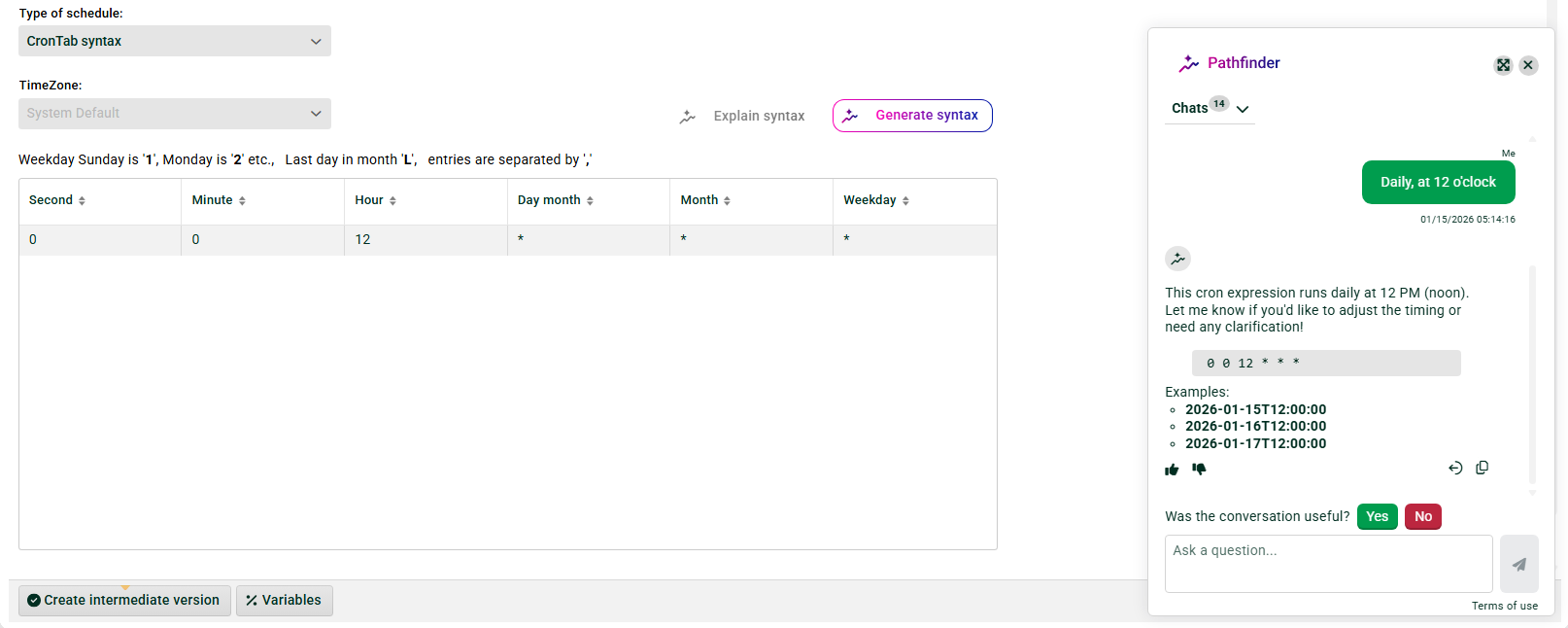
Cron syntax: Help with cron expressions and scheduling.
Profile: Help with profile configuration and settings.
Logs: Help interpreting log entries and errors.
Event handling: Help with triggers, event actions, and flow logic.
Available controls in the chat window
The chat window contains the following controls:
Control | Function |
|---|---|
Chats | Starts a new conversation. The label adapts to the window size. In small windows, only the icon with a tooltip appears. |
Minimize | Shrinks the chat window without closing the conversation. When you reopen it, you see the latest state. |
Maximize | Click here to bring the chat window to its maximum size. The icon changes. When you click again, the window returns to its original size. |
Conversation history | Shows past chats in two tabs: Context matching chats and All chats. The title shows the first 30 characters of the first message. Actions such as Use result are disabled in loaded histories. |
Thumbs up/down | Rates individual Pathfinder answers. After rating, the feedback button Share more appears so you can optionally share additional information. |
Privacy link | Opens the Pathfinder privacy policy. The link is at the bottom of the chat window. |
Additional notes about the chat window
Messages are grouped by day. Each day group shows the date above it, for example Today or May 30.
Each of your messages shows the time in hours and minutes below it.
Inline links in Pathfinder answers open in a new tab.
If the AI service is unavailable, Pathfinder shows an error message.
The Use result button appears only in contexts where inserting the result is possible.
Explain and generate cron expressions
Pathfinder explains and generates cron expressions. Pathfinder helps you configure time-based processes. See Crontab syntax.
Generate SQL queries
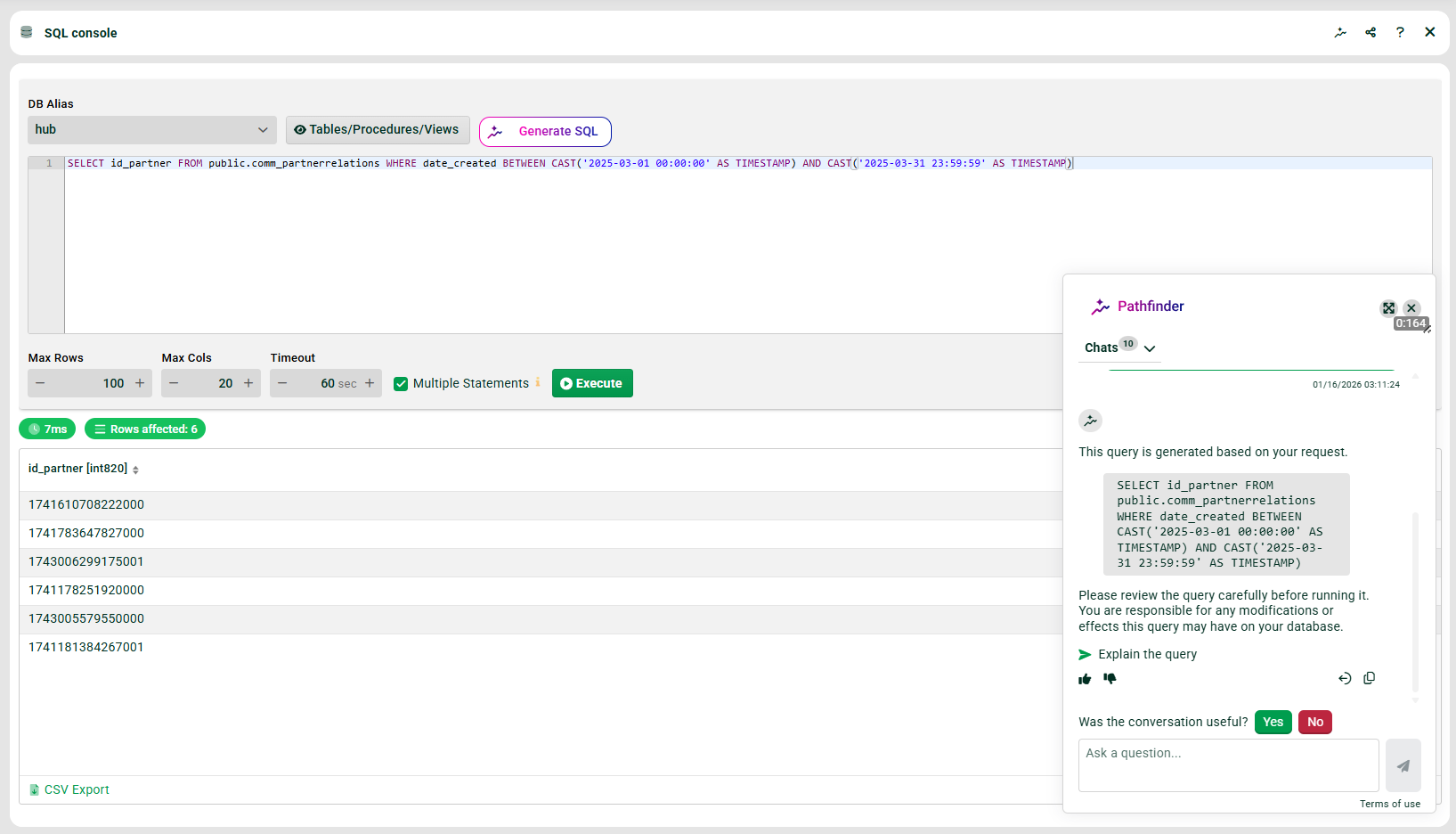
Pathfinder creates SQL queries from natural-language descriptions. To achieve this, Pathfinder uses only the database schema. However, Pathfinder cannot see the contents of the tables themselves. See also SQL console.
Generate and explain regular expressions (regex)
Pathfinder generates valid regular expressions from your natural-language descriptions. Pathfinder explains existing regular expressions on request. Pathfinder also confirms whether an existing regular expression is correct and returns valid results.
For detailed instructions, see the how-to article Creating regular expressions with Pathfinder.
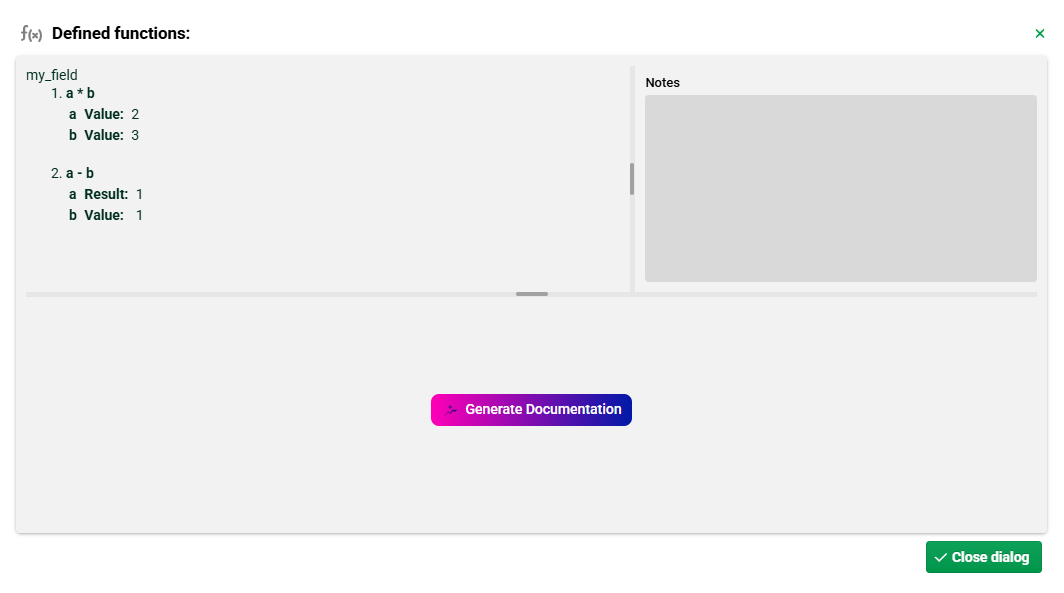
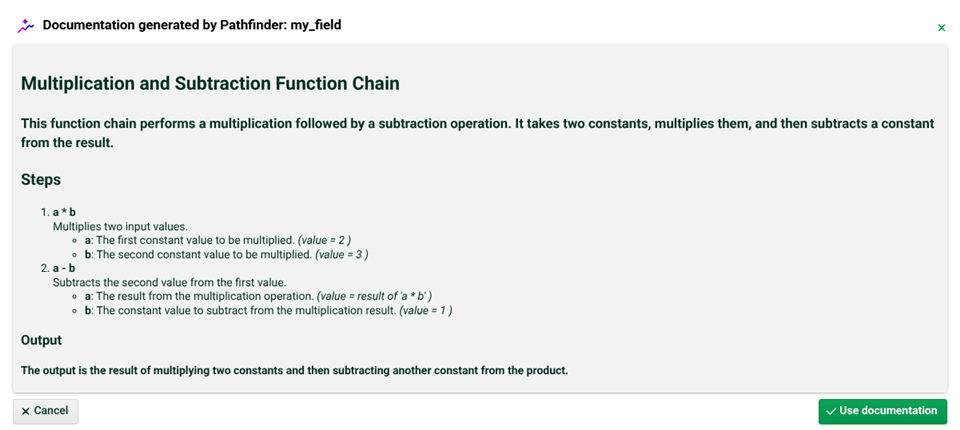
Document function chains
Pathfinder looks for the available functions and summarizes them. See Functions (GUI).
Search and summarize functions
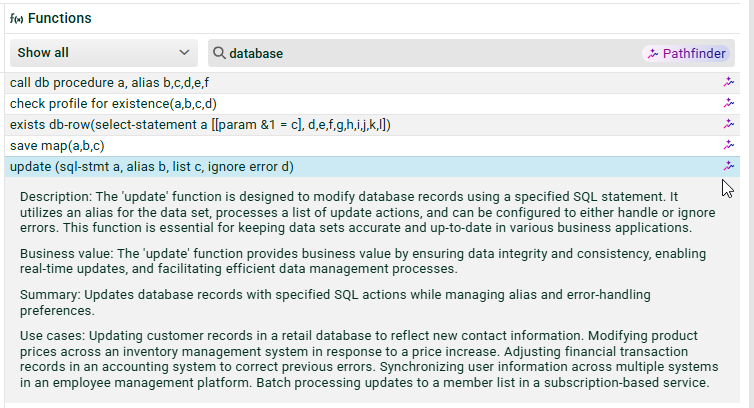
Pathfinder looks for the available functions and summarizes them. See Functions (GUI).
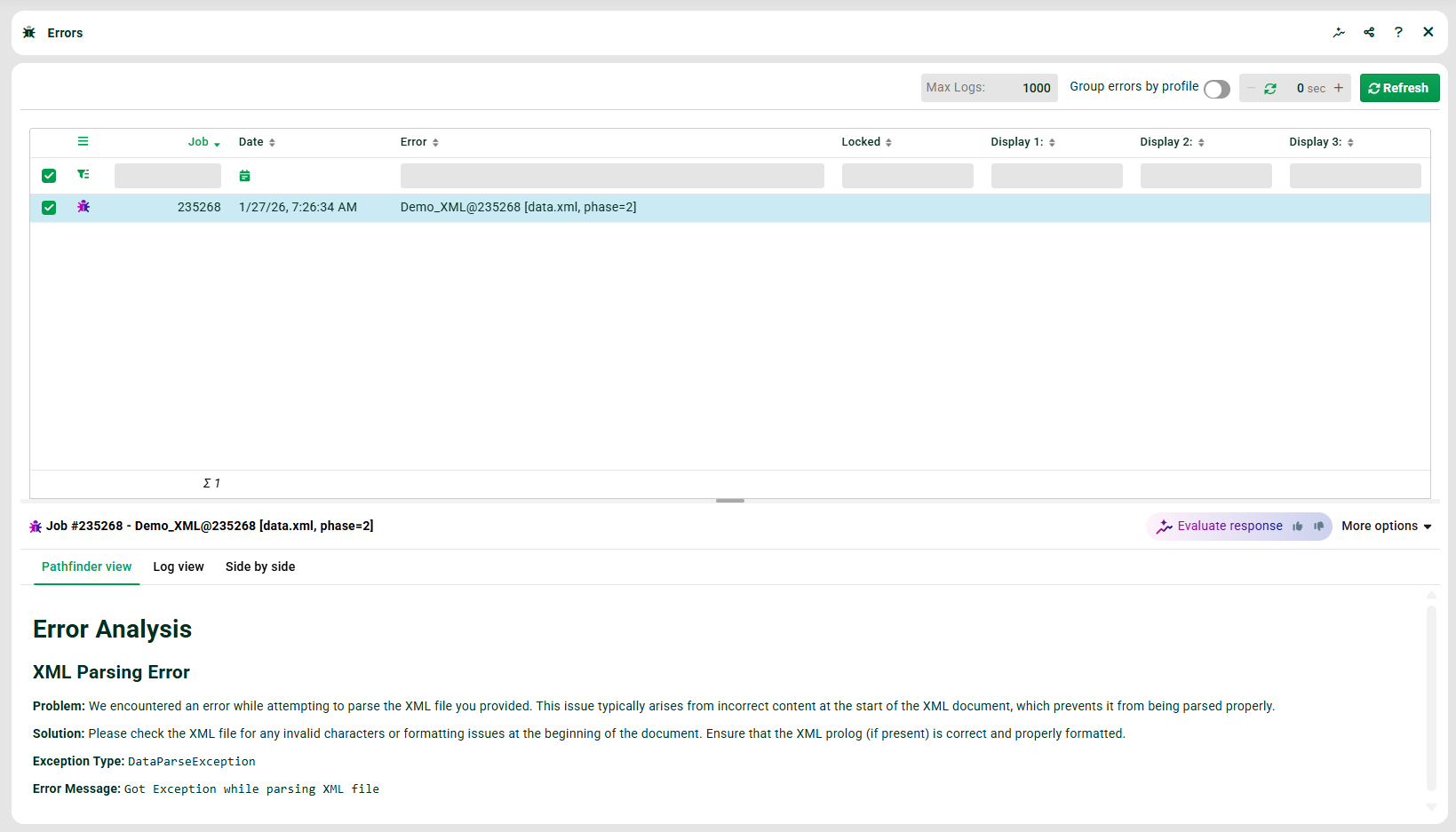
Explain error messages
Pathfinder explains error messages from logs in plain language. See Errors.
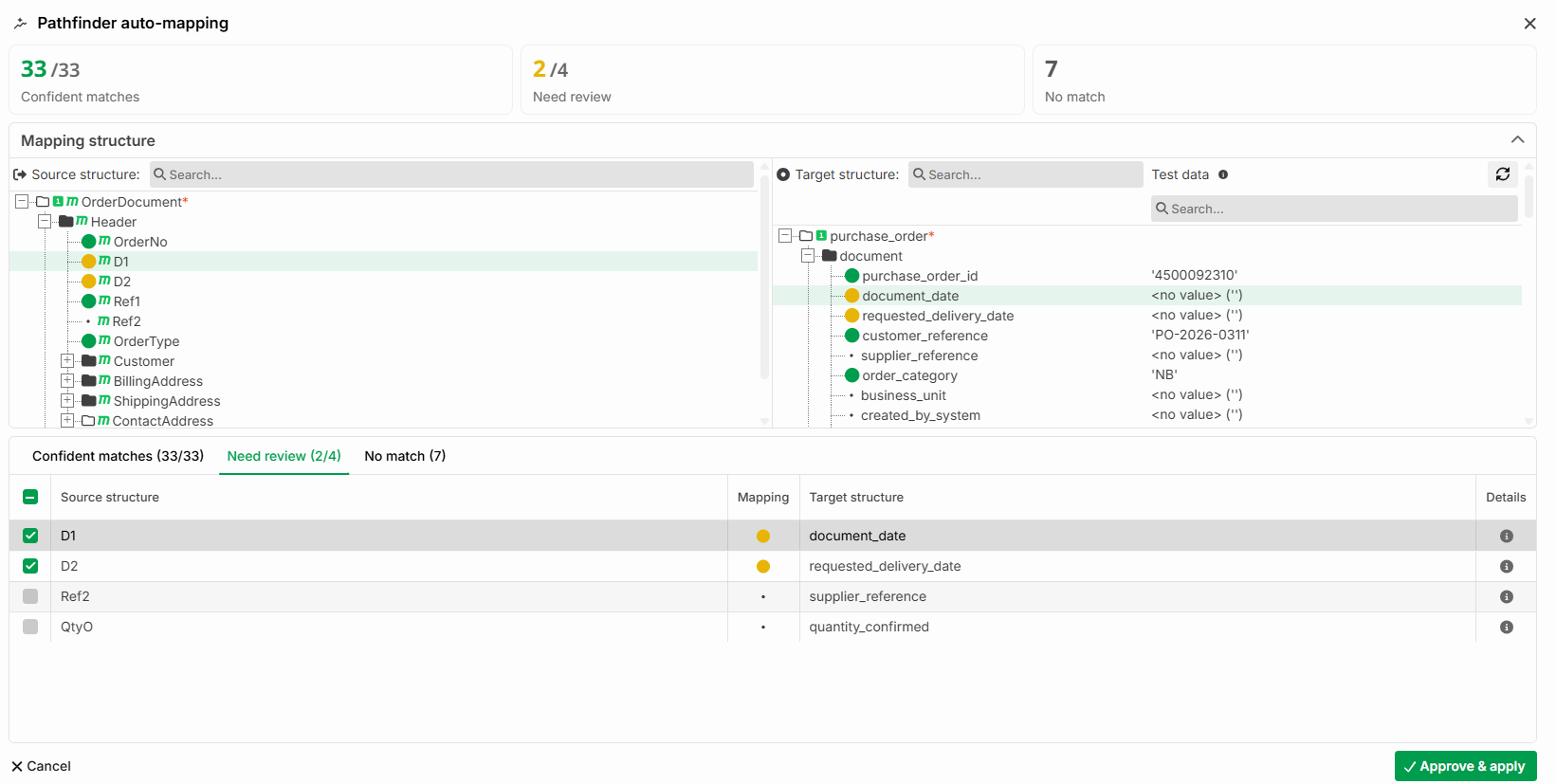
Generate auto-mapping
Pathfinder auto-mapping automatically generates AI-powered mappings within an existing profile. You can map either the entire structure or a selected area. Pathfinder also suggests possible function chains. For more information, see Pathfinder auto-mapping and Conduct and apply Pathfinder auto-mapping.
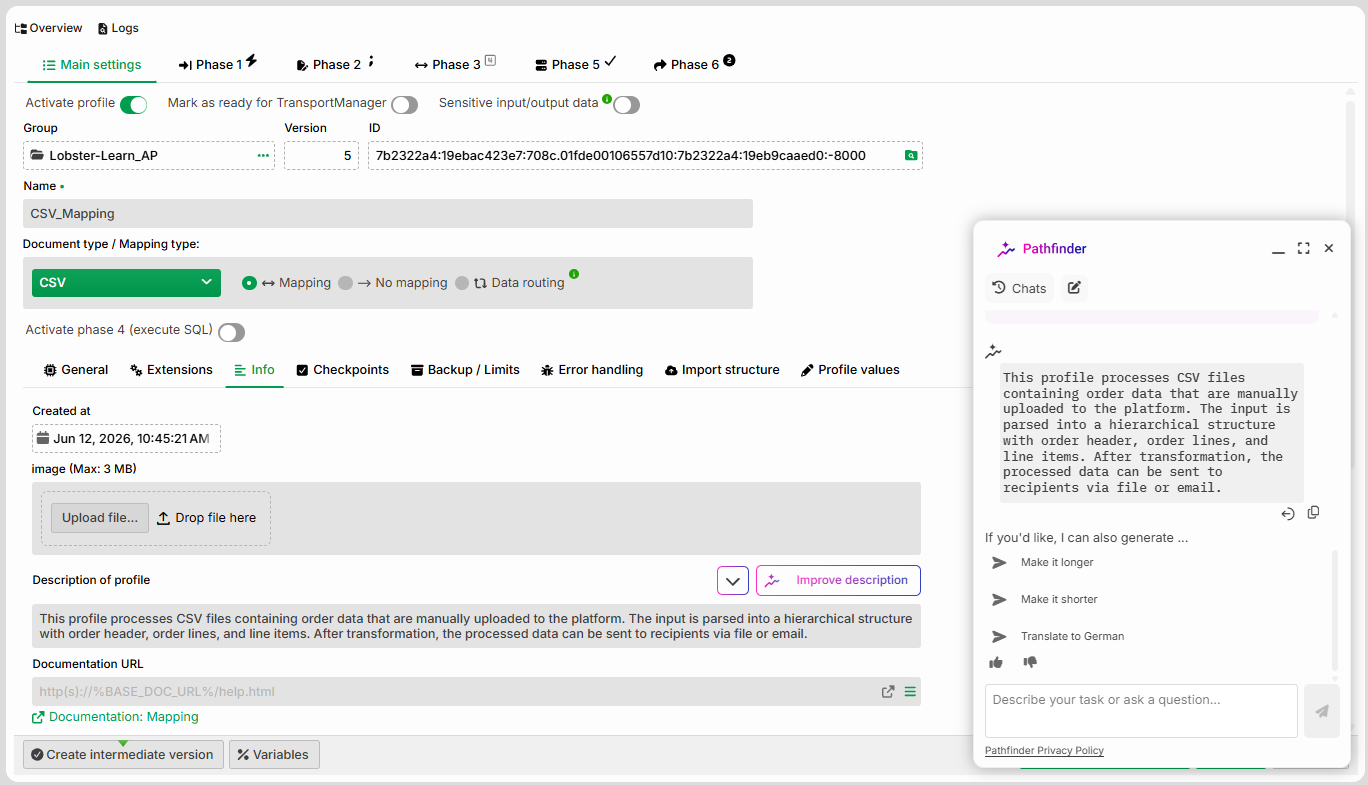
Generate profile descriptions
Pathfinder generates a description for an existing profile. To do this, Pathfinder analyzes the profile's configuration and suggests a text in natural language. For more information, see Info (Main settings) and Conduct and apply Pathfinder auto-mapping.
Read values from JSON and XML files
With the Check JsonPath and Check XPath plugins, you can read individual values from JSON and XML files. Pathfinder generates the expression needed for this: you describe which value you need, and Pathfinder analyzes your test data accordingly. See Check JSONPath and Check XPath.
Create custom type definitions
Pathfinder uses AI to generate a custom type definition from a natural-language description, an uploaded document, or both. See Custom type definitions and Creating custom type definitions with Pathfinder.
Optimize form layouts
Input forms, portals, widgets, and dashboards are designed in the Form designer. Pathfinder arranges their layout automatically. Existing elements are repositioned. Colors, fonts, and spacing are taken from the existing style properties. The result can still be edited afterwards. See Form layout and Optimizing form layouts using Pathfinder.