This guide describes how to conduct a Pathfinder auto-mapping and apply the results to the structure. You can map either the entire structure (Auto mapping) or a selected area (Section mapping). Pathfinder also suggests possible function chains during this process.
Requirements
Pathfinder has been activated for your organization.
Procedure
Go to Integration > Profile > Phase 3.
Do one of the following:
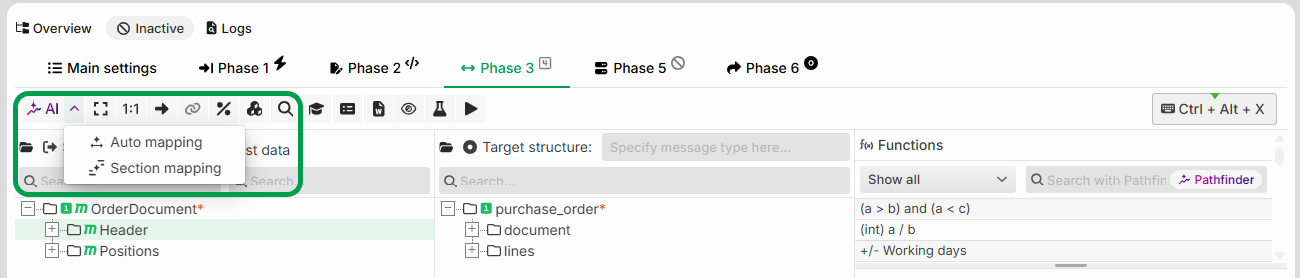
Entire structure: In the ribbon, open the AI menu. Click Auto mapping.
Selected area only: Select the area in the source structure, the target structure, or both. Then, in the ribbon, open the AI menu and click Section mapping. The option is only available once you have selected an area.
NOTE: Section mapping is only available after you have selected a section in the source or target structure.
TIP
Auto mapping and Section mapping are also available in the context menu. To access them, right-click the selected node or area.
In the Upload or select test file dialog, do one of the following:
Select a test file from the list
Upload a new test file
Select the Map without test file checkbox to perform the mapping without a test file.
NOTE: Pathfinder then validates the profile with synthetic data; the results may differ from real data.
Click Continue mapping to open the Pathfinder auto-mapping dialog.
Open the Mapped, Need review, and Unmapped tabs one after another to review and select the suggestions by confidence level:
Hover your cursor over Details to see the reasoning behind the suggested match level.
Confident matches are already selected; in the left column, clear the checkbox of any mappings you don't want to apply.
Mappings under Need review aren't selected by default. Select the checkbox of the mappings you want to apply.
NOTE: The Unmapped tab contains entries from both structures. For target fields with no counterpart in the source structure, the Source structure column shows Not available.
TIP
Click anywhere in a mapping's row to jump directly to the corresponding mapping in the source and target structure. This helps you keep track of where you are in the structure.
Review the suggested function chains and accept or reject them in the Used functions section.
If no row is selected, you can use the Keep all and Discard all buttons to apply or discard all function chains at once.
Select a row to accept or reject a single function chain using the Apply function chain button.
Click Approve & apply.
In the confirmation window, perform one of the following steps:
Click Yes, apply to apply the selected mappings to the structure.
WARNING: This action cannot be undone.
Click Back to continue editing the mappings.
Result
The selection only takes effect once you click Yes, apply. Mappings selected using the checkbox are applied; unselected entries are ignored. You can now continue editing the mapping as needed.
You can run Section mapping multiple times. To do so, select a new area in the source or target structure. Pathfinder generates suggestions for the new selection. Mappings that have already been applied aren't affected.