In a profile, data is received, processed, and sent or stored in multiple phases. This all happens in graphical form. No programming is required for this.
NOTE: In the configuration file ./etc/admin/datawizard/defaults.properties, you can define a few default values.
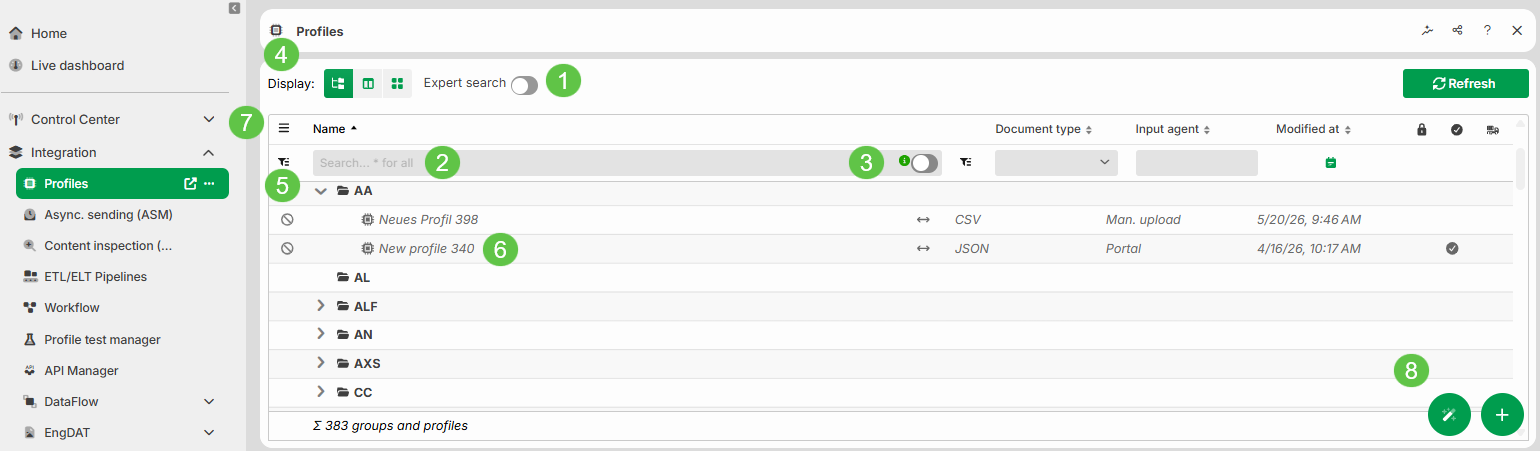
① Expert search: See Expert search.
② Filter fields above the list: Here you can search for a profile name (for this tenant; see the context menu option "Reports" for all tenants). Tags are taken into account when searching for profiles. See also ④. There you can search for profiles based on specific criteria (e.g., variables used). The result is a list of profiles.
NOTE:
If you use the two-column view, you can select a group in the left column and then use the prefix : in this field, for example : profile name; then the search term will only be searched for within the selected group.
A ! can be used to negate a search term.
See the General control elements.
③ Switch to the right of the filter field for name: This also searches within the description.
④ Display: Two views organized in groups and a tile view (without groups, maximum 50 profiles). The tile view displays images that have been assigned to the respective entries. Jobs can be started directly by dragging and dropping an input file onto a tile.
⑤ Folder icon in list: Every profile must be assigned to a group, and these groups are organized in a tree structure in which you can either navigate directly or search for group names in the search field above. All groups and profiles can be moved via drag and drop.
⑥ List below: Only active (and valid) profiles accept data. Inactive profiles are gray and italic.
⑦ Burger menu top left: The burger menu provides additional display properties. You will find this menu in various places in the GUI. The following columns can be displayed:
Column | Description |
|---|---|
Document type | The Document type of the profile (Main settings/Phase 2). |
Input agent | Input agent of the profile (Phase 1). |
Template | Indicates whether the profile is a template; see the context menu option "Convert profile to template". |
Modified on | When the profile was last modified. |
Priority | The set priority of the profile ("Main settings"). |
Locked | Indicates whether the profile is locked because it is already open or blocked; see the context menu option "Block profile". |
Temporary storage | Indicates whether the profile has been cached. |
Release for Transport Manager | Indicates whether the profile is released for the Transport Manager ("Main settings"). |
Edited by | Which user last edited the profile. |
Version | The version of the profile ("Main settings"). |
⑧ Opens the Profile creator. A wizard that lets you quickly set up new profiles with the most basic settings and then finish the profile in manual editing mode.
Context menu group
Option | Description |
|---|---|
Set profiles to "active"/"inactive" | Here you can set all profiles in a group to active or inactive. Only an active and valid profile accepts data (unless you upload data manually). See also Profile suspensions. |
Release for Transport Manager | This option lists all profiles in this group in the Transport Manager. |
Import profile | This allows you to create a new profile in this group by importing a previously exported profile. See the section "Manual export and import of profiles" in Transport of profiles. |
Profile templates | Here you can create a profile template or create a new profile in this group based on a previously created profile template. NOTE: A template looks like a normal profile. When a template is open, the only difference is a small note about it. In addition, the "Template" column in the profile overview shows whether a profile is derived from a template (and from which one) or whether it is a template itself (*****). |
Create new profile | Here you can create a new profile in this group. |
Change group | This allows you to adjust the group name and the parent group. |
Delete group | Deletes the group. |
Process map | See Process map. |
Context menu profiles
The entries appear in the following order. The profile status controls which entries are visible and which are grayed out. For example, an active profile shows Deactivate, while an inactive profile shows Activate.
Option | Description |
|---|---|
Person icon | Indicates which user created the profile. If a user is currently editing the profile, their icon appears next to it. The icons are a display, not a command. |
Caching | Indicates whether the profile has been cached. The entry is a status display, not a command. It only appears for cached profiles. See the section "Saving and caching profiles" in General control elements. |
Open | Opens the profile for editing. |
Open in browser tab | Opens the profile in another browser tab. CAUTION: Your browser may block this as an unauthorized pop-up. If necessary, check your browser settings. |
Open read-only | Opens the profile for viewing. Editing is not possible. This entry is always available regardless of the profile status. |
Display as process map | Displays the profile as a Process map. |
Copy to clipboard | You can copy the ID and name of the profile in another dialog. |
Duplicate | Creates a copy of this profile. See the section "Saving and caching profiles" in General control elements and Backup and limits. |
Start | Opens the Start profile dialog. There you start the profile manually. NOTE: See also Blacklists and whitelists for file extensions. |
Release for Transport Manager | Lists the profile in the Transport Manager. |
Assign and lock user | Locks the profile to a specific user. Only this user can then edit the profile. This allows you to hand over a profile or an error to a specific person. |
Suspend | Suspends the profile. See also Profile suspensions. |
Activate/Deactivate | Sets the profile to active or inactive. For an inactive profile, Activate appears; for an active profile, Deactivate appears. Only an active and valid profile accepts data. An exception is manually uploading data. See also Profile suspensions. |
Delete profile | Deletes the profile. NOTE:
|
Jobs per profile | Opens a window with all jobs of this profile. The list can be filtered. |
Show description | Displays the description of the profile in a dialog. This option is grayed out as long as the profile does not have a description. See also Info (Main settings). |
Profile overview (quick view) | Opens another window that displays the most important parameters of the profile in compact form. NOTE: You can also retrieve this information via HTTP. To do so, you need the user right Administration via REST or Administrator.
See also System stop, load balancing, DMZ server, profile quick view (REST API) |
Reports | You can generate a report for all profiles or for the selected profile. In addition, you can search for a profile across all tenants here. This requires administrator rights. See also ②. The submenu also contains the entry Compare (Diff). |
Convert to template | Converts the selected profile into a profile template. A confirmation dialog appears before the conversion. See also Profile templates. |
Profile templates | Creates a new, empty profile template via the entry Create new template. See also Convert to template. NOTE: A template looks like a normal profile. When a template is open, the only difference is a small note about it. In addition, the Template column in the profile overview shows whether a profile is derived from a template (and from which one) or whether it is a template itself (*****). If a template is later modified (in phases 1, 3-6) and the Save & Backup & Close button is used, another dialog appears in which you can select which profiles derived from the template should be synchronized accordingly. |
Export | Exports the profile to a file. You import this file later via Import profile. Please use the |
Import profile | Creates a new profile from a file previously generated via Export. See the section "Manual export and import of profiles" in Transport of profiles. |
New profile | Creates a new profile in the current group. |
System variables
There is a variety of system variables (e.g., VAR_PROFILENAME, VAR_PROFILE_VERSION, etc.) that you can use within a profile to access various content. Take a look through the list at your convenience. Otherwise, you will be explicitly pointed out to them again in specific places. See System variables.
Phases of a profile
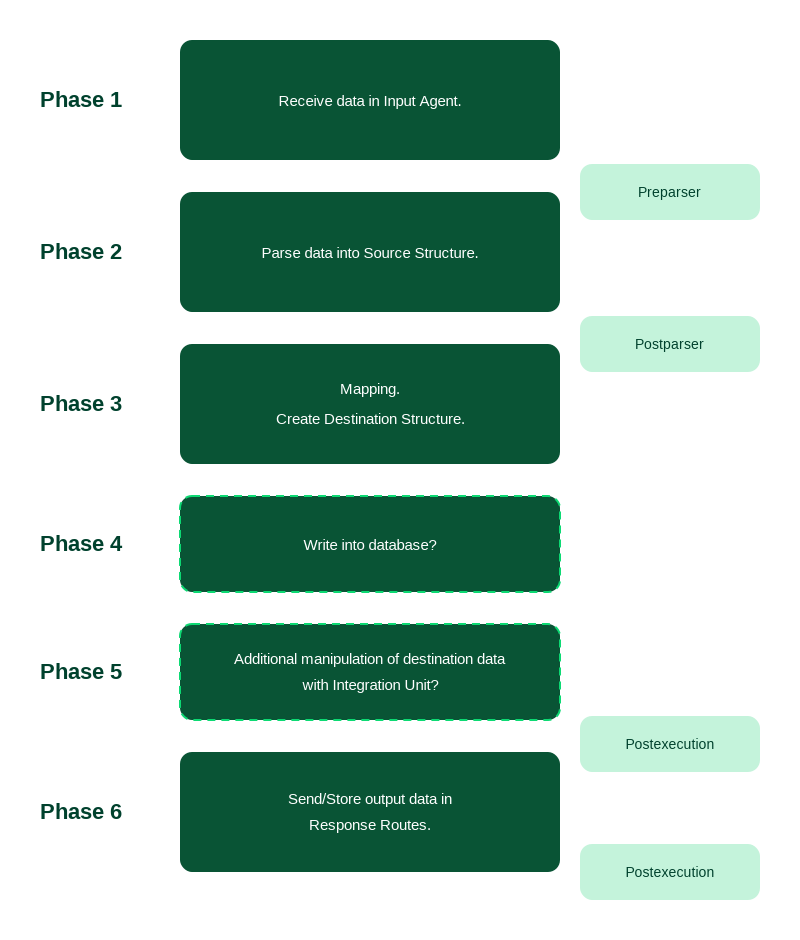
A profile processes incoming data in several main phases and optional intermediate phases.
Main phases
In Phase 1, so-called input agents receive the input data.
In Phase 2, the Lobster Data Platform parses the data into the source structure. Many tools are available for automatically generating a suitable source structure. The same applies to the target structure.
Every profile has a source structure and a target structure. In Phase 3, the Mapping takes place: Defined rules transfer data from the source structure to the target structure. In addition, you manipulate the data in the target structure using so-called functions.
In Phase 4, you write data from the target structure to a database.
Sometimes, additional special manipulations of the target data are necessary after mapping, for example to convert the target data into an XML format. For this, you use so-called Integration Units in Phase 5.
Phase 6 stores or sends the generated output data. This is done by a so-called Response.
NOTE:
In principle, Phases 2 to 5 are optional. Sometimes, for example, you only want to receive and store or forward data. Phase 6 is also optional in principle. For example, you can already store or send the data in the phases before it.
Intermediate phases
In addition to the main phases, there are intermediate phases. They allow further data manipulations for special cases.
Preparser manipulate the input data before the Lobster Data Platform parses it, i.e., before Phase 2. For example, this allows you to remove or convert special characters before parsing. You can also use this to convert special and unknown input formats into supported input formats.
Postparser manipulate the parsed data directly after Phase 2. This application is rare.
After Phase 5 or Phase 6, postexecuters give the generated target data a final polish. One example is Base64 encoding of the target data.
Jobs
Once an input agent of a profile has accepted data, the Lobster Data Platform creates backup files (see Retention periods of backup files, logs, crashed jobs) and a Job for this profile. The data comes from three sources: a partner delivers it (event based input agents), a user uploads it manually, or an input agent actively retrieves it (scheduled input agents).
You can find more details under Phase 1.
NOTE:
Strictly speaking, the data arrives at a service of the Integration Server, for example the FTP service. From there, the service forwards the data to a suitable input agent of a profile, in this case an input agent of type FTP. When developing profiles, you normally do not need to deal with services. If a specific service needs to be licensed separately or activated in a configuration file, the documentation will point this out for the relevant input agent.
Jobs and logs in the Control Center
In the Control Center, you will find running jobs, successfully completed jobs, and jobs that have run into an error (logs).
Profile chains and nested profiles (sub-profiles)
Some tasks cannot be solved in a single profile. For this case, you build Profile chains, in which one profile each starts one or more follow-up profiles. In addition, you can use a profile within another profile and thus nest profiles (Sub-profiles). See also Nested and networked profiles.
Working with templates
You work with templates in various places within profiles: Templates for profiles, for source and target structures, for the format of values in source and target structure fields, and for Integration Units. You can find more information under Working with templates.
Backup of profiles
You can find out how to back up profiles in the section "Backups of profiles" in General control elements.
Transport of profiles
You export and import profiles individually. For larger quantities, you transport profiles from one system to another using a tool. You can find more information under Transport of profiles.
Data types and data structures in profiles
You can find more information under Data types and Data structures.