The Profile searches the specified Directory for files. It picks up every file that matches the File pattern. Alternatively, it requests exactly one file through Is the unique file name.
By default, the profile behaves as follows:
It searches the specified directory only. To widen the search, use Include sub directories.
It deletes each file it has read as soon as it has created the backup file. To keep the files, use Do not delete data after processing.
For each file found, the profile creates a separate job. If it finds no matching files, or if the directory does not exist, it creates no job. In that case, look for the corresponding entries in the General messages in the Control Center.
Settings
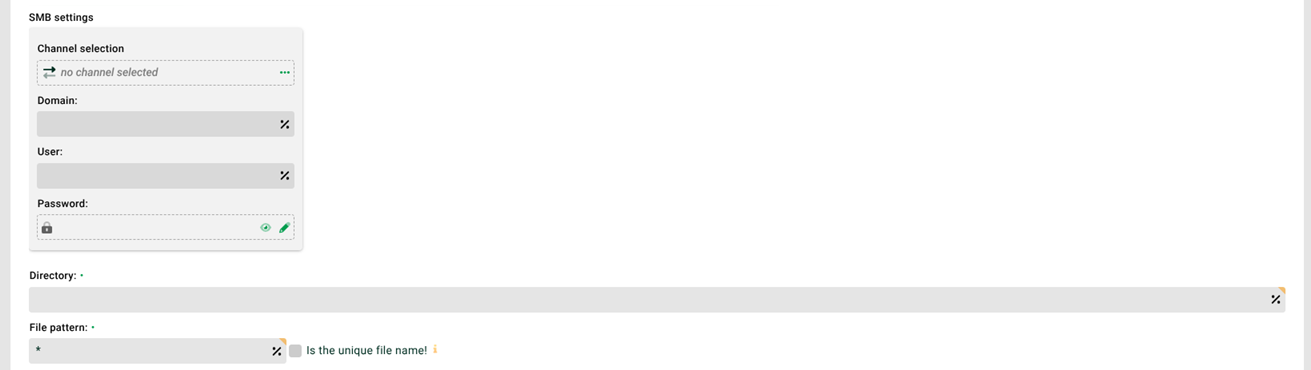
① SMB settings: You can explicitly log in to external systems with an SMB login. To do so, enter Domain, User, and Password. Alternatively, select an SMB channel under Channel selection.
IMPORTANT: If you make manual entries here or select a channel, the system deactivates ⑭ .
NOTE: If you select an SMB channel, the system automatically enters the value //<SMBHOST>/ in ②. At runtime, the system replaces the placeholder <SMBHOST> with the value of the field Server in the SMB channel, without smb://. You adjust old profiles without this placeholder in the Admin console. There, execute the class com.ebd.hub.datawizard.util.update.AdjustSMBUrl without parameters, see Class execution .
② Directory: The directory in which the profile searches for files. See also system variable VAR_SYS_FILE_PATH. Under Windows, access to external shares (see External shares) is possible using the UNC (see File names, file patterns, paths, placeholders) syntax: //<server name>/<directory name>. Use forward slashes (/) and not backslashes (\). You can specify several directories, separated by a semicolon (;). See "Processing several directories" below. Example: /tmp/subdir1;/tmp/subdir2;/var. Within the file pattern and the directories, the system resolves all timestamp placeholders of the form <yyyy>, <dd>, and so on.
NOTE: Variables are allowed. In Phase 1, however, only Variables with prefix MSG_CALL_ are available.
③ File pattern: File name pattern, see also ④. You can enter multiple file name patterns, separated by the pipe character (|). Example: *.txt|*.csv. Regular expressions are supported.
IMPORTANT: This Input agent does not consider files whose name starts with a dot (.).
④ Is the unique file name: By default, the system creates a list of all files in the directory ② and checks them against the file pattern ③. If the checkbox ⑧ is set, this also applies to the subdirectories. If this checkbox is set, the system interprets ③ as a specific file name and requests exactly this file. This can improve performance significantly.
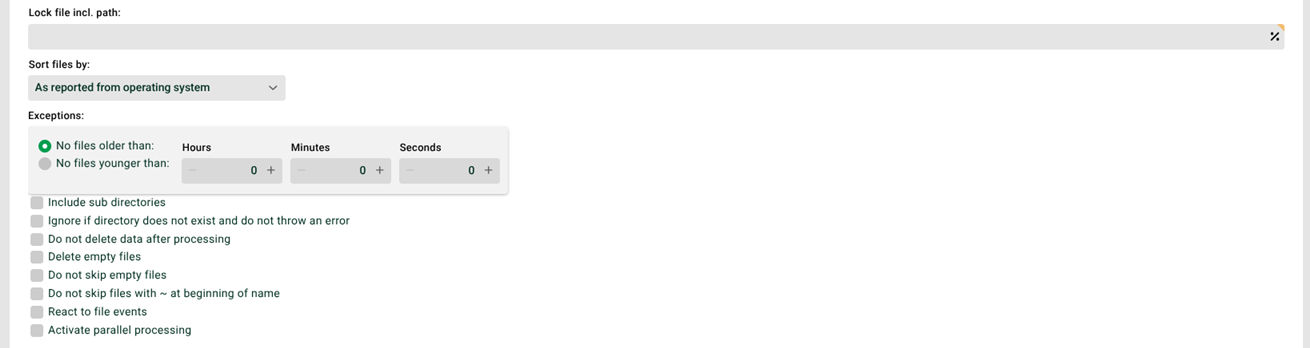
⑤ Lock file incl path: If the specified lock file exists, the profile run is aborted and no job is created. You find the log entries in the “General messages” in the Control Center. If the lock file does not exist, the job creates it and deletes it again when the job is finished.
⑥ Sort files by: You sort the files for processing by file name or timestamp, either in ascending or descending order. Alternatively, the system uses the order supplied by the operating system.
NOTE: When sorting by timestamp, the accuracy is in the minute range under Windows and in the second range under Unix and Linux.
⑦ Exceptions: The fields No files older than and No files younger than define which files the profile uses. For the values 0/0, the system does not check. This option is only useful if the profile does not delete files and does not react to file events. Example: The profile searches for new files every 30 minutes. If you set 0 hours and 30 minutes, the profile ignores all files from the previous run on the next run. Their timestamp is older than the time of the run minus 30 minutes.
⑧ Include sub directories: By default, the profile searches only the specified directory ②. Set this checkbox if the profile is also to search in subdirectories.
⑨ Ignore if directory does not exist and do not throw an error: If the system does not find the specified directory ②, error entries appear in the “General messages” in the Control Center. Set this checkbox to prevent this. The entries still appear, but the system does not mark them as errors.
⑩ Do not delete data after processing: By default, the system deletes read-in files. Set this checkbox to prevent this.
⑪ Delete empty files: If this checkbox is set, the system deletes empty files from the specified directories. This applies regardless of the setting in ⑩.
⑫ Do not skip empty files: If this checkbox is set, empty files also generate a job.
⑬ Do not skip files with ~ at beginning of name: If this checkbox is set, the profile also processes files whose name starts with ~. Normally, it ignores these files.
⑭ React to file events: The profile responds to the following events of the configured files:
Creating.
Renaming. That is, an existing file is renamed to a file whose name is configured.
Altering.
IMPORTANT:
If you make manual entries in ① or select a channel, the system deactivates this checkbox and its function. With SMB shares, events cannot be detected reliably.
If ⑭ is set, you can no longer define times for the profile.
The system also determines file events via the timestamp of the file. If the timestamp is before the current time, the system determines no file event for this file. This is particularly important under Windows, because moving a file there retains the timestamp.
With file events activated, you must not use variables or constants in ②, ③, and ⑤.
⑮ Activate parallel processing: If this checkbox is set, several instances of this profile can work in parallel. The checkbox "Profile may only run in one instance" (see General (Main settings)) must not be set for this profile.
NOTE:
See also the "Security – Defining access restrictions" section in Functions (GUI).
This input agent can check the input files for a maximum size. See Maximum size of input files and messages.
When the system starts and when you (re-)configure a profile with file events ⑭, the system triggers a dummy event. This way, it reads files that appeared during offline operation.
File events ⑭ lead to a higher system load. Check whether the immediate Response is really necessary. Often, an execution every 5 or 10 minutes is enough. When accessing an external share, we do not recommend file events, because the behavior strongly depends on the other system.
If the system is to delete existing files after processing, it checks the write permissions for the file and the parent directory. If the write permissions are missing, the system does not process these files and no job is created.
Processing several directories
If you specify multiple directories, the time-driven input agent File behaves as follows:
The system creates a list of the directories and goes through them one after the other. This is the actual fetching job.
For each directory, the system creates a list of the files found. For each file found, it starts an additional job.
If an access error occurs, the checkbox Ignore if directory does not exist and do not throw an error ⑨ prevents an error for this job. The system then skips the directory causing the error and continues with the next directory.