If you no longer know your password, reset it from the sign-in page. You do not need your old password for this.
How It Works
Open the service, for example the support portal, until the Lobster ID sign-in page appears.
Enter your email address and submit the form.
Select the option for resetting your password.
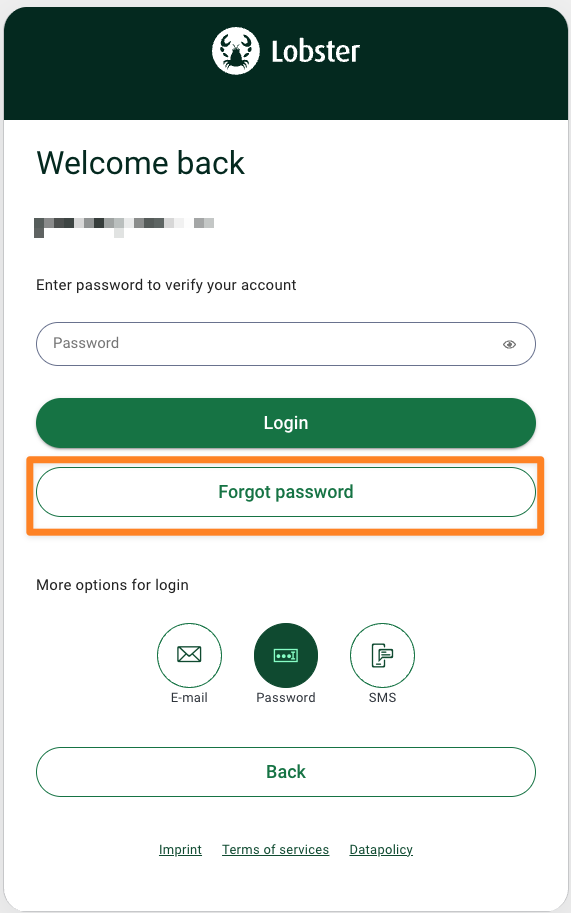
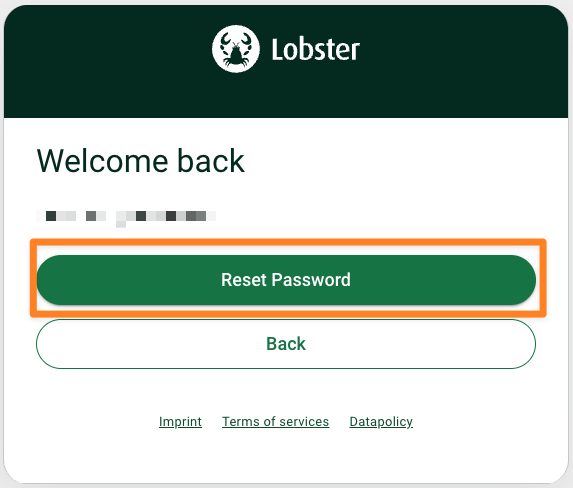
You will receive a verification token.
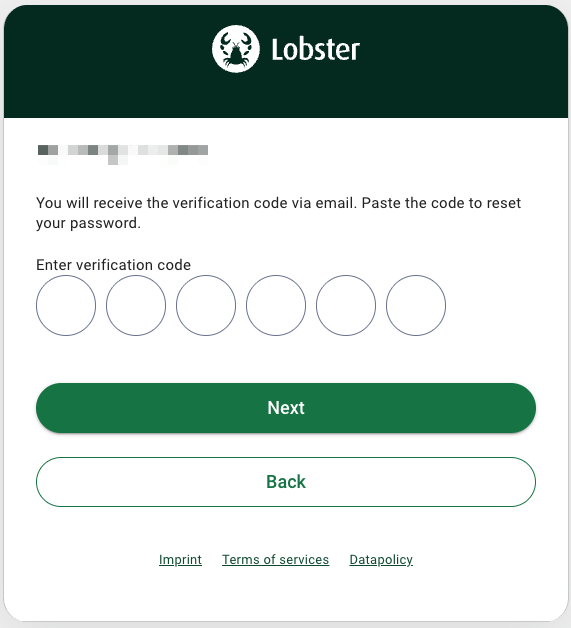
After entering the verification code, you will be redirected to the page where you can set your new password.
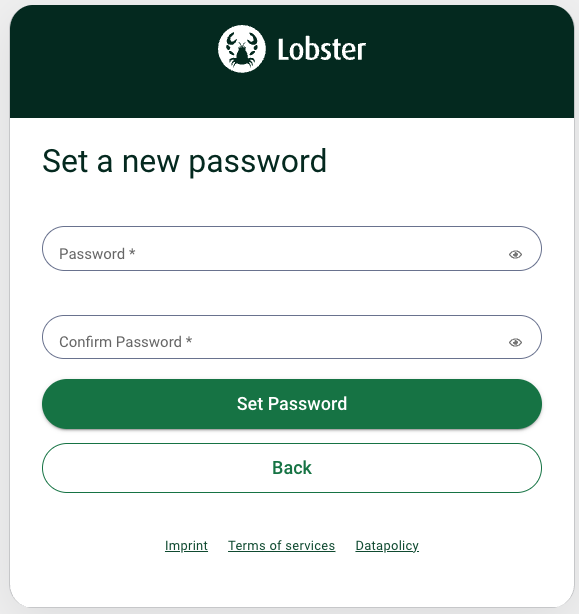
A confirmation page reports the success. You can then sign in with your new password.
Requirements for the New Password
The same rules apply as for registration, see Creating an Account. The rules are also shown to you as you type.
If the Email Does Not Arrive
Check your spam folder. The link is only valid for a limited time. If it has expired, simply start the process again.
Changing Your Password Instead of Resetting It
If you know your current password and only want to change it, sign in and change it in your user profile. The route via the sign-in page is meant for cases where you do not have your password to hand.