The starting point is always the same: open the support portal, wait to be redirected to the Lobster ID sign-in page, and enter your email address there. What happens next depends on whether your address is already known.
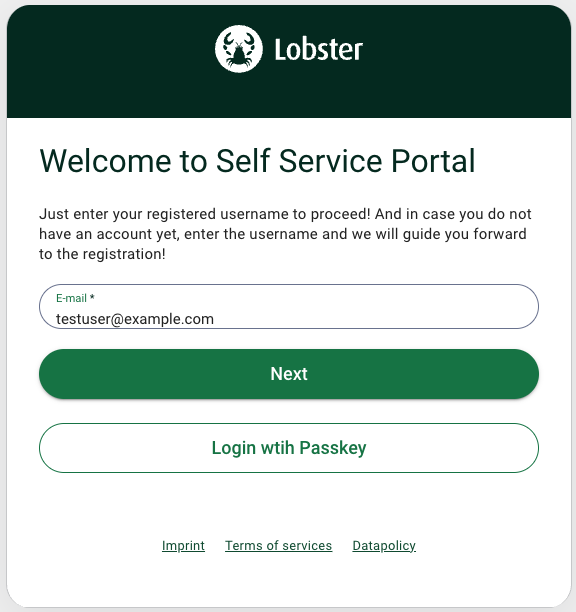
Your address is not known. You are redirected to registration and create your account yourself.
Your address is known and you already have a password. You sign in directly.
Your address is known but you do not have a password yet. You receive an email containing a verification token. Use it to sign in to the support portal, then set your own password in your user profile.
Registration runs exclusively through the support portal. If you open another service, such as the Lobster Cloud Platform Portal, you still reach the sign-in page, but you cannot create a new account there.
If Your Company Has a Lobster ID Administrator
A Lobster ID administrator at your company can also add you as a user. In that case you receive an email and do not need to register. A company can have several administrators. If you are unsure, ask them before creating an account of your own.
The Fields in the Registration Form
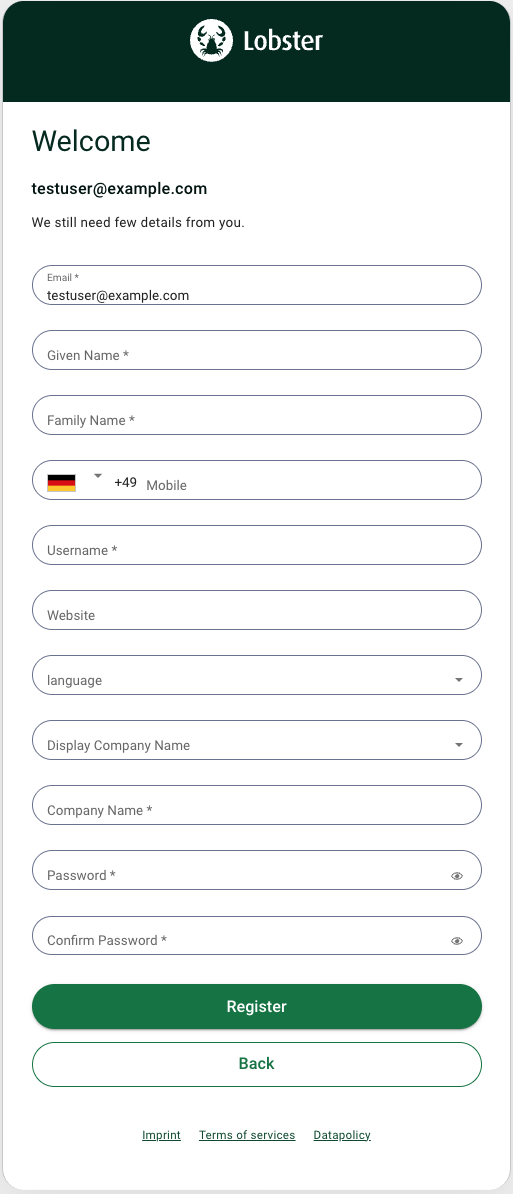
Field | Mandatory | Notes |
|---|---|---|
yes | ||
First name | yes | maximum 150 characters |
Last name | yes | maximum 150 characters |
Password | yes | see password requirements |
Confirm password | yes | must match the password |
Mobile | no | |
Website | no | |
Display company name | no | checkbox |
Company name | yes | free text |
License ID main system | no | four digits |
Pay particular attention to the Username and Company name fields. Both are mandatory and easily missed, and the form cannot be submitted without them. The username is only needed for registration; you sign in with your email address.
In the License ID main system field, enter the four digits of your main licence, that is your system or licence ID. Please leave out the letter at the end. The field is optional but strictly validated: it either contains exactly four digits or stays empty.
Password Requirements
Your password has to meet the following conditions:
at least 12 and no more than 64 characters
at least one digit
at least one special character
upper and lower case letters
What Happens After You Submit the Form
Your account will be created and will become active as soon as verification is confirmed. You will receive an email containing a token, which you must use to confirm your address. Please note that this does not log you in automatically: afterward, you'll need to sign in using your email address and password.
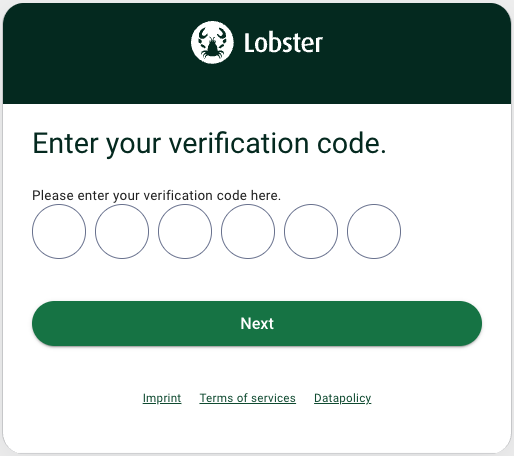
Confirmation page after successful registration. Replace before publishing.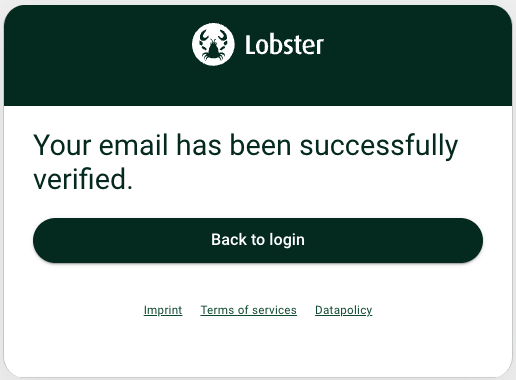
Whether you then reach the service you want depends on whether your account could be assigned to your company's group. If you cannot get any further, read on under "Getting Assigned to Your Company".