See also: Users
What are guest users used for?
Lobster Data Platform creates accounts for Guest users automatically in most cases (see Create guest user). This gives users low-threshold access without authentication to selected content or functions, limited in time or scope as needed.
In logistics, (end) recipients primarily use Guest users accounts for shipment tracking. This gives them access without being set up as full Users of the Lobster Data Platform.
You find the Guest users menu item in the Main menu under Administration > Accounts, provided you have the required permissions.
It opens an overview for the Guest user (GuestUser) entity type by default, also called a guest user account.
View name:
de.lobster.scm.base.security.guest::GuestUser|listDetailsWindowMenu node name:
admin/accounts/guestUserOverview
The permissions for the node Administration > Accounts > Guest users (administration/accounts/guestUser) control access to Guest users.
The Guest users menu item only appears if the permission for Show (
show) is available for Guest users.Access to Guest users is generally subject to owner restrictions for the Company of session.
The permissions of the Role of session therefore apply only to Guest users for which the Company of session is the owner. This also applies when the Company of session is the recipient of a corresponding Company authorizations.
A guest user account enables a Lobster Data Platform session to be set up without explicit authentication. It is then considered a User of session within the session.
NOTE: When Guest users perform write accesses to entities, the system enters the negative value of the account's ID (id) in the Creator (creatorId) or Last modified by (lastModifierId) field. This distinguishes references to Guest users from those to Users.
CAUTION:
Guest users are a potential security risk. They allow access to the Lobster Data Platform without explicit authentication. In addition, they are typically provisioned automatically, without an administrator approving them.
Control this unverified access strictly, using the following methods:
Guest users should only have access to highly restrictive Roles that only grant the minimum scope of permissions for the specific purpose.
If needed, configure additional functional restrictions for Guest users by evaluating a Check type for the User of session, for example in Association criteria or Event handling.
Limit the use of guest user accounts to a time window or a maximum number of logins using the account properties (see below).
With specific guest user restrictions, you control access to specific entities for individual accounts more precisely than for Users (see Create guest user).
The following table lists the main systematic differences for Guest users and Users:
Subject | ||
|---|---|---|
Identification | ID ( | ID ( |
References in entity attributes | Negative value of the ID ( | ID ( |
Contact details | E-mail address ( | Complete address (see Addresses)→ E-mail as optional communication information |
Authentication | Not required | Required |
Unique Role ( | Selection at login, if assignment is ambiguous | |
Unique Company ( | Selection at login, if assignment is ambiguous | |
Duration of the account | Optionally limited by Valid to ( | Unlimited (password expiry date only) |
Max. logins | Optionally limited by Max. logins ( | Unlimited |
|
| |
|
| |
Custom data |
|
|
Individual access control |
|
|
.svg) not provided
not provided.svg) optionally available
optionally availableThe interactive administration for Guest users uses a combined view (listDetailsWindow) by default. Open it via the Guest users menu item in the Main menu.
The following screenshot shows the default ribbon (for a role with all relevant permissions), including the default input form with the details of the guest user selected in the list area (at the bottom).
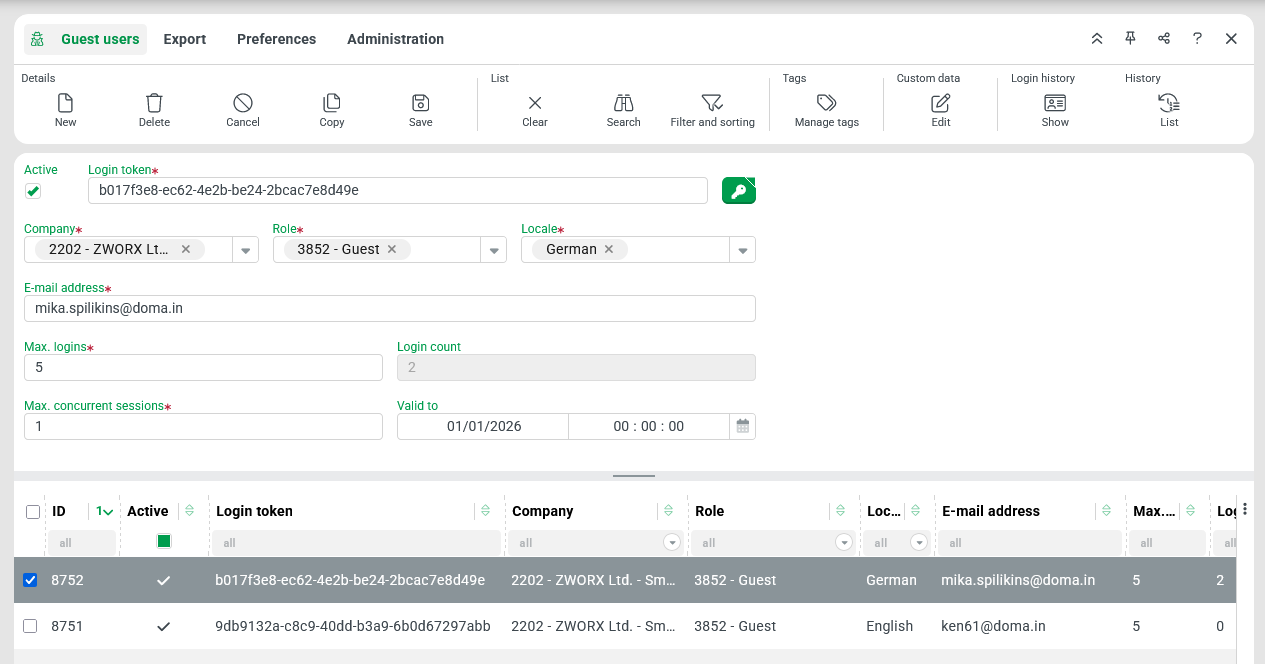
Special features in the ribbon
In addition to the generic ribbon buttons (New, Delete, etc.), the main category (Common) visible in the screenshot also contains specific ribbon buttons for Guest users:
Sub category | Ribbon button | Description |
|---|---|---|
Custom data |
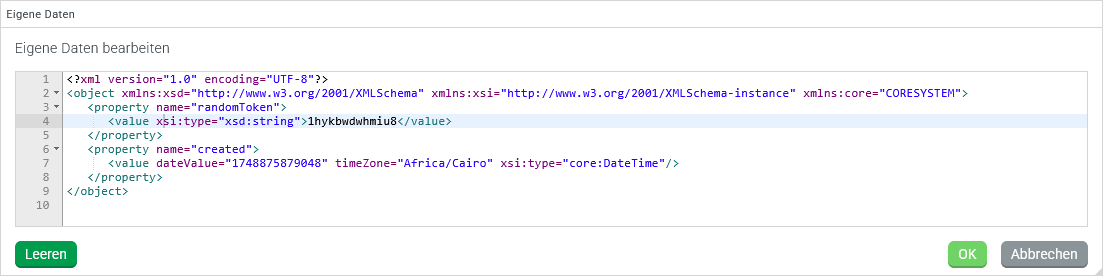
| The Edit ribbon button (in the Custom data subcategory) opens a simple XML editor. Use it to view or edit custom content for a guest user account selected in the list area in the Custom data (
In the example, the Custom data ( Typically, such content is provisioned automatically, often by the same mechanism that creates the entire guest user account. |
Login history |
| The Show ribbon button opens a modal full-screen window (see Login history) within the current view. It lists the login history of a guest user selected in the list area. |


Contents of the default input form
The data input form provided as default for Guest users maps the contents of the data structure relevant for direct interactive maintenance for Guest users using Form elements.
Field | Data field path | Example values | Contents |
|---|---|---|---|
Active |
|
| The Active checkbox must be selected so that a guest user account can log in to a session. |
Login token |
| "b017f3e8-ec62-4e2b-be24-2bcac7e8d49e" | The character string assigned as the Login token is typically generated randomly. In the context of the input form, this is made possible by the Button with the key symbol (tooltip: Generate) to the right of the input field on request. Alternatively, enter a character string directly instead of generating a login token. When you click Save, the system checks whether the specified Login token is unique. It refuses to update or change a guest user account if the string is already in use. If you create a new guest user account as a copy of an existing one, replace the copied login token before saving. The Login token (required field) is the key that identifies Guest users at login. If it is not provided via URL parameters ( |
Company |
| "ZWORX Ltd.", Hidden company | Single selection for the predefined Company of session for each subsequent login with the Login token. |
NOTE: The Hidden company label appears for companies that are already assigned. They can be removed in the current session but cannot be selected again afterwards. IMPORTANT: A guest user account that refers to a Hidden company can be changed but not created. This is particularly relevant when copying an existing guest user account. If necessary, remove all hidden companies before saving the copied account. For access to Companies/Clients for the Company selection for Guest users, distinguish the following scenarios by default:
| |||
Role |
| Guest, Hidden role | Single selection for the Role of session for each subsequent login with the Login token. |
NOTE: The label Hidden role appears for Roles that are already assigned. They can be removed in the current session but cannot be selected again afterwards. This applies to all Roles that cannot be accessed with the Role of session. IMPORTANT: A guest user account that refers to a Hidden role can be changed but not created. This is particularly relevant when copying an existing guest user account. If necessary, remove all hidden roles before saving the copied account. | |||
Locale |
| German ( | Single selection for the Current locale for each subsequent login with the Login token. |
E-mail address |
| "mika.spilikins@doma.in" | A required field for specifying a character string. The system does not validate it as an E-mail address using Validators. NOTE: Typically, Guest users are created automatically (see Create guest user). The Login token is generated and sent to the specified e-mail address when the account is created. |
Max. logins |
| 5 | The Max. logins field defines how many times the guest user account can be used to log in to a session. The value |
Login count |
| 3 | The read-only field Login count shows the number of logins already used for the guest user account. Logins are permitted only as long as the Login count has not reached the limit (>0) for Max. logins. You can adjust this limit at any time. |
Max. concurrent sessions |
| 1 | This setting determines how many Lobster Data Platform sessions a guest user may use simultaneously. The system checks this limit at each login attempt. If a user would exceed the limit with an additional session, the new session is only created if the user agrees to log out of an existing one. NOTE: The input is limited to values >0. The default value is |
Valid to |
|
( | Use the Valid to field to limit the duration of the guest user account. Set an absolute point in time as Date and time ( |
Guest user login
Typically, Guest users receive access to the Lobster Data Platform via E-mails with a link containing the Login token as URL parameters, which could look like this, for example:
https://platform.doma.in?loginToken=b017f3e8-ec62-4e2b-be24-2bcac7e8d49e
As of version 26.3.0, the Login token also enables direct links to a log in the DataCockpit.
Such a link signs the guest user in and opens the log of the specified job directly:
https://platform.doma.in/DataCockpit/logs/<JobNumber>?loginToken=<Login-Token>
NOTE: For details on the link format and security notes, see Log search.
Alternatively, a guest user login can also be carried out interactively:
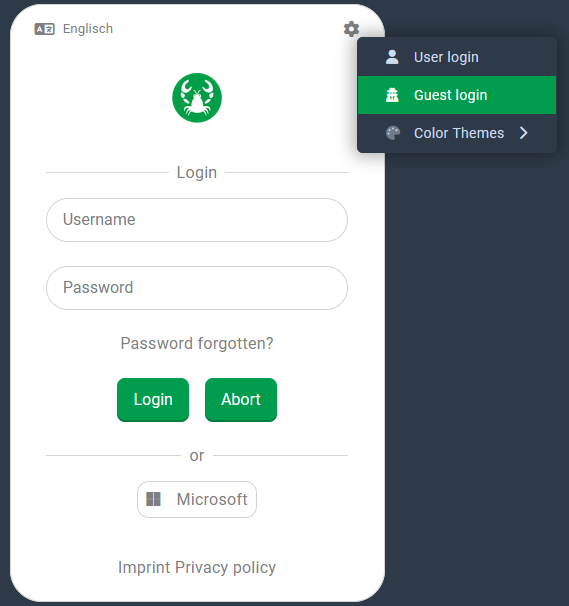
Starting from the default login (for Users), open a context menu via the cogwheel symbol (top right). Select the Guest login menu item to switch to the login for Guest users (see below). The same context menu lets you switch back to the Users login. |
|
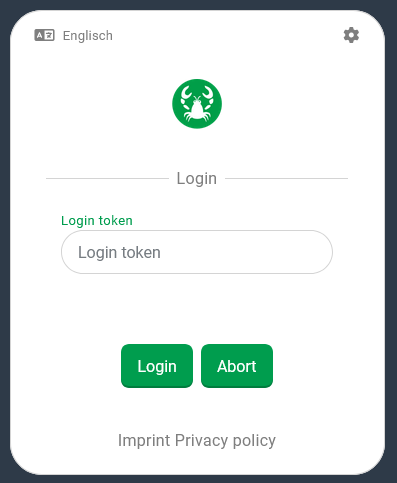
For the Guest users login, only the Login token is required. Enter or paste it into the text field to log in. The string must match the value in the Login token field exactly (case-sensitive) for an active guest user account. Whether the login is permitted may depend on other account settings (see table above). |
|
Configuration example
In the following example, guest user accounts are used to grant limited read access to specific shipments. Each guest user account can define individual restrictions using the following parameters:
Shipments are listed only if modified within a specific time horizon before the current time.
A filter condition for the text attribute Plant defines which shipments are relevant for the guest user.
Additional visibility restrictions result from the company assigned to the guest user account, via ownership, involvement, and Effective authorizations.
The guest users are assigned a role that grants only the following permissions:
Business objects / Shipments / Read
Business objects / Shipments / Show details
A special shipment overview is also configured (see Custom overviews). Its condition must evaluate the parameters per guest user account. These parameters are stored as Custom data in the guest user account. You define them in a portal that opens from the guest user overview via a ribbon button (command Portals > Open portal), with a single selection identifying the target guest user:
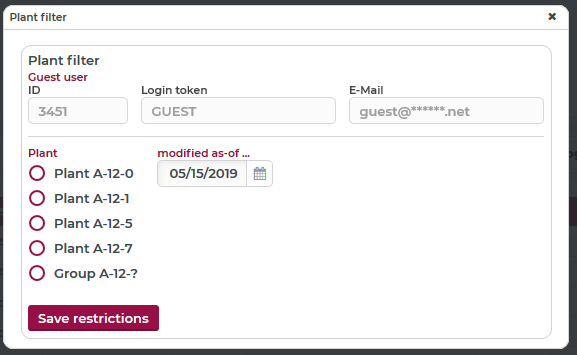
When the portal opens, data from the selected guest user account is passed automatically if the form design includes a container with the data field
loadedItem. In this example, the container holds the elements ID (data field:id), Login token (loginToken), and E-mail (emailAddress).Below, a filter for Plant (data field:
PLANT_FILTER) is defined using Combobox (with key valuesA120,A121,A125,A127, andA12_). The selected value is compared by LIKE against the text attribute Plant (t_PLANT.value.text) in the custom overview condition.A date value for Modified as of (data field:
MINDATE) defines the time horizon. The custom overview condition compares it against thelastModifiedtimestamp using a Greater or equal constraint.Both filter criteria are grouped in a container
filters(not visible in the screenshot) to simplify handling in further configurations (see below).Clicking the Save restrictions button triggers a Custom action event Guest user – set data (
SET_GUEST_USER_DATA) behavior, which starts the following event handler:
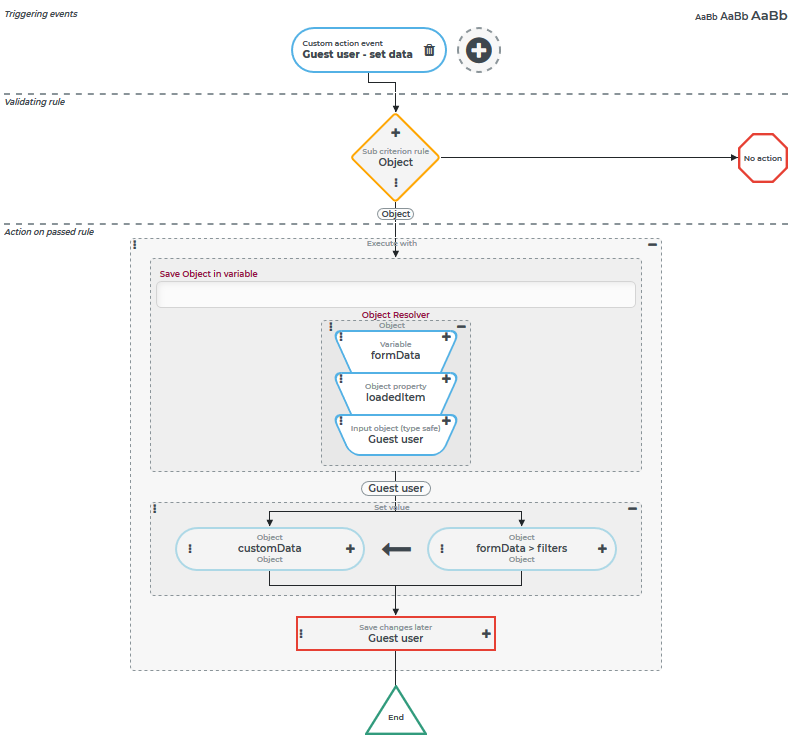
Because the Triggering event can only be triggered from the portal, the Validating rule is limited to a sub-criterion that defines the context for executing the actions (Company rule, Role rule).
All Actions run in the context of the selected guest user account. The account is resolved from the variable
formData(of type Client object) within a Execute with action. The containerloadedItem, which represents the selection, is passed to a Input object (type safe) resolver, which returns the guest user account object.A Set value action then sets the value of the Custom data (
customData) field of the account. It reads the settings from thefilterscontainer in theformDatavariable.The Save changes later action saves the change to the guest user object, even though the object was only added via Execute with.
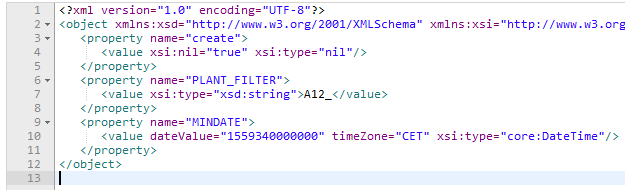
To verify an assignment, click the Custom data > Edit button in the guest user overview:
In the Shipment overview (Guest user) custom overview condition, the filter criteria are included as follows:
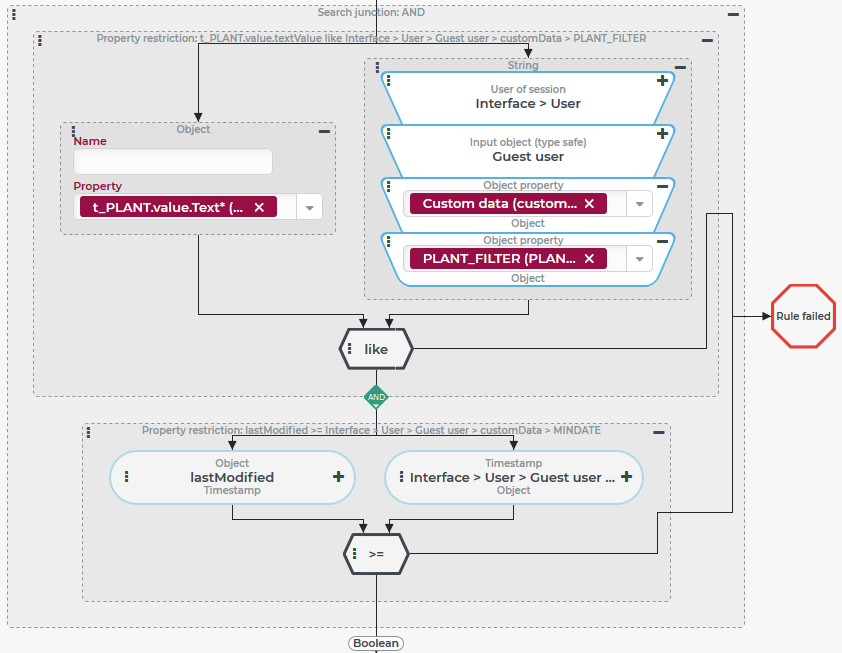
The text attribute Plant (
t_PLANT.value.Text) is compared by LIKE against the selection for Plant (PLANT_FILTER).The User of session is identified first, and the corresponding guest user account is then resolved by Input object (type safe).
The Custom data (
customData) field of the guest user object provides the object (object) generated from portal data, including the fields (property) PLANT_FILTER (string) and MINDATE (DateTime).A Object property resolver reads the value of PLANT_FILTER for matching.
MINDATE is accessed the same way to compare it against the
lastModifiedtimestamp (below).