Distribution rules determine which Profile processes an incoming e-mail. They apply whenever a profile with a time-driven Mail/X.400 input agent retrieves an e-mail. See also Input agents that are forced to receive all the data.
Required fields
You must create at least one distribution rule. Otherwise, the platform shows an error message.
The MIME-Type body field in the Distribution rule dialog is always required. For details, see "Adding a rule" section below.
Scope
Distribution rules are available for scheduled input agents. The platform supports the following protocols:
POP3 and POP3S
IMAP and IMAPS
X.400
Distribution rules do not apply to the event based SMTP input agent. For unmatched SMTP e-mails, configure the startup.xml. For details, see "Unmatched e-mails" section below.
Phase 1 with distribution rules
The rule list is a table at the bottom of Phase 1. Prerequisite: you have selected the Mail/X.400 input agent. Change input agent > Scheduled > Mail/X.400. See also Mail/X.400 (cron input agent) and select the link for the protocol you use.
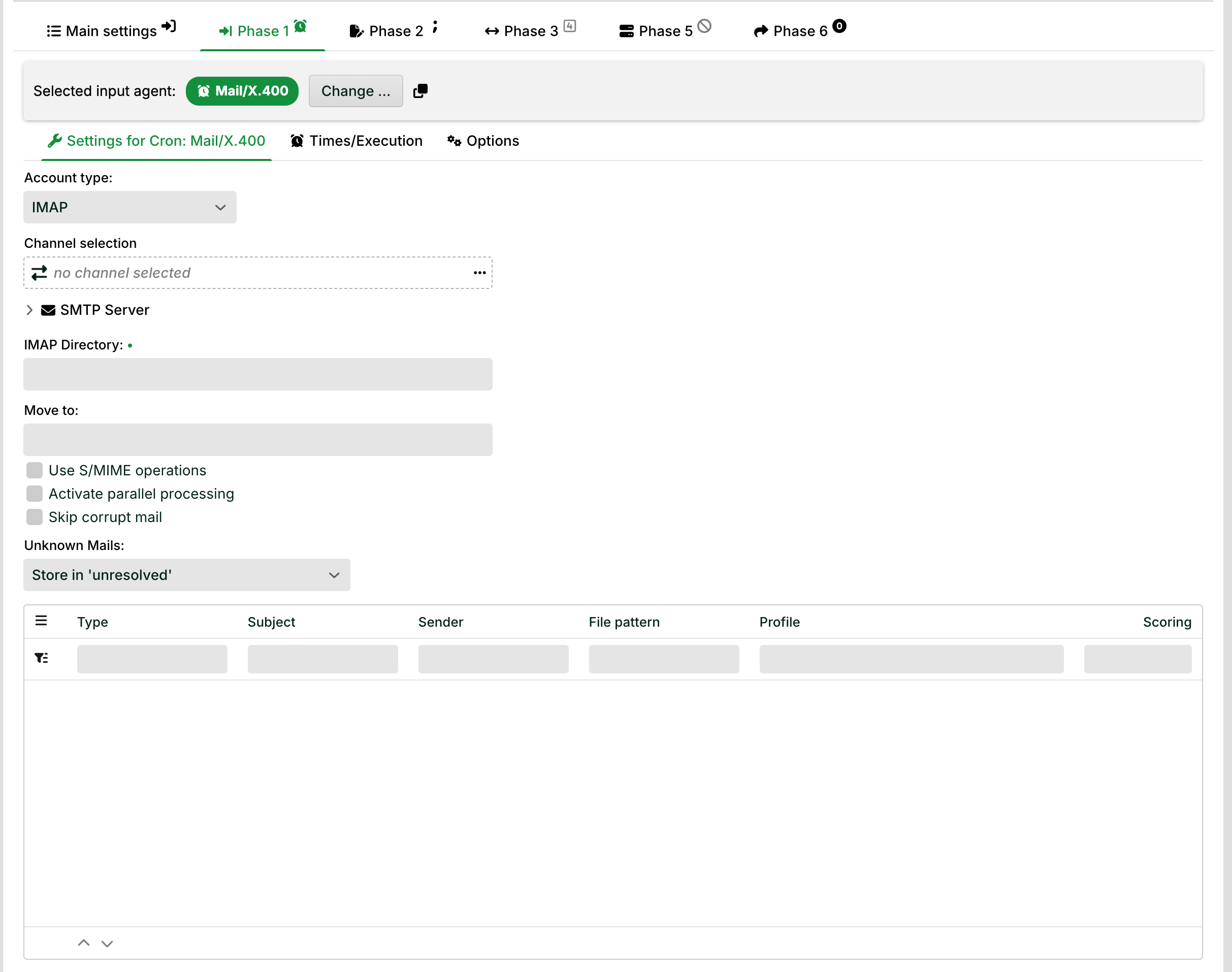
Input agent: Settings interface for configuring IMAP account and e-mail processing options.
The fields above the rule list configure the mail server connection. Three fields are relevant for understanding distribution rules.
Account type: Selects the protocol and determines which further fields are required.
IMAP Directory: Required for IMAP and IMAPS (dot indicator next to the field name). Specifies the mailbox the platform polls.
Unknown Mails: Controls behavior for e-mails that match no rule.
Options for input agent:
Use S/MIME operations: Activates decryption of incoming S/MIME e-mails. Requires a certificate configured in the Mail channel.
Activate parallel processing: Allows the profile to run in multiple simultaneous instances. The profile option "Profile may only run in one instance …" must be deactivated.
Skip corrupt mail: Skips corrupted e-mails instead of stopping the retrieval Job. The platform continues retrieving the remaining e-mails.
Rule list
The rule list shows all distribution rules. Each column represents one aspect of a rule.
Column | Meaning |
|---|---|
Type | The part of the e-mail the rule evaluates. Examples: Body, Sender, Attachment. |
Subject | The required e-mail subject. |
Sender | The required sender address. |
File pattern | The pattern for attachment file names. |
Profile | The Processing profile the platform routes the e-mail to. IMPORTANT: This profile must be active. |
Scoring | The automatically calculated score. See Profile scoring. |
Rule order
You can order rules in two ways:
Automatically by scoring: The platform calculates a score for each rule. The calculation follows the rules of Profile scoring. Click the Scoring column header to sort the list by score.
Manually: Use the arrows at the bottom of the table to move individual rules up or down.
The platform evaluates rules from top to bottom. When a rule matches, the platform routes the e-mail to the corresponding processing profile. The platform does not evaluate any further rules.
Ordering tip
Place specific rules at the top. General rules belong further down. A catch-all rule as the last entry is useful.
Adding a rule
To add a new distribution rule, right-click (or Control-click on macOS) in the rule list and select Add rule. In the dialog, define the conditions for the rule. The rule applies when an incoming e-mail meets all conditions.
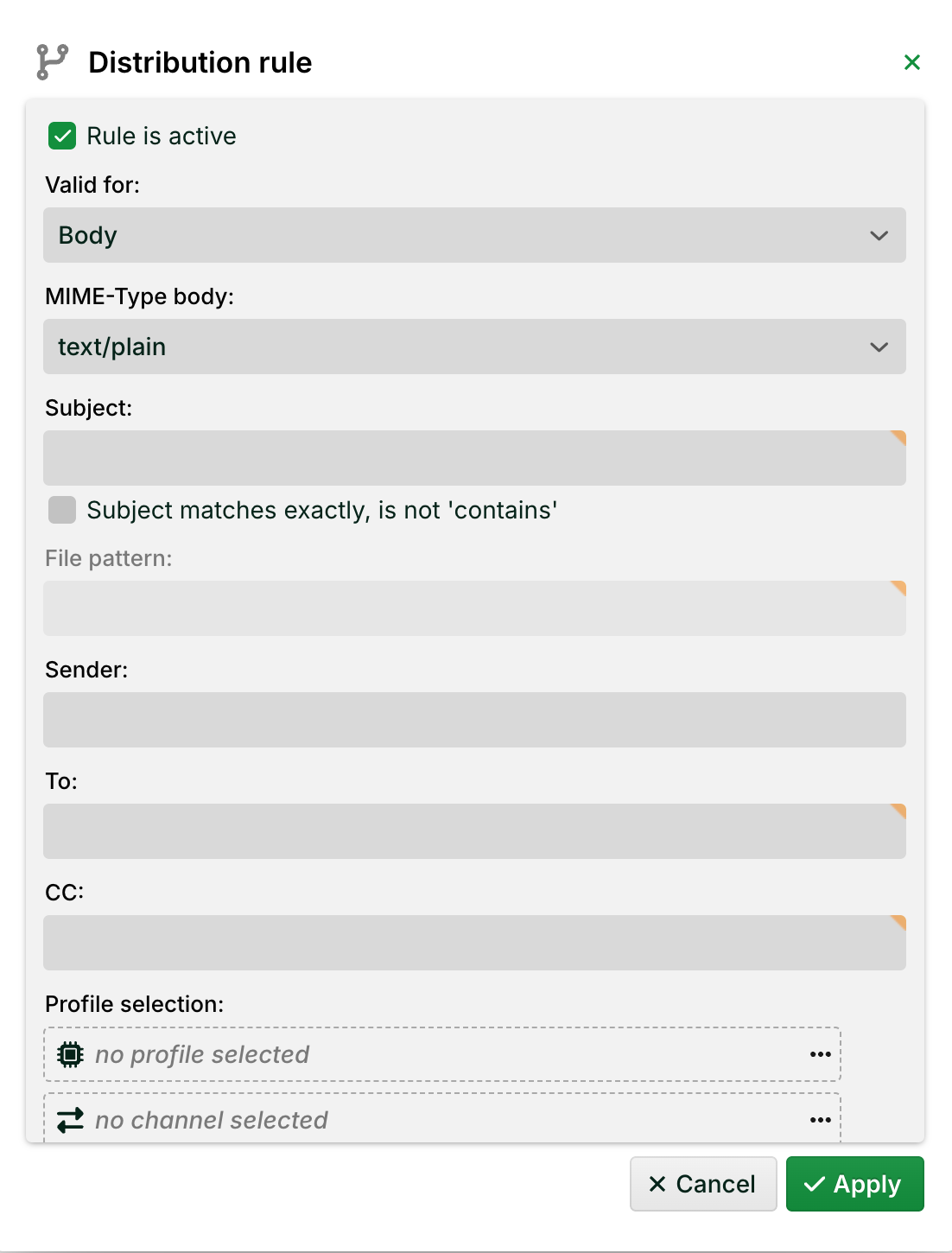
Distribution rule settings dialog
Rule is active: The checkbox activates the rule. The platform skips inactive rules during evaluation.
Valid for: Specifies which part of the e-mail the rule evaluates. Required field. Options: Body, Attachment, or Body & Attachment.
MIME-Type body: The MIME type of the e-mail body the rule accepts. Required field.
One rule per MIME type
A single rule cannot retrieve both HTML and plain text e-mails. Create two separate rules:
One rule with MIME-Type body
text/plainfor plain text e-mails.One rule with MIME-Type body
text/htmlfor HTML e-mails.For other MIME types, behavior is not guaranteed. Test such cases before using them in production.
Subject: The required e-mail subject. Separate multiple values with a pipe |. Use regular expressions with the prefix regex:.
Subject matches exactly, is not "contains": When selected, the subject must match exactly. By default, a partial match is sufficient.
File pattern: The pattern for attachment file names. Separate multiple patterns with a pipe |. This field is only active when Valid for is set to Attachment or Body & Attachment.
Sender: The required sender address of the e-mail.
To: The required recipient address (To field). Separate multiple addresses with ;.
CC: The required CC address of the e-mail.
Profile selection: The processing profile the platform routes the e-mail data to. If you select no profile, the retrieval profile processes the data itself. The processing profile requires an input agent of the Message type. Only such profiles appear for selection.
Channel: Select a comparison channel of the Mail type. Select the comparison option in the dropdown below.
Background: channel ID
Every incoming e-mail receives an internal channel ID. The platform searches for a matching channel based on two criteria:
The Own identifier field of the channel matches the recipient address of the e-mail.
The Partner identifier field of the channel matches the sender address of the e-mail.
For channels of type Mail, Own identifier and Partner identifier are the respective e-mail addresses. The platform compares the channel found this way with the selected channel.
The following options are available as channel comparison options:
Option | Description |
|---|---|
Matches the set channel | The internally determined channel matches the selected channel. |
Matches own identifier | The Own identifier of the selected channel matches the own identifier of the internally determined channel. This corresponds to the recipient address of the incoming e-mail. |
Matches polling channel | The selected channel must match the polling channel. |
Channel is ignored | The selected channel is not evaluated. |
Unmatched e-mails
When no rule matches, the behavior depends on the input agent type.
Scheduled (POP3, IMAP, X.400)
The Unknown Mails field in the input agent controls the behavior. The following options are available:
Store in "unresolved": The platform moves the e-mail to the unresolved area.
Discard: The platform discards the unmatched e-mail.
Further options depending on configuration, for example, delete or ignore.
Event based (SMTP)
By default, the platform discards unmatched SMTP e-mails. To store them in the Unresolved area instead, activate the following setting in ./etc/startup.xml.
<Set name="saveUnknownMails">true</Set>System variables
After successful distribution, the following system variables are available in the processing profile. See also System variables.
Variable | Meaning |
|---|---|
| Subject line of the e-mail. |
| Body text of the e-mail. |
| Value of a specific header. Example: |
| File name of the current attachment. |
| IMAP directory. Available for IMAP and IMAPS only. |
| Job number of the originating job, when another profile triggered the "Mail" input agent. |